Updating your Facebook profile picture is a simple process, yet it significantly impacts your online presence. Whether you want to showcase a new photo or simply refresh your look, this guide provides a straightforward, step-by-step approach to effortlessly change your profile image. We’ll cover everything from accessing the necessary settings to selecting the perfect picture and ensuring its visibility aligns with your privacy preferences.
From desktop to mobile, we’ll navigate the nuances of each platform, ensuring a smooth experience regardless of your device. We’ll also address common issues like image size and formatting, providing practical tips and solutions for a flawless profile picture update.
Accessing Your Facebook Profile and the Profile Picture Area
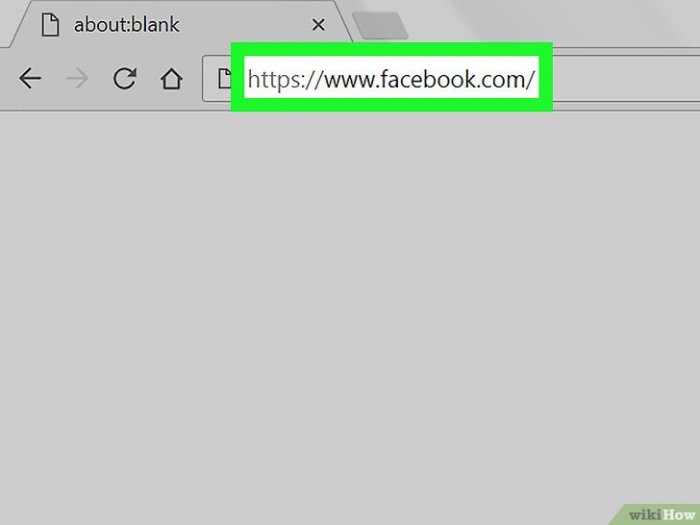
Finding your Facebook profile and the area to change your profile picture is straightforward, regardless of whether you’re using a desktop computer or a mobile device. The process involves navigating to your profile and then locating the designated area for profile picture editing. This section details the steps for both desktop and mobile platforms, along with troubleshooting steps for password recovery.
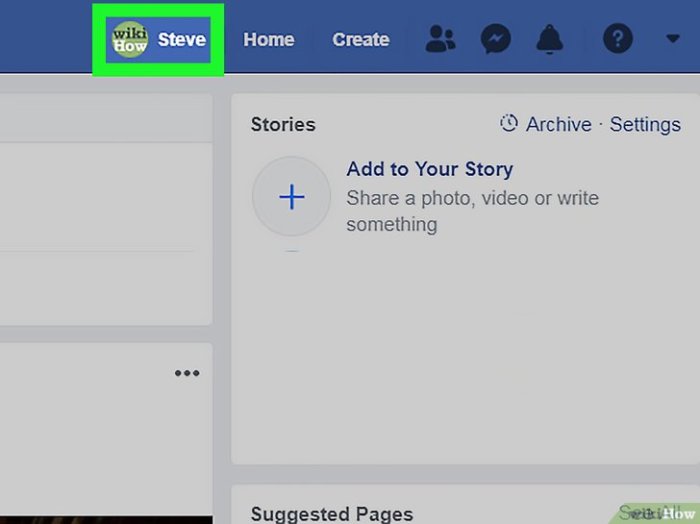
To begin, you’ll need to access your Facebook account. Once logged in, your profile is readily available. The profile picture is usually prominently displayed at the top of your profile page, easily identifiable by its size and circular shape. The method for changing it, however, differs slightly depending on the device you’re using.
Desktop and Mobile Interface Differences for Profile Picture Editing
The user interfaces for editing your profile picture on desktop and mobile differ subtly in terms of button placement and visual presentation.
- Desktop: On a desktop computer, after navigating to your profile, you’ll typically find your profile picture in the upper-left corner. Hovering over the picture often reveals an “Update Profile Picture” option, usually presented as a button or link. This may also appear as a pencil icon overlaying your current profile picture. The process is generally intuitive and visually clear.
- Mobile: On mobile devices (both iOS and Android), the profile picture is also usually located near the top of your profile page. However, the editing option might be represented by a small icon (e.g., a camera icon or three dots menu) directly on or near your profile picture. Tapping this icon will usually initiate the process of uploading a new profile picture.
The overall layout might be slightly more compact due to screen size limitations.
|
Desktop Screenshot Description: This image would show a Facebook profile page on a desktop computer. The profile picture would be clearly visible in the upper-left corner, likely within a larger, circular frame. A small “Update Profile Picture” button or a pencil icon would be shown hovering over or near the profile picture, indicating the area to click to change it. The overall layout would be spacious and clearly labeled. |
Mobile Screenshot Description: This image would display a Facebook profile page on a mobile phone. The profile picture would be positioned near the top of the screen, likely within a circular frame. A small camera icon or a three-dot menu icon would be present either directly on or very close to the profile picture. The layout would be more compact than the desktop version, but still clearly indicate the area to tap for profile picture editing. The overall design would be optimized for smaller screen sizes. |
Facebook Password Recovery
If you’ve forgotten your Facebook password, recovering access is possible through Facebook’s account recovery system.
- Go to the Facebook login page. You’ll see a link or option usually labeled “Forgotten Password” or similar phrasing, often located beneath the password field.
- Click on the “Forgotten Password” link. This will take you to a password recovery page.
- Facebook will then typically prompt you to enter either your email address, phone number, or username associated with your account. Choose the option you remember.
- After entering your information, Facebook will send a code to the selected method (email or phone). Enter this code into the provided field.
- Once verified, you’ll be guided through the process of creating a new password for your Facebook account. Remember to choose a strong and secure password.
Selecting and Uploading a New Profile Picture
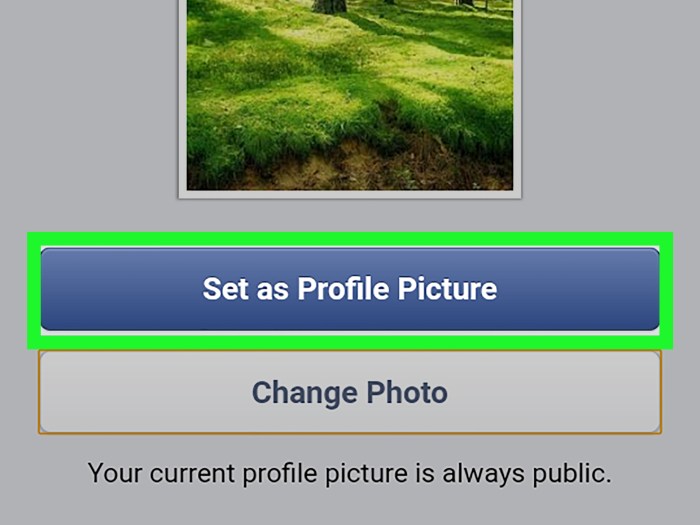
Now that you’ve located the area to change your profile picture, let’s move on to selecting and uploading your new image. This process is straightforward and allows for some customization to ensure your picture looks its best. Remember to choose an image that represents you well and reflects your online persona.
Selecting a new profile picture involves choosing an image file from your computer or mobile device and uploading it to Facebook. Facebook supports a variety of image formats, but there are limitations on file size and recommended aspect ratios to ensure optimal display. Let’s explore these details further.
Supported File Types, Size Limitations, and Recommended Aspect Ratios
Before uploading, it’s crucial to understand Facebook’s specifications for profile pictures. The following table summarizes the key requirements:
| Supported File Types | Size Limitations | Recommended Aspect Ratios |
|---|---|---|
| JPEG, PNG, GIF | Maximum file size varies but generally should be under 100 MB. Larger files may result in upload failures. | 1:1 (square) is ideal. While other aspect ratios may be accepted, they will be automatically cropped to fit a square frame. |
Cropping and Resizing Images Before Uploading
To optimize your profile picture, consider cropping and resizing your image before uploading. This step helps ensure the final image is sharp, clear, and appropriately sized. Many image editing programs (like Photoshop, GIMP, or even built-in photo apps on your phone) allow you to easily crop and resize images while maintaining image quality. Aim to crop out unnecessary elements and resize your image to a size close to Facebook’s suggested dimensions, avoiding extreme scaling that could lead to pixelation.
For example, if your image is too wide, you might crop it to a square to fit Facebook’s ideal 1:1 aspect ratio. Similarly, if your image is too large, reducing its size before upload will make the process faster and smoother. Remember to save your edited image in a supported format (JPEG, PNG, or GIF) before uploading.
Using Facebook’s Built-in Image Editing Tools
Once you’ve selected your image, Facebook often provides basic editing tools directly within the profile picture upload process. These tools typically allow for cropping and rotating your image. While Facebook’s built-in tools may not offer the extensive features of dedicated image editing software, they are convenient for minor adjustments. Use these tools to fine-tune your image before confirming the upload.
For example, you can use the cropping tool to adjust the composition and ensure the most important part of the image is prominently displayed. The rotate tool allows you to correct any unintended rotation of the picture.
Saving and Reviewing Your Updated Profile Picture
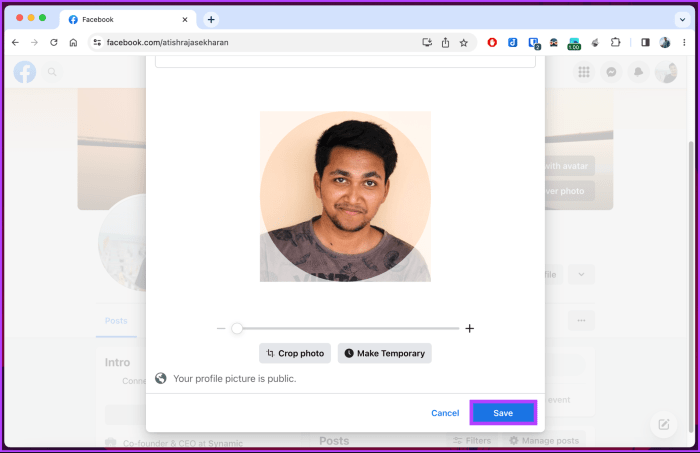
After selecting your new profile picture and clicking “Save,” Facebook will update your profile. This process is usually instantaneous, but there might be a brief delay depending on your internet connection. It’s always a good idea to confirm the changes have been successfully applied across different areas of Facebook.
To verify your new profile picture is live, navigate to various sections of Facebook where your profile picture is displayed. This includes your News Feed, your Profile page, and Messenger. You should see the updated image in all these places. If you don’t, check your internet connection and try refreshing the page. If the issue persists, try logging out and back into your Facebook account.
Profile Picture Appearance Across Facebook Sections
The following table compares the appearance of your new profile picture across different Facebook sections. Note that the size and shape of the picture might vary slightly depending on the specific area, but the image itself should remain consistent.
| Section | Size/Shape | Location | Example |
|---|---|---|---|
| News Feed | Small, circular | Next to your posts and comments | A small, circular version of your uploaded image appears next to your posts and comments within your newsfeed. |
| Profile Page | Large, square or rectangular | Center of your profile page | The largest and most prominent display of your profile picture, typically square or rectangular, is prominently displayed in the center of your profile page. |
| Messenger | Small, circular | Next to your name in chat windows | A small, circular version of your profile picture is visible next to your name in individual and group chats within Messenger. |
Reverting to the Previous Profile Picture
If you’re unhappy with your new profile picture, you can easily revert back to your previous one. Facebook doesn’t offer an immediate “undo” button, but the process is straightforward. Simply repeat the steps for changing your profile picture, selecting your previous image from your photos and following the saving process. Your previous profile picture will replace the current one.
Controlling Profile Picture Privacy Settings
Facebook allows you to control who can see your profile picture. This is crucial for managing your online privacy and ensuring only the intended audience sees your image. The following privacy options are available:
- Public: Anyone on Facebook, even those not connected to you, can see your profile picture.
- Friends: Only your Facebook friends can see your profile picture.
- Friends of Friends: Your friends and their friends can see your profile picture.
- Only Me: Only you can see your profile picture.
To adjust these settings, go to your profile, click on your profile picture, then locate the privacy settings option. This will usually be a small icon or a drop-down menu. Select your desired privacy level from the provided options.
Closing Summary
Changing your Facebook profile picture is more than just updating an image; it’s about presenting yourself online. This guide has equipped you with the knowledge to do so efficiently and effectively. Remember to always prioritize image quality and consider your privacy settings to maintain control over your online identity. With just three easy steps, you can now confidently update your profile picture and express yourself authentically on Facebook.