Sharing your phone’s internet connection via a mobile hotspot is incredibly convenient, transforming your smartphone into a portable Wi-Fi router. But navigating the settings to optimize your hotspot’s performance and security can be tricky. This guide provides a clear, step-by-step approach to understanding and customizing your mobile hotspot settings on both Android and iOS devices, ensuring a seamless and secure connection for all your devices.
We’ll explore the key settings, from choosing a strong password and selecting the appropriate security protocol to managing data usage and troubleshooting common issues. Whether you’re a tech novice or a seasoned user, this guide empowers you to confidently configure your mobile hotspot for optimal performance and peace of mind.
Understanding Mobile Hotspot Settings
Mobile hotspots allow you to share your phone’s internet connection with other devices, transforming your smartphone into a portable Wi-Fi router. This functionality is built into most modern smartphones and offers a convenient way to access the internet on laptops, tablets, or other devices without a direct data connection. Understanding the settings is key to effectively using this feature.Mobile hotspot functionality operates similarly across different operating systems, though the precise location of settings and interface design vary.
Both Android and iOS offer robust mobile hotspot features, enabling users to share their cellular data connection with multiple devices simultaneously. The primary differences lie in the user interface and the exact steps required to enable and configure the hotspot.
Mobile Hotspot Settings Locations and Activation
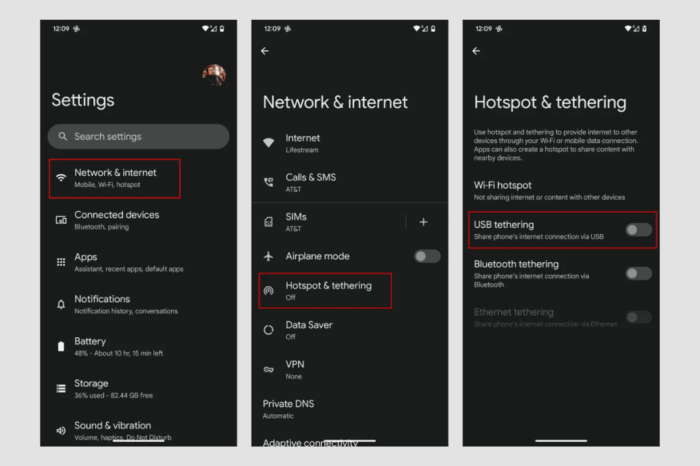
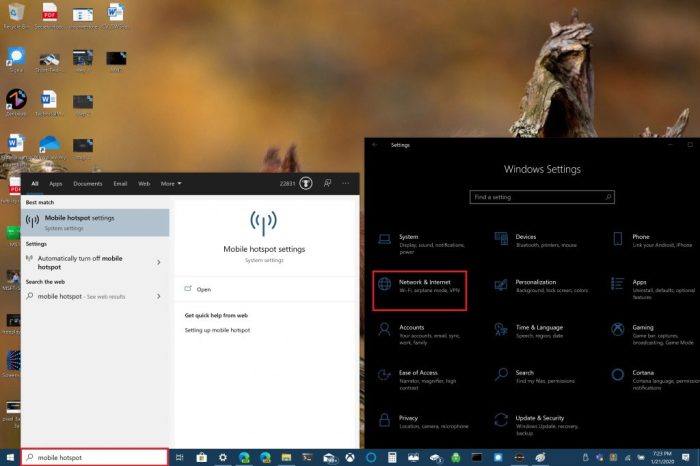
The mobile hotspot settings are typically found within the main settings menu of each operating system. On Android devices, the location can vary slightly depending on the manufacturer and Android version, but it’s generally found under “Network & internet” or a similar section. iOS devices usually locate these settings within the “Personal Hotspot” section accessible through the “Settings” app.Enabling the mobile hotspot typically involves a simple toggle switch or button.
However, further configuration options, such as setting a password for the hotspot’s Wi-Fi network, are also usually available. This ensures security and prevents unauthorized access to your internet connection. Let’s examine the step-by-step process for both Android and iOS.
| Step | Android Description | iOS Description | Screenshot Description (Illustrative) |
|---|---|---|---|
| 1. Access Settings | Open the “Settings” app, usually represented by a gear icon. | Open the “Settings” app, usually represented by a grey icon with gears. | Android: A grey gear icon on a predominantly white or light-colored background. iOS: A similar grey gear icon on a similar background. |
| 2. Locate Hotspot Settings | Navigate to “Network & internet” or a similar section. Then, find “Hotspot & tethering” or a similarly named option. | Locate and tap “Personal Hotspot.” | Android: A screen showing various network options, with “Hotspot & tethering” highlighted. iOS: A screen with various connectivity options, with “Personal Hotspot” clearly visible. |
| 3. Enable Hotspot | Toggle the “Mobile Hotspot” switch to the “On” position. | Toggle the “Personal Hotspot” switch to the “On” position. | Android: A screen showing the “Mobile Hotspot” toggle switch changing from grey (off) to green (on). iOS: A similar screen showing the “Personal Hotspot” toggle switch changing from grey (off) to green (on). |
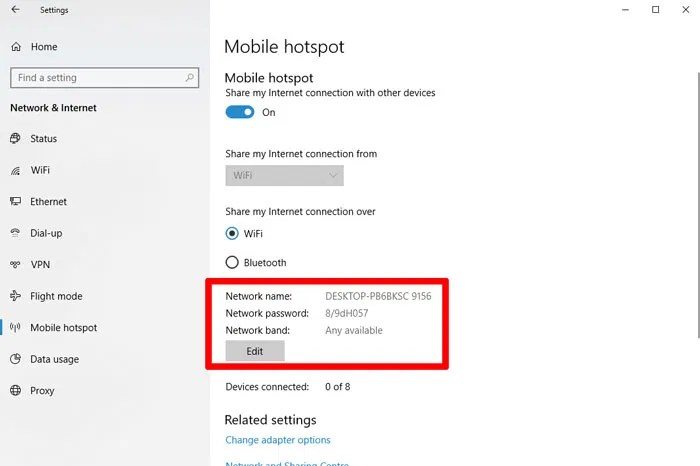
| 4. Configure Hotspot (Optional) | Set a password for your hotspot’s Wi-Fi network to secure your connection. You can also usually adjust the hotspot name (SSID). | Set a password for your hotspot’s Wi-Fi network. You can also rename the hotspot. | Android: A screen displaying fields for entering the hotspot name (SSID) and password. iOS: A similar screen with fields for the hotspot name and password. |
Configuring Mobile Hotspot Settings
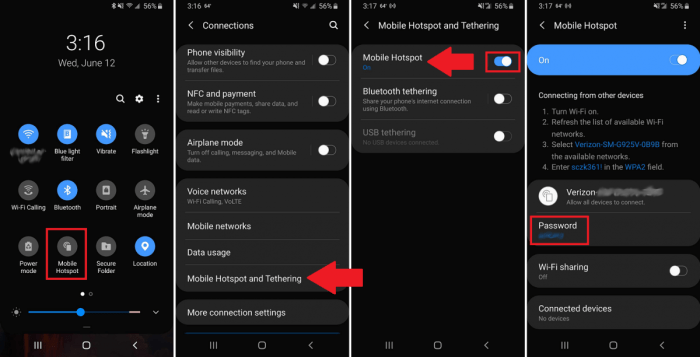
Setting up your mobile hotspot involves more than just turning it on. Customizing various settings allows you to optimize security and manage data usage effectively. This section details the key options available and their implications.
Your mobile device’s operating system provides a range of options to tailor your mobile hotspot experience. These settings allow you to control access, manage data consumption, and enhance the security of your shared network.
Network Name (SSID) and Password
The Network Name, or SSID, is the identifier that appears in the list of available Wi-Fi networks for devices seeking to connect to your hotspot. Choosing a unique and easily recognizable SSID helps prevent accidental connections to your hotspot by unauthorized users. A strong password is crucial for security. The password protects your hotspot from unauthorized access and prevents others from using your data plan without your permission.
Security Protocols: WPA2 vs. WPA3
Selecting the appropriate security protocol is critical for safeguarding your hotspot and the data transmitted over it. WPA2 and WPA3 are the most common protocols, each offering different levels of protection.
- WPA2 (Wi-Fi Protected Access II):
- Pros: Widely compatible with older devices; relatively secure if strong passwords are used.
- Cons: Vulnerable to certain attacks, especially if using weak passwords or outdated firmware. Considered less secure than WPA3.
- WPA3 (Wi-Fi Protected Access III):
- Pros: Offers enhanced security compared to WPA2; more resistant to various attacks; uses stronger encryption.
- Cons: May not be compatible with all older devices; potentially slightly slower connection speeds than WPA2 (though the difference is usually negligible).
It’s generally recommended to use WPA3 if your devices support it, prioritizing stronger security. However, if compatibility with older devices is a concern, WPA2 with a robust password remains a viable option.
Data Limits
Setting data limits on your mobile hotspot allows you to control the amount of data used by connected devices, preventing unexpected overages on your mobile data plan. This is particularly important if you have a limited data allowance. By setting a limit, you can receive alerts when your hotspot approaches its data limit, giving you the opportunity to disconnect devices or reduce data usage.
Data Usage Scenarios and Impact
The following table illustrates potential data usage scenarios and their effect on your overall data allowance. These are estimations and actual usage may vary depending on activity.
| Scenario | Approximate Data Usage (GB) | Impact on 10GB Data Plan |
|---|---|---|
| Streaming a movie (HD) | 3-5 | Significant portion used |
| Video conferencing (1 hour) | 0.5-1 | Moderate usage |
| Web browsing (several hours) | 0.5-2 | Moderate usage |
| Downloading a large file (several GB) | Variable (depends on file size) | Potentially significant, or even exceeding the limit |
| Online gaming (several hours) | 1-3 | Moderate to significant usage |
Troubleshooting Common Mobile Hotspot Issues
Successfully setting up a mobile hotspot is only half the battle. Many users encounter various issues that can disrupt their internet access. Understanding these common problems and their solutions is crucial for a smooth and reliable hotspot experience. This section will address frequent problems and provide practical troubleshooting steps.
Slow Hotspot Speeds
Slow speeds are a common complaint. Several factors can contribute to this, including network congestion, weak signal strength, and excessive data usage by connected devices. The following steps can help diagnose and resolve slow speeds.
- Check your cellular signal strength: A weak signal directly impacts hotspot performance. Move to an area with better reception or consider a signal booster if necessary. Observe the signal bars on your phone; a full signal usually indicates optimal performance.
- Limit the number of connected devices: Each connected device consumes bandwidth. Reducing the number of devices connected simultaneously can significantly improve speeds for each individual device. Prioritize devices that need higher bandwidth.
- Restart your phone and connected devices: A simple restart can often resolve temporary software glitches that might be affecting network performance. This clears the cache and restarts network connections.
- Check for network congestion: Network congestion occurs when many users are accessing the same cell tower. If this is the case, there’s little you can do besides trying a different location or waiting for less congestion.
- Check your data plan: If you’ve exceeded your data limit, your carrier might throttle your speeds. Monitor your data usage (detailed below) and consider upgrading your plan if necessary.
Intermittent Hotspot Connections
Dropped connections are frustrating. These disruptions can stem from signal interference, network issues, or problems with your phone’s software.
- Check for signal interference: Metal objects, thick walls, and other electronic devices can interfere with your phone’s signal. Try moving to a location with less interference.
- Restart your phone and router (if applicable): Similar to slow speeds, restarting your devices can resolve temporary software issues causing connection drops.
- Update your phone’s software: Outdated software can contain bugs that affect network connectivity. Ensure your phone’s operating system is up-to-date.
- Check for network outages: Contact your mobile carrier to check for any reported network outages in your area.
- Check for conflicting network settings: Sometimes conflicting network settings on your phone can cause connectivity problems. Consider resetting your network settings (this will erase saved Wi-Fi passwords, so remember them!).
Mobile Hotspot Password Issues
Incorrect passwords prevent devices from connecting to your hotspot. Ensure you’re entering the correct password and that it hasn’t been changed inadvertently.
- Double-check the password: Carefully verify the password displayed on your phone’s hotspot settings. Pay close attention to capitalization and any special characters.
- Reset the password: If you’ve forgotten the password, you can usually reset it within your phone’s hotspot settings. This will generate a new password.
- Ensure the password is shared correctly: When sharing the password with others, make sure you’re communicating it accurately to avoid errors.
Checking Data Usage
Monitoring data usage is vital to avoid unexpected charges. The process varies slightly depending on your phone’s operating system and carrier, but generally involves accessing your phone’s settings. For Android phones, you typically navigate to Settings > Network & internet > Data usage. For iPhones, go to Settings > Cellular or Mobile Data. Here you’ll find details of your current data usage, both overall and per app.
You might also find options to set data limits or receive warnings when nearing your data allowance.
It is crucial to regularly monitor your data usage, especially when using a mobile hotspot, as this can consume data much faster than typical smartphone usage. Consider setting data usage alerts to prevent exceeding your plan’s limit and incurring extra charges. Understand your data plan’s limits and pricing to avoid unexpected bills.
Concluding Remarks
Mastering your mobile hotspot settings unlocks a world of connectivity possibilities. By understanding the various options and troubleshooting techniques Artikeld in this guide, you can transform your smartphone into a reliable Wi-Fi source, readily sharing your internet connection with other devices. Remember to prioritize strong security protocols and monitor your data usage to maintain a secure and cost-effective mobile hotspot experience.
Enjoy the convenience and flexibility of always having internet access at your fingertips!