Optimizing your Fitbit profile to align with your fitness aspirations is key to maximizing its functionality. This guide will walk you through the process of updating your personal information, setting realistic fitness goals, and personalizing your dashboard for optimal tracking and motivation. We’ll explore how to effectively utilize Fitbit’s features to monitor your progress and celebrate your achievements.
From adjusting your profile details like height and weight to setting daily step goals and customizing notifications, we’ll cover all aspects of tailoring your Fitbit experience to best support your journey. Understanding how to interpret the data presented and utilize Fitbit’s tools will empower you to achieve your fitness objectives efficiently and effectively.
Updating Your Fitbit Profile Information
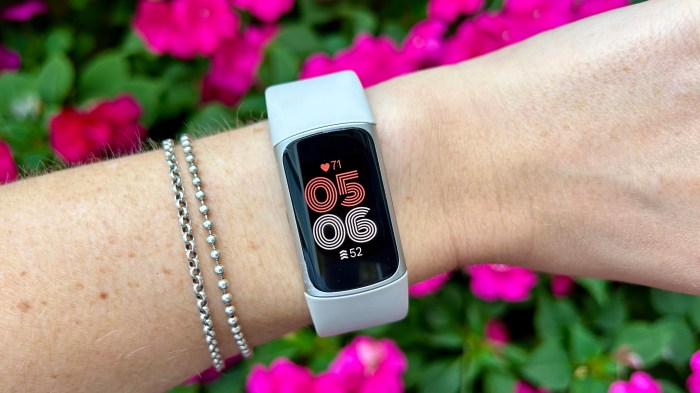
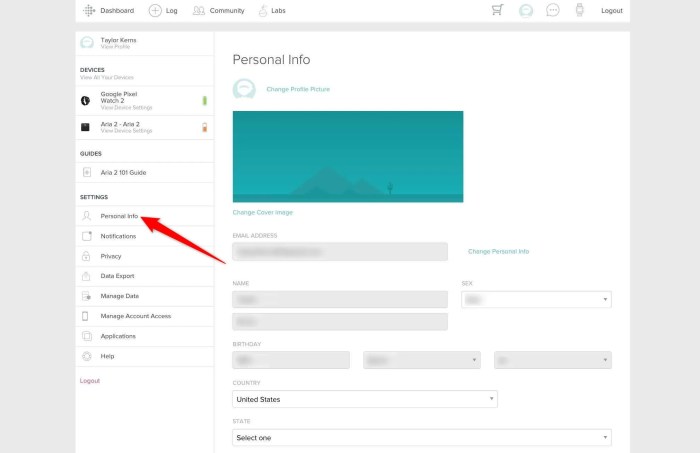
Accurately reflecting your personal details in your Fitbit profile is crucial for personalized data tracking and analysis. Ensuring your information is up-to-date allows your Fitbit to provide you with the most accurate health and fitness insights. This section details how to modify your profile information across both the Fitbit app and website.
Modifying Personal Information: Name, Age, and Gender
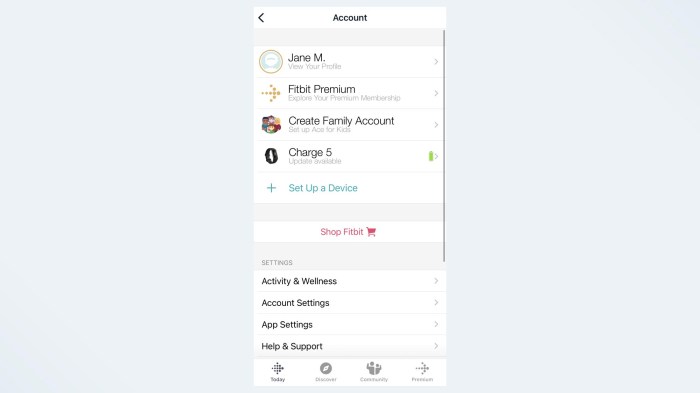
Updating your name, age, and gender is straightforward. Within the Fitbit app, navigate to your profile, typically accessible through a profile icon (often a silhouette of a person) usually found in the top right corner of the main dashboard. Tap on your name at the top of the profile screen. This will take you to a screen where you can edit your name, age, and gender.
Make the necessary changes and save. The process is similar on the Fitbit website; you will usually find a similar profile section in the settings or account menu. Remember to save your changes after making any adjustments.
Updating Height and Weight
Accurate height and weight are essential for calculating metrics such as BMI and calorie expenditure. To update this information, within the Fitbit app, navigate to your profile section. Look for a section dedicated to personal information, often under a heading such as “Profile” or “Personal Settings.” You should find fields to input your height and weight; ensure you use the appropriate units (e.g., centimeters or inches for height, kilograms or pounds for weight).
After entering the correct data, save your changes. The website version will have a similar section within your profile settings.
Adding or Modifying Your Profile Picture
A profile picture adds a personal touch to your Fitbit experience. In the Fitbit app, within your profile section, look for an option to change or add a profile picture. This is often represented by a camera icon or the option to “Edit Profile Picture.” You can then choose a picture from your phone’s gallery or take a new one.
Once selected, save the changes. The process is largely the same on the Fitbit website; you will find an option to upload or change your profile image within your profile settings.
Step-by-Step Guide to Changing Profile Information on a Fitbit Device
While most profile edits are done via the app or website, some basic information may be editable directly on the device itself (depending on the specific Fitbit model). The process varies greatly depending on the device.
- Screenshot 1 Description: The initial screen displays the Fitbit device’s main clock face. The time is shown prominently, and there’s a small icon indicating battery life.
- Screenshot 2 Description: The user navigates to the settings menu, shown as a gear icon, and the menu is displayed on the screen, with options such as “Profile,” “Clock,” “Notifications,” etc. clearly visible.
- Screenshot 3 Description: The user has selected the “Profile” option, and a screen shows fields for “Name,” potentially “Age,” and maybe a simplified height/weight entry, if available on that specific device. Some devices may only allow basic name changes directly on the device itself.
- Screenshot 4 Description: The user has made the desired changes and saved the information. A confirmation message or return to the main clock face indicates a successful update.
Comparison of Profile Editing Options: Fitbit App vs. Website
| Feature | Fitbit App | Fitbit Website |
|---|---|---|
| Name Change | Supported, easy access via profile section. | Supported, accessible through account settings. |
| Age Change | Supported, usually within the same section as name change. | Supported, located within account settings. |
| Gender Change | Supported, typically in the same section as name and age. | Supported, within the account settings section. |
| Height/Weight Update | Supported, often found within the “Profile” or “Personal Settings” section. | Supported, usually found within the account settings or profile management area. |
| Profile Picture | Supported, typically offers options to upload from phone’s gallery or take a new photo. | Supported, allows uploading a picture from your computer. |
Setting and Tracking Fitness Goals
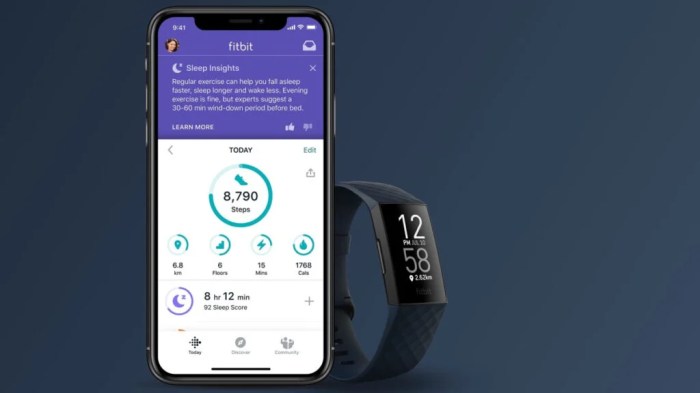
Setting and tracking fitness goals is crucial for maximizing the benefits of your Fitbit. By defining achievable targets and monitoring your progress, you’ll stay motivated and see tangible results in your fitness journey. This involves choosing appropriate goals, utilizing Fitbit’s features, and understanding the data presented to you.
Personalized Goal Setting
Fitbit allows you to set personalized goals for daily steps, active minutes, and calories burned. The app guides you through the process, often suggesting starting points based on your current activity levels. You can adjust these goals upward or downward as you progress, ensuring they remain challenging yet attainable. For example, if you’re currently averaging 5,000 steps a day, you might start by setting a goal of 6,000 steps, gradually increasing it over time.
Similarly, you can adjust your active minutes or calorie burn goals based on your fitness level and progress.
Choosing Realistic Goals
Choosing realistic goals is key to long-term success. Starting with overly ambitious targets can lead to discouragement and abandonment of your fitness plan. Consider your current fitness level, lifestyle, and any pre-existing health conditions. If you’re new to exercise, begin with modest goals and gradually increase the intensity and duration of your workouts. For example, if you are sedentary, aim for a gradual increase in daily steps, rather than a sudden jump from 2,000 to 10,000.
Listen to your body and adjust your goals as needed.
Fitbit Challenges
Fitbit offers various challenges, both individual and group-based, to boost motivation. These challenges can involve step counts, active minutes, or other fitness metrics. Joining existing challenges or creating your own with friends and family can add a competitive element and enhance your commitment to your goals. For example, a 7-day step challenge with friends could involve a shared leaderboard and encourage friendly competition, leading to increased daily activity.
Data Interpretation and Progress Monitoring
Your Fitbit provides detailed data on your daily activity, sleep patterns, and heart rate. Regularly reviewing this data allows you to monitor your progress toward your goals and make necessary adjustments. For instance, if you consistently fall short of your step goal on certain days, you can analyze your daily routine to identify opportunities to incorporate more movement.
The app also provides visualizations, such as graphs and charts, which can help you easily identify trends and patterns in your activity levels.
Goal-Setting Options within the Fitbit App
The Fitbit app offers several ways to set goals:
- Daily Step Goal: This is a common starting point, easily adjustable based on your progress. Advantage: Simple and widely understood. Disadvantage: May not fully capture the intensity of your activity.
- Active Zone Minutes: This tracks the time spent in different heart rate zones (fat burn, cardio, peak). Advantage: Measures intensity, not just duration. Disadvantage: Requires a heart rate tracking device.
- Calorie Burn Goal: This focuses on the total calories expended. Advantage: Directly related to weight management. Disadvantage: Can be influenced by factors other than exercise.
- Distance Goal: This tracks the distance covered, useful for runners or walkers. Advantage: Good for tracking progress in endurance activities. Disadvantage: Less relevant for those who primarily focus on strength training.
Personalizing Your Fitbit Dashboard and Notifications
Optimizing your Fitbit experience involves tailoring both your dashboard display and notification settings to best reflect your fitness goals. A well-organized dashboard provides immediate access to crucial metrics, while customized notifications offer timely encouragement and progress updates. This allows for a more engaging and effective fitness journey.
Dashboard Customization
The Fitbit dashboard is highly customizable, allowing users to prioritize the data most relevant to their objectives. You can rearrange tiles, choosing which metrics are prominently displayed and their order of appearance. This allows for a personalized overview of your daily activity. For example, a user focused on weight loss might prioritize weight, body fat percentage, and calories burned, while a runner might emphasize distance, pace, and active minutes.
The process typically involves selecting a tile, holding it, and then dragging it to the desired location on the dashboard. Additional tiles can often be added or removed from the available options depending on the device and connected apps.
Notification Setup
Setting up notifications is a key component of staying motivated and informed about your progress. Fitbit devices offer a range of notification options to suit individual preferences. These include daily summaries highlighting your overall activity, achievement badges for reaching milestones, and personalized reminders to stay active. Some devices also allow for customized notifications, such as alerts when you reach specific activity goals or when your heart rate exceeds a predetermined threshold.
Notification Types and Customization
Fitbit provides various notification types. Daily summaries offer a comprehensive overview of your daily activity, including steps, distance, calories burned, and sleep duration. Achievement badges provide positive reinforcement upon reaching specific milestones, such as completing a certain number of workouts or achieving a personal best. Reminders encourage consistent activity throughout the day, prompting you to get moving if you’ve been inactive for a period.
The level of customization varies across Fitbit devices. Some models offer more extensive options for customizing notification frequencies and types. For example, you might be able to set the time of day for receiving daily summaries or choose which achievements trigger a notification.
Notification Settings Across Fitbit Devices
The specific notification options available can differ depending on your Fitbit device model. Generally, newer models offer more comprehensive customization options than older ones. For instance, some smartwatches might allow for more detailed heart rate notifications or the ability to receive notifications directly on your wrist, while basic activity trackers may only provide notifications via the Fitbit app.
Always refer to your device’s user manual for the most accurate and up-to-date information regarding its notification capabilities.
Example: Customized Dashboard for Weight Loss
Imagine a Fitbit dashboard designed for a user focused on weight loss. The largest tile prominently displays their current weight, presented as a clear numerical value with a graph showing weight trend over time. A smaller tile below shows their daily calorie intake versus their calorie expenditure, visually indicating a calorie deficit or surplus. Another tile displays their daily steps, serving as a proxy for overall activity levels and contributing to calorie expenditure.
Finally, a smaller tile displays their sleep duration and quality, as sufficient sleep is crucial for weight management and overall well-being. The overall color scheme might use calming blues and greens, contributing to a positive and encouraging visual experience. The dashboard’s design emphasizes clear, concise data presentation with an emphasis on the metrics most directly related to weight loss.
Final Summary
By effectively utilizing the tools and features within the Fitbit app and website, you can transform your device into a personalized fitness companion. From accurately reflecting your physical attributes to strategically setting and tracking your goals, the ability to customize your dashboard and notifications ensures that your Fitbit experience is both informative and motivating. Remember, consistency and a realistic approach are crucial for achieving your fitness goals, and your Fitbit can be a valuable ally along the way.