Frustrated by lag, low frame rates, and stuttering gameplay? Unlocking smoother, more responsive gaming experiences often hinges on understanding and optimizing your game’s settings. This guide delves into the intricacies of game performance, providing practical strategies to enhance your gameplay regardless of your hardware’s capabilities. We’ll explore how different graphics settings impact performance, guide you through in-game and system-level optimizations, and equip you with the knowledge to troubleshoot common performance bottlenecks.
From identifying resource-intensive elements within your games to fine-tuning graphics options and system configurations, we’ll provide a comprehensive approach to maximizing your gaming experience. Learn how to effectively monitor your system’s performance, understand the trade-offs between visual fidelity and frame rates, and ultimately, enjoy a significantly improved gaming experience.
Identifying Performance Bottlenecks
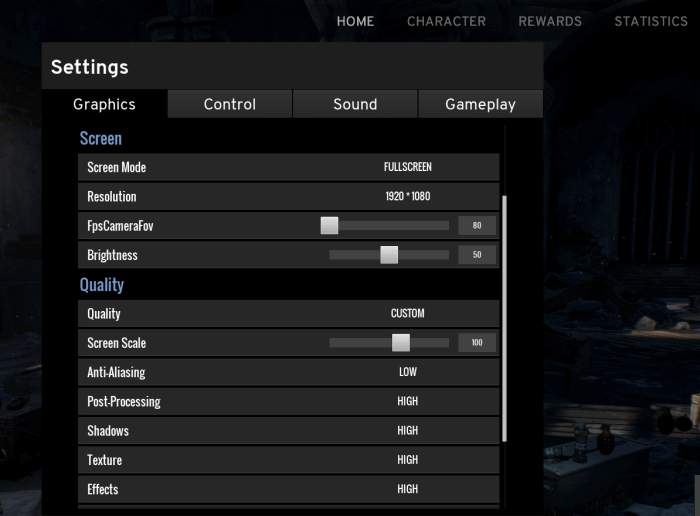
Game performance issues, such as low frames per second (FPS), lag, and stuttering, significantly impact the gaming experience. Understanding the root causes of these problems is crucial for optimizing your game settings and achieving smoother gameplay. This section will explore common performance bottlenecks and provide methods for identifying them.Poor game performance stems from a mismatch between the game’s demands and your system’s capabilities.
Games require various system resources, primarily the CPU, GPU, and RAM, to render graphics, process physics calculations, manage AI, and handle other tasks. If the game’s requirements exceed your system’s capacity in any of these areas, performance will suffer. For instance, a graphically demanding game might overwhelm a weaker GPU, leading to low FPS. Similarly, complex physics simulations or large numbers of AI characters could overload the CPU, causing lag or stuttering.
System Resource Usage Monitoring
Monitoring your system’s performance during gameplay is essential for identifying bottlenecks. Several tools can provide real-time data on CPU usage, GPU utilization, RAM consumption, and FPS. Popular options include the built-in task manager (Windows) or Activity Monitor (macOS), as well as third-party applications like MSI Afterburner, RivaTuner Statistics Server, or FRAPS. These tools allow you to observe resource usage while playing and pinpoint which component is struggling the most.A step-by-step guide to monitoring performance is as follows:
1. Choose a monitoring tool
Select a tool based on your operating system and preferences.
2. Start monitoring
Launch the chosen tool and begin playing the game.
3. Observe resource usage
Pay close attention to CPU, GPU, and RAM usage during gameplay. Look for spikes or consistently high usage percentages.
4. Identify bottlenecks
If the CPU usage is consistently near 100%, the CPU is likely the bottleneck. Similarly, high GPU usage indicates a GPU bottleneck, and high RAM usage points to a RAM bottleneck. Low FPS often correlates with a bottleneck in one of these components.
5. Record data
Take note of the resource usage values at various points during gameplay, especially during moments of low performance.The following table summarizes common performance metrics and their impact:
| Metric | Current Value | Recommended Value | Impact on Performance |
|---|---|---|---|
| FPS (Frames Per Second) | (Example: 30 FPS) | (Example: 60 FPS or higher) | Lower FPS leads to choppy gameplay. |
| CPU Usage | (Example: 95%) | (Example: Below 80%) | High CPU usage can cause lag and stuttering. |
| GPU Usage | (Example: 98%) | (Example: Below 85%) | High GPU usage can result in low FPS and visual artifacts. |
| RAM Usage | (Example: 90%) | (Example: Below 80%) | High RAM usage can lead to stuttering and crashes. |
Identifying Resource-Intensive Game Elements
Pinpointing specific in-game elements that strain your system helps you make targeted adjustments to your settings. High-resolution textures, complex shaders, advanced physics simulations, and large numbers of AI characters or NPCs are common culprits.By systematically adjusting graphical settings (textures, shadows, anti-aliasing, etc.) and observing their effect on performance, you can determine which settings have the biggest impact. Similarly, lowering the number of AI characters or simplifying physics simulations can improve performance.
Experimentation and observation are key to identifying these resource hogs.
Adjusting Graphics Settings for Optimization
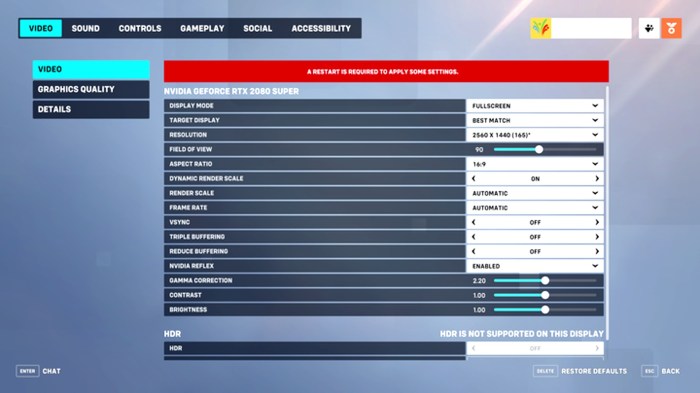
Optimizing your game’s graphics settings is crucial for achieving a smooth and enjoyable gaming experience. By understanding the impact of different settings and tailoring them to your hardware capabilities, you can significantly improve performance without sacrificing too much visual fidelity. This involves a careful balance between visual quality and frame rate, and the following sections will guide you through this process.
Impact of Different Graphics Settings on Performance
Different graphics settings significantly affect both visual quality and performance. Resolution directly impacts the number of pixels rendered, with higher resolutions demanding more processing power. Shadows, especially those with high detail and resolution, are computationally expensive. Texture quality affects the level of detail in surfaces, with higher-resolution textures increasing the video memory load. Anti-aliasing smooths jagged edges, but this process is also resource-intensive.
Reducing the settings for these options will generally improve frame rate, while increasing them will improve visual quality at the cost of performance. For example, lowering the shadow quality from “High” to “Medium” might yield a noticeable frame rate increase, while the difference in visual fidelity may be subtle to the average player. Similarly, switching from 4K resolution to 1080p can dramatically improve performance, especially on less powerful hardware.
Best Practices for Adjusting Graphics Settings Based on Hardware Limitations
Optimizing graphics settings based on hardware requires a systematic approach. Start by identifying your system’s limitations—a low-end graphics card will benefit most from reducing resolution and other settings, while a high-end card might only need minor adjustments. Begin by lowering settings that have the biggest impact on performance, such as resolution and shadow quality. Then, progressively reduce other settings like texture quality and anti-aliasing until a satisfactory balance between visual quality and frame rate is achieved.
Monitor your frame rate using in-game tools or third-party applications to track the impact of each change. Remember, even small adjustments can make a significant difference. For instance, if your system struggles with 60 FPS at 1080p high settings, reducing the resolution to 900p or lowering the shadow quality to medium might resolve the issue.
Decision-Making Process for Optimizing Graphics Settings
The following flowchart illustrates a step-by-step process for optimizing graphics settings:[Imagine a flowchart here. The flowchart would start with “Assess Hardware,” branching to “High-End Hardware” and “Low-End Hardware.” The High-End branch would lead to “Fine-tune settings for optimal visuals,” while the Low-End branch would lead to “Reduce resolution significantly.” Both branches would then converge to “Monitor Frame Rate.” If the frame rate is satisfactory, the process ends; otherwise, it loops back to “Adjust Graphics Settings” with a suggestion to lower settings progressively, starting with resolution, shadows, textures, and anti-aliasing.
A final step could be “Test and Iterate.”]
Comparison of DirectX and Vulkan Rendering Techniques
DirectX and Vulkan are two popular rendering APIs used in games. They both handle the communication between the game and the graphics hardware, but they differ in their architecture and performance characteristics.DirectX:
- Mature and widely supported API.
- Generally easier to develop for.
- Can offer good performance, but often less efficient than Vulkan.
- Heavily reliant on the operating system.
Vulkan:
- More modern and low-level API.
- Offers greater control over hardware resources, potentially leading to better performance.
- Steeper learning curve for developers.
- Generally considered more efficient in terms of CPU usage.
The choice between DirectX and Vulkan often depends on the game engine, developer preference, and the target hardware. While Vulkan can often provide better performance, particularly on higher-end hardware, the difference may not always be significant, and DirectX’s wider support and easier development make it a popular choice.
Optimizing In-Game Settings and System Configuration
Optimizing your in-game settings and system configuration is crucial for achieving the best possible performance in your games. By carefully adjusting various settings, both within the game itself and within your operating system, you can significantly improve frame rates, reduce lag, and enhance your overall gaming experience. This section will guide you through the key areas to focus on.
In-Game Performance Options
Understanding and adjusting in-game settings directly impacts performance. Options like VSync, FPS limits, and shadow quality all contribute to the balance between visual fidelity and frame rate. VSync, or Vertical Synchronization, synchronizes your game’s frame rate with your monitor’s refresh rate. While it eliminates screen tearing, it can introduce input lag and reduce your frame rate, especially on systems that struggle to maintain a consistent frame rate matching the monitor refresh.
An FPS limit caps your game’s frames per second, which can help stabilize performance and reduce CPU or GPU strain. Experimenting with these settings to find the optimal balance for your system is key. Other options like anti-aliasing, texture quality, and shadow detail significantly impact performance; lowering these settings can often result in a substantial increase in frames per second without a noticeable loss in visual quality for many players.
System-Level Optimizations
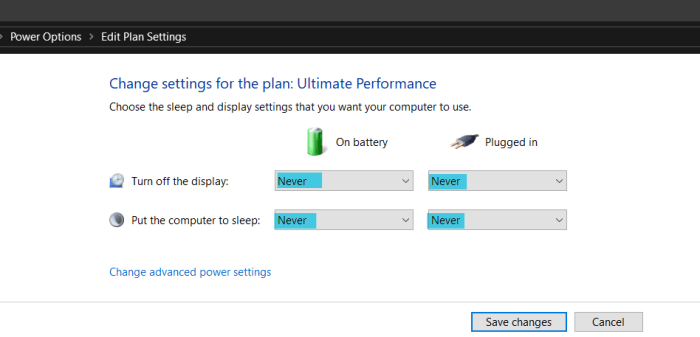
Maintaining your system’s health is as crucial as optimizing in-game settings. Several system-level optimizations can dramatically improve gaming performance. Regular driver updates ensure you have the latest performance enhancements and bug fixes for your graphics card and other hardware. Closing unnecessary background applications frees up system resources, allowing your game to access more processing power and RAM. Finally, adjusting your power settings to a high-performance mode can prioritize power delivery to your components, boosting performance during gaming sessions.
Configuring Windows Settings for Optimal Gaming Performance
Windows offers several settings that can be adjusted for better gaming performance. Disabling unnecessary startup programs reduces the load on your system at boot, leading to faster game launches and smoother gameplay. Prioritizing game processes in the Task Manager ensures they receive sufficient resources. Additionally, adjusting Windows’ visual effects settings to a “Performance” profile can significantly improve your frame rate.
This often involves turning off animations and visual flourishes which can be demanding for older hardware.
Performance Setting Comparison
The following table compares default and optimized settings, along with potential performance gains. These values are estimates and can vary based on individual system configurations and game titles.
| Setting | Default Value | Optimized Value | Performance Gain (Estimate) |
|---|---|---|---|
| VSync | Enabled | Disabled | 5-20 FPS |
| FPS Limit | Unlimited | Monitor Refresh Rate | Improved Stability |
| Shadow Quality | High | Medium or Low | 10-30 FPS |
| Anti-Aliasing | High | Medium or Off | 10-20 FPS |
| Texture Quality | High | Medium | 5-15 FPS |
| Background Processes | Many Running | Minimized | Variable, but significant |
| Power Plan | Balanced | High Performance | 5-10 FPS |
Ending Remarks
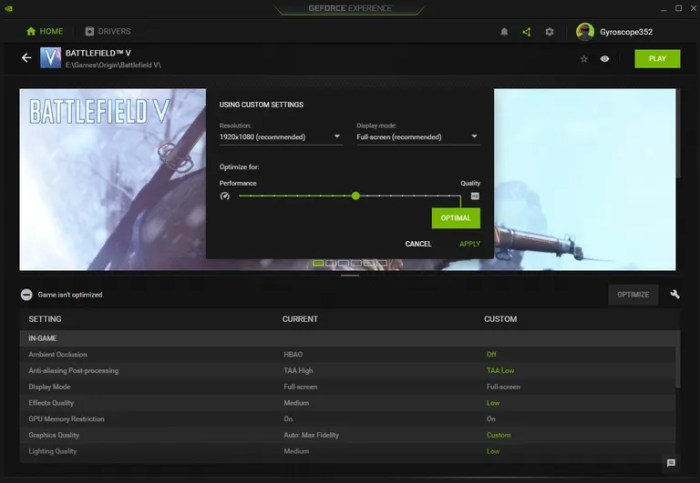
By strategically adjusting graphics settings, optimizing in-game options, and implementing system-level tweaks, you can significantly improve your gaming performance. Remember that the optimal settings will vary depending on your specific hardware and the demands of the game. Through consistent monitoring and iterative adjustments, you can fine-tune your configuration for a smooth, enjoyable gaming experience, maximizing your frame rates and minimizing frustrating lag.
Experiment, observe the results, and tailor your settings to create the perfect balance between visual quality and performance.