Seamlessly navigating the digital world often requires typing in multiple languages. This guide provides a comprehensive walkthrough of how to effortlessly switch between keyboard layouts, covering various operating systems and addressing common challenges. Whether you’re a seasoned polyglot or simply need to type in a different language occasionally, mastering keyboard layout changes enhances efficiency and expands your online capabilities.
We’ll explore the fundamental concepts of keyboard layouts, examining the differences between physical and software-based configurations. Detailed instructions for Windows, macOS, Android, and iOS will be provided, along with troubleshooting tips and advanced techniques for customizing your typing experience. By the end, you’ll confidently switch between languages with ease.
Understanding Keyboard Layouts and Language Support
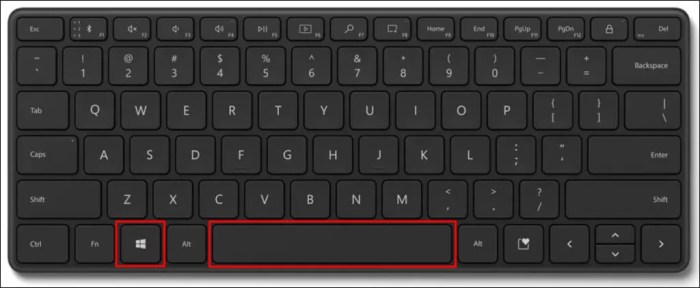
Keyboard layouts are the fundamental link between the physical keys on your keyboard and the characters they produce on your screen. Different languages utilize different alphabets, character sets, and even punctuation, necessitating distinct keyboard layouts to accommodate these variations. Understanding these layouts is crucial for seamless multilingual typing.Keyboard layouts can be broadly categorized as physical and software-based. Physical layouts refer to the actual arrangement of keys on the keyboard itself; these are fixed and cannot be easily changed.
Software-based layouts, on the other hand, are virtual mappings defined within your operating system. They allow you to reconfigure the key assignments without altering the physical keyboard. This flexibility is essential for switching between different languages and typing styles.
Identifying Your Current Keyboard Layout
Determining your current keyboard layout is a straightforward process. The method varies slightly depending on your operating system, but the general principle remains the same: accessing your system settings and navigating to the keyboard or language preferences. For Windows users, this typically involves going to “Settings,” then “Time & language,” and finally “Language & region.” macOS users can find similar options within “System Preferences,” under “Keyboard.” Once there, you’ll see a list of installed keyboard layouts and your currently active one.
You might also find the layout indicated in the system tray (the area near the clock) or within the text input field itself.
Comparison of Popular Keyboard Layouts
The following table compares four popular keyboard layouts, highlighting their differences and typical language suitability. While QWERTY is the most prevalent, others offer potential ergonomic or typing speed advantages, though adoption rates remain lower.
| Layout | Origin | Characteristics | Language Suitability |
|---|---|---|---|
| QWERTY | United States | Standard layout, familiar to most users. | English, many other languages (often requiring additional character mapping). |
| AZERTY | France | Similar to QWERTY, but with altered key positions. | French, other languages using Latin-based alphabets. |
| Dvorak | United States | Designed for improved typing efficiency, placing frequently used letters in more central positions. | English, adaptable to other languages through customized layouts. |
| Colemak | United States | Another ergonomic layout aiming for faster typing speeds. | English, adaptable to other languages through customized layouts. |
Methods for Changing Keyboard Layouts

Switching between keyboard layouts is essential for multilingual users, allowing seamless transitions between different languages and character sets. The methods for achieving this vary depending on your operating system, each offering a unique balance of ease of use and customization. This section will explore the common approaches on Windows, macOS, and Android/iOS, highlighting the strengths and weaknesses of each.
Changing Keyboard Layouts on Windows
Windows offers several ways to manage keyboard layouts. The primary method involves utilizing the built-in language settings within the operating system. This provides a straightforward and integrated approach, minimizing the need for external software. Alternatively, third-party keyboard managers can offer additional features and customization options, though they introduce an extra layer of software.
Using the Windows language settings, users can add new keyboard layouts, reorder them for easy switching, and even customize the keyboard shortcuts used for switching. This method is generally considered user-friendly, especially for those less technically inclined. Third-party applications, on the other hand, often provide more advanced features, such as language-specific autocorrect, predictive text, and even the ability to create custom keyboard layouts.
However, this increased functionality comes at the cost of potential software conflicts and increased system resource consumption.
Changing Keyboard Layouts on macOS
macOS provides a similarly integrated approach to managing keyboard layouts through its System Preferences. Adding and switching between languages is typically intuitive and straightforward. Similar to Windows, users can reorder their preferred layouts and assign custom keyboard shortcuts for switching. Third-party options exist for macOS as well, offering advanced features, but the built-in system capabilities are generally sufficient for most users.
The ease of use of the macOS method is often praised for its clean and intuitive interface. The built-in system’s ability to seamlessly integrate with other Apple applications enhances the user experience. However, advanced customization might require resorting to third-party applications, which, as with Windows, might introduce additional complexity and potential for conflicts.
Changing Keyboard Layouts on Android/iOS
Android and iOS offer methods for managing keyboard layouts primarily through their respective settings menus. Both operating systems allow users to download and install additional keyboard layouts, extending their typing capabilities beyond the default options. These operating systems often provide access to a wide range of keyboards from third-party developers, offering a diverse range of features and customization options.
The ease of use on both Android and iOS is generally high, with clear instructions and visual cues guiding users through the process. However, the abundance of third-party keyboards might make it challenging for users to choose the most suitable option. Each keyboard may offer unique features and levels of customization, necessitating careful consideration before selection. The reliance on third-party apps also introduces the potential for security and privacy concerns that users should consider.
System Settings vs. Third-Party Applications
The choice between using system settings and third-party applications for managing keyboard layouts depends largely on individual needs and technical proficiency. System settings provide a reliable and often sufficient solution for most users, offering a streamlined and integrated experience. Third-party applications, while potentially offering more advanced features, may introduce complexities and potential compatibility issues.
System settings are generally recommended for users who prioritize simplicity and ease of use. They typically require minimal technical expertise and offer a stable and reliable method for managing keyboard layouts. Third-party applications, on the other hand, cater to users seeking more advanced features, such as customizable key mappings, advanced predictive text, or specialized input methods. These applications may, however, require a higher level of technical understanding and potentially introduce instability or conflicts with other system software.
Flowchart: Adding and Switching Keyboard Layouts on macOS
Imagine a flowchart. The first box would be “Open System Preferences.” The next box would be “Click on Keyboard.” Then, “Click on Input Sources.” A subsequent box would be “Click the ‘+’ button to add a new keyboard layout.” A selection box appears listing available languages. After selecting a language and clicking “Add,” the next box shows the newly added layout appearing in the list of input sources.
Finally, a box would depict switching between layouts by clicking on the desired layout in the menu bar or using a keyboard shortcut (e.g., Control + Space). This visually represents the straightforward process on macOS. Similar flowcharts could be created for Windows and Android/iOS, reflecting their respective settings menus and procedures.
Troubleshooting and Advanced Techniques
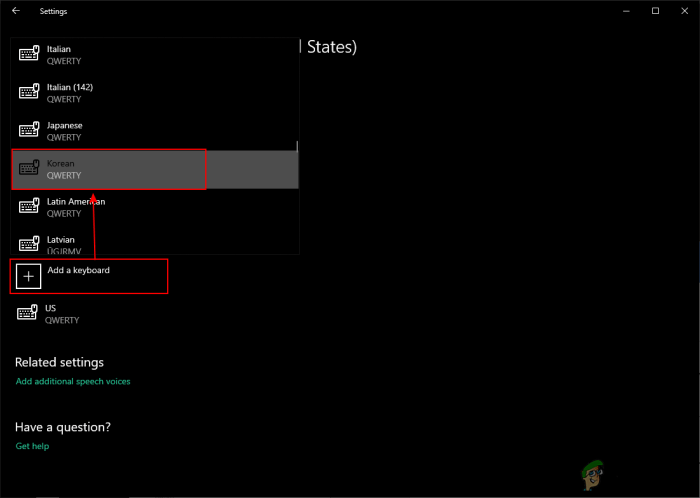
Successfully changing keyboard layouts often involves navigating a few potential hurdles. Understanding common problems and employing efficient techniques can significantly improve your multilingual typing experience. This section addresses troubleshooting common issues, leveraging keyboard shortcuts, creating custom layouts, and identifying reliable resources for language-specific keyboard configurations.
Common Problems and Solutions
Several issues can arise when altering keyboard layouts. For instance, the incorrect layout might be selected, leading to unintended characters. Sometimes, the system might fail to recognize or load a newly installed layout. Another common problem is the accidental activation of the wrong layout during typing, resulting in a mix of characters from different languages. Solutions involve verifying the selected layout in the operating system settings, reinstalling or updating problematic layouts, and carefully utilizing keyboard shortcuts to switch between layouts.
Restarting the computer can also resolve temporary glitches. If problems persist after these steps, checking for conflicts with other software or drivers might be necessary.
Keyboard Shortcuts for Efficient Switching
Efficiently switching between keyboard layouts is crucial for seamless multilingual typing. Most operating systems offer keyboard shortcuts for this purpose. For example, in Windows, the Alt + Shift combination is commonly used, while on macOS, it’s often Control + Space. These shortcuts allow for quick transitions between different layouts without navigating through system settings. Users can customize these shortcuts in their operating system’s settings to better suit their preferences and workflow.
Learning and utilizing these shortcuts significantly improves typing efficiency and reduces interruptions.
Creating Custom Keyboard Layouts
Creating a custom keyboard layout is necessary when typing in less common languages or dialects that lack pre-built layouts. The process typically involves specialized software or tools provided by the operating system. This process requires a deep understanding of the target language’s keyboard mapping and the technical aspects of keyboard layout configuration. The software usually guides users through assigning keys to specific characters or symbols.
Careful attention to detail is crucial to avoid errors and ensure accurate typing. Thorough testing after creation is essential to validate the functionality of the custom layout.
Resources for Language-Specific Keyboard Layouts
Finding and downloading language-specific keyboard layouts can be easily accomplished through several reliable sources.
- Operating System’s Built-in Language Support: Most modern operating systems (Windows, macOS, Linux) offer built-in support for numerous languages, often including downloadable keyboard layouts directly through their settings.
- Online Repositories: Several websites specialize in hosting and distributing keyboard layouts for various languages. These sites often provide detailed instructions and community support.
- Language-Specific Communities and Forums: Online communities focused on specific languages or typing methods frequently share and support custom keyboard layouts.
- Open-Source Projects: Various open-source projects maintain and develop keyboard layouts, offering a collaborative approach to improving and expanding language support.
Concluding Remarks
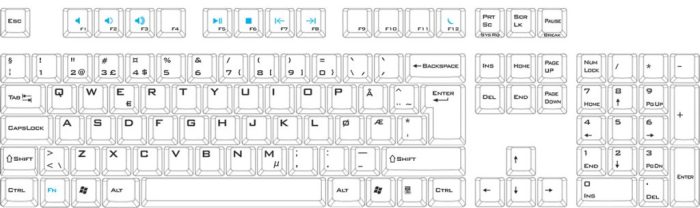
Changing your keyboard layout to type in different languages is a simple yet powerful skill that unlocks a world of multilingual communication. By understanding the various methods and troubleshooting common issues, you can enhance your productivity and connect with a broader global community. This guide equipped you with the knowledge to confidently navigate different keyboard layouts across various operating systems, empowering you to seamlessly switch between languages and unlock the full potential of multilingual digital interactions.