Maintaining control over your digital footprint is paramount in today’s interconnected world. Snapchat, a platform known for its ephemeral content, offers various settings to tailor your story’s visibility. This guide will walk you through adjusting your Snapchat story privacy settings, ensuring only your intended audience sees your snaps. We’ll explore the different privacy options, custom audience creation, and advanced techniques to enhance your online security.
Understanding these settings is crucial for managing your privacy and controlling who has access to your personal moments. From choosing between public and private stories to utilizing features like “My Eyes Only,” we’ll empower you to curate your Snapchat experience with confidence and peace of mind. This comprehensive guide will provide clear, step-by-step instructions for both iOS and Android users.
Understanding Snapchat Story Privacy Settings
Snapchat offers several options to control who can view your stories, ensuring you share your content only with your desired audience. Understanding these settings is crucial for maintaining your privacy and managing your online presence. This section details the various privacy settings and provides a step-by-step guide to adjusting them on both iOS and Android devices.
Snapchat Story Privacy Settings Explained
Snapchat’s story privacy settings determine the visibility of your snaps to different groups of users. The core options significantly impact who can see your stories. Improper configuration can lead to unintended exposure of your content.
Accessing and Modifying Story Privacy Settings
Modifying your Snapchat story privacy settings is straightforward on both iOS and Android devices. The process involves navigating to your profile settings and adjusting the appropriate options.
iOS:
- Open the Snapchat app and tap your profile icon in the top-left corner.
- Tap the gear icon (Settings) in the top-right corner.
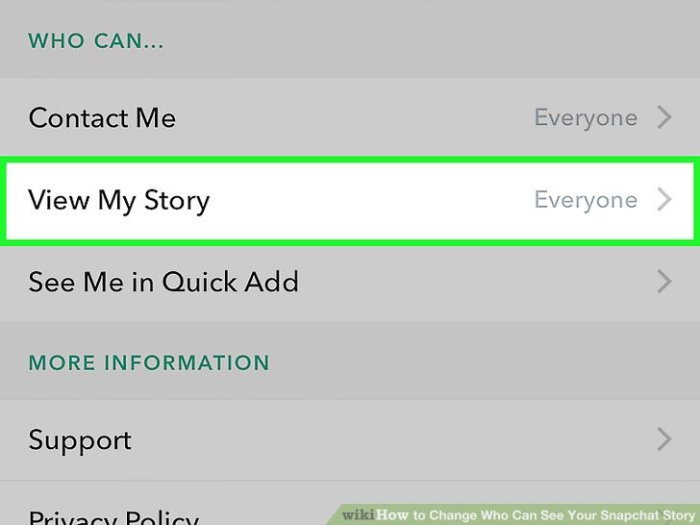
- Scroll down and tap “Who can see my story?”.
- Select your desired privacy setting from the options provided.
Android:
- Open the Snapchat app and tap your profile icon in the top-left corner.
- Tap the gear icon (Settings) in the top-right corner.
- Scroll down and tap “Who can see my story?”.
- Select your desired privacy setting from the options provided.
Comparison of Snapchat Story Privacy Options
The following table compares the various Snapchat story privacy settings and their effects. Understanding these differences is key to maintaining control over your content’s visibility.
| Setting Name | Description | Who Can View | Example Scenario |
|---|---|---|---|
| My Friends | Only your Snapchat friends can view your story. | Only your added friends | You share your day’s activities with your close circle of friends. |
| Custom Friends | You can select specific friends who can view your story. | Selected friends only | You share a funny video with only a few select friends. |
| Everyone | Anyone on Snapchat, including those not on your friends list, can view your story. | All Snapchat users | You’re promoting an event and want maximum visibility. |
| Best Friends | Only your best friends on Snapchat can view your story. | Users designated as “best friends” | You share a personal moment with only your closest friends. |
Customizing Your Story Audience
Taking control of who sees your Snapchat stories is key to maintaining your privacy and sharing content with the right people. Snapchat offers several tools to finely tune your audience, moving beyond the simple “public” or “private” options. By utilizing these features, you can curate your stories for specific groups of friends, ensuring your content reaches only those you intend it to.Customizing your story audience offers significant advantages over broadcasting your stories publicly.
Public stories are visible to anyone, including people you don’t know, potentially exposing personal information or content you prefer to keep private. Conversely, creating custom audiences allows for targeted sharing, maximizing the enjoyment of your content by the intended viewers and reducing the risk of unwanted exposure.
Creating Custom Story Audiences
Snapchat facilitates the creation of custom audiences through the use of best friend lists and the ability to select individual friends or groups. Best friend lists, automatically generated by Snapchat based on your interaction frequency, provide a quick and easy way to share with your closest contacts. You can also manually create lists, adding and removing friends as needed to tailor your audience for each story.
To create a new list, navigate to your profile, tap on “Settings,” then “Privacy Settings,” and select “Custom Stories.” From there, you can create new lists and add or remove friends from existing ones. The process is intuitive and straightforward, requiring only a few taps.
Adding and Removing Friends from Custom Story Lists
Adding friends to a custom list is as simple as selecting the list you wish to modify and then choosing the friends you want to include. Similarly, removing a friend is just a matter of selecting the list and then deselecting the friend you wish to remove. These actions are easily reversed, giving you complete control over who sees each story.
Snapchat provides clear visual cues throughout the process, ensuring a user-friendly experience.
Scenarios Benefiting from Custom Audiences
Using custom audiences is beneficial in a wide range of situations. Carefully selecting your audience enhances the impact of your story and protects your privacy.
- Sharing Personal Moments with Close Friends: Instead of sharing intimate moments with your entire friend list, you can create a list of your closest friends to share personal updates and experiences with only those you feel most comfortable with. For example, you could share a video of your family gathering or a candid moment with your best friend only with your “Close Friends” list.
- Sharing Work-Related Updates with Colleagues: If you use Snapchat for professional networking, creating a list for your colleagues allows you to share relevant work updates, project details, or team-building activities without sharing these with your personal friends. This could include sharing a behind-the-scenes look at a project or a fun team outing, visible only to those involved.
- Sharing Travel Adventures with Specific Friends: While traveling, you might want to share your experiences with friends who have similar interests or are planning a trip to the same location. Creating a list for these individuals ensures that your travel updates are seen by the most relevant audience. This could include sharing a photo of a scenic viewpoint or a video of a local event only with your “Travel Buddies” list.
- Sharing Inside Jokes or Memorable Events with a Select Group: For inside jokes or moments shared with a specific group of friends, creating a custom list allows you to share these memories without making them visible to your entire friend list. This could involve sharing a funny photo from a night out or a video recalling a shared experience with only those who were present.
Advanced Privacy Techniques for Snapchat Stories
Beyond basic audience selection, Snapchat offers several advanced features to enhance your story’s privacy. This section delves into techniques to control who sees your content and how they interact with it. Understanding these features empowers you to maintain control over your digital footprint.
Preventing Screenshots of Snapchat Stories
While Snapchat doesn’t offer a foolproof method to completely prevent screenshots, it does provide a deterrent. The app notifies the sender when a recipient takes a screenshot of their Snap, including Stories. This notification acts as a significant deterrent for many users. However, it’s important to remember that determined individuals can still circumvent this notification using various methods, such as screen recording.
Therefore, it’s crucial to only share content you’re comfortable with potentially being seen by others, even if it’s not explicitly intended for widespread viewing.
Utilizing Snapchat’s “My Eyes Only” Feature
Snapchat’s “My Eyes Only” feature provides a secure, password-protected space within the app to store sensitive photos and videos. This feature is ideal for content you want to keep private, separate from your regular Snaps and Stories. It adds an extra layer of security, as access requires a PIN or password. However, remember that while this feature offers heightened privacy, no system is entirely impenetrable.
Robust password practices, such as using a strong, unique password, are crucial for maximizing the security of your “My Eyes Only” content.
Choosing Appropriate Privacy Settings Based on Different Situations
The following flowchart illustrates the decision-making process for selecting appropriate Snapchat Story privacy settings based on the intended audience:[Imagine a flowchart here. The flowchart would begin with a central question: “Who is your intended audience?”. Branches would then lead to different options: “Close Friends,” “Best Friends,” “Specific Friends,” “Custom List,” “Public (My Friends)”. Each option would then lead to a box indicating the corresponding Snapchat setting to use within the app’s interface.
Each branch would show the appropriate action for selecting that audience setting within the Snapchat app. For example, selecting “Close Friends” would direct the user to the Snapchat app’s friend list and selecting that specific list. Similarly, creating a “Custom List” would direct the user to create and name a list, and then select the desired friends from the list.
The flowchart would visually represent the process of selecting the appropriate privacy settings for different situations.]
Deleting a Snapchat Story After Posting
Completely deleting a Snapchat Story after it has been posted is unfortunately not possible. Once a Story is published, it remains on the Snapchat servers for the duration it is visible (24 hours unless manually removed before the time elapses). However, you can remove the Story before it reaches the 24-hour mark, preventing any further views. To do this, open your Snapchat app, go to your profile, tap on the Story you wish to remove, and select the “Delete” option.
Remember, even after deletion, there’s a possibility that some recipients may have already viewed or downloaded the Story before you removed it.
Last Recap
By mastering Snapchat’s story privacy settings, you can effectively manage who sees your snaps, fostering a more secure and personalized online experience. Remember to regularly review and adjust your settings as your needs and relationships evolve. Taking proactive steps to safeguard your privacy ensures you remain in control of your digital life and the information you share. Embrace these techniques and enjoy the benefits of a more private Snapchat journey.