Mastering your touchpad’s potential goes beyond simple clicking. This guide delves into the often-overlooked world of touchpad gesture customization, revealing how to transform your interaction with your computer. We’ll explore the intricacies of adjusting sensitivity, speed, and even creating custom gestures across Windows, macOS, and ChromeOS, empowering you to optimize your workflow and enhance your digital experience.
From understanding basic gestures like two-finger scrolling to mastering advanced techniques such as edge scrolling and custom swipe actions, we provide a comprehensive walkthrough. We’ll also address common troubleshooting issues, ensuring a smooth and efficient experience regardless of your operating system.
Understanding Touchpad Gestures and Settings
Modern touchpads offer a range of gestures that streamline interaction with your computer, eliminating the need for a mouse in many situations. Understanding these gestures and how to customize them can significantly improve your workflow and efficiency. This section will explore common touchpad gestures, the settings available for customization on different operating systems, and compare their functionalities.
Touchpad gestures generally involve one, two, or three fingers performing various actions on the touchpad surface. These actions are interpreted by the operating system and translated into commands for the computer. The specific gestures and their associated actions are often configurable to suit individual preferences.
Common Touchpad Gestures
Several standard gestures are commonly supported across various operating systems. These include basic actions like tapping for clicking, and more complex multi-finger gestures for scrolling and switching between applications.
- Tap: A single tap acts as a left mouse click.
- Double-tap: A quick double tap simulates a double-click, often used to open files or select text.
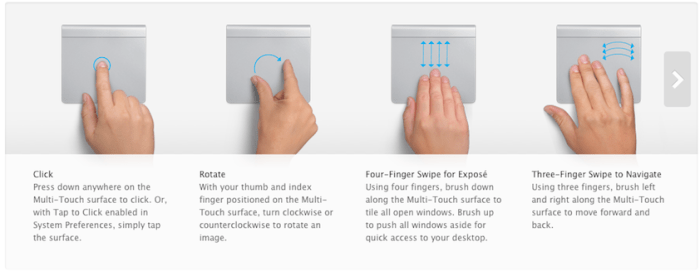
- Two-finger scroll: Moving two fingers up or down on the touchpad scrolls vertically, while moving them left or right scrolls horizontally.
- Three-finger swipe: Swiping three fingers left or right typically switches between open applications or desktops (depending on the operating system’s configuration).
- Pinch-to-zoom: Moving two fingers together or apart often controls zoom levels in applications that support this functionality.
- Two-finger tap: This gesture often acts as a right-click.
Touchpad Customization Settings in Windows and macOS
Both Windows and macOS offer robust options for customizing touchpad gestures. These settings allow users to tailor their touchpad experience to their individual needs and preferences. The specific settings may vary slightly depending on the version of the operating system and the touchpad manufacturer.
Windows: Settings are typically accessed through the mouse settings in the Control Panel or Settings app. Users can enable or disable gestures, change the sensitivity of the touchpad, and assign different actions to various gestures. For example, one might change the three-finger swipe to control media playback instead of switching applications.
macOS: macOS offers similar customization options, often accessible through System Preferences. Users can adjust the tracking speed, scrolling direction, and assign custom actions to multi-finger gestures. Similar to Windows, the exact options might differ slightly depending on the macOS version and the model of the MacBook.
Comparison of Gesture Customization Options Across Operating Systems
While Windows, macOS, and ChromeOS all offer touchpad gesture customization, the specific options and their defaults vary. Windows tends to provide a more extensive range of customizable gestures, allowing for granular control over individual actions. macOS offers a streamlined and intuitive approach, focusing on a set of commonly used gestures. ChromeOS, being designed for simplicity, generally provides fewer customization options compared to Windows and macOS.
Default Touchpad Gestures Comparison
The following table summarizes the default actions for common gestures across Windows, macOS, and ChromeOS. Note that these can be customized in the operating system’s settings.
| Gesture | Windows Action | macOS Action | ChromeOS Action |
|---|---|---|---|
| Tap | Left Click | Left Click | Left Click |
| Double-Tap | Double Click | Double Click | Double Click |
| Two-finger Scroll (Up/Down) | Vertical Scroll | Vertical Scroll | Vertical Scroll |
| Two-finger Scroll (Left/Right) | Horizontal Scroll | Horizontal Scroll | Horizontal Scroll |
| Two-finger Tap | Right Click | Right Click | Right Click |
| Three-finger Swipe (Left/Right) | Switch between applications | Application switching (Mission Control) | Switch between applications |
| Pinch-to-zoom | Zoom In/Out (in supported applications) | Zoom In/Out (in supported applications) | Zoom In/Out (in supported applications) |
Modifying Touchpad Sensitivity and Speed
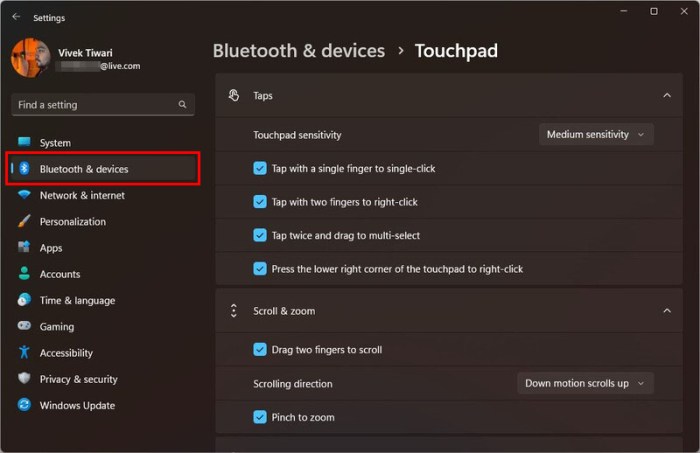
Optimizing your touchpad settings can significantly enhance your computing experience. Properly adjusted sensitivity and speed settings contribute to smoother navigation and prevent accidental inputs. This section details how to modify these settings on both Windows and macOS systems, highlighting the impact of different configurations on user experience.
Adjusting touchpad sensitivity and scrolling speed involves navigating your operating system’s settings menus. The specific steps may vary slightly depending on your operating system version and laptop manufacturer, but the general process remains consistent. Understanding the impact of these adjustments will help you find the optimal settings for your individual needs and preferences.
Windows Touchpad Sensitivity and Scrolling Speed Adjustment
Modifying touchpad sensitivity and scrolling speed in Windows is straightforward. The steps below Artikel the process for adjusting these settings. Note that the exact location of these settings might vary slightly depending on your Windows version.
- Open the Settings app (usually accessible via the Start Menu).
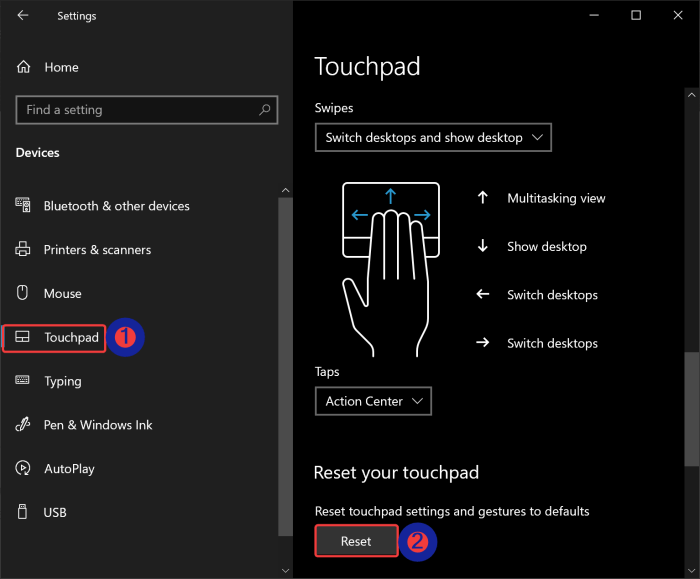
- Click on Devices.
- Select Touchpad from the left-hand menu.
- Under ” Related settings“, you might find options to adjust scrolling speed, tap-to-click, and other related features.
- Use the sliders or drop-down menus to adjust the sensitivity and scrolling speed to your preference. Experiment with different settings to find what feels most comfortable.
- Test the changes by moving your cursor and scrolling on the touchpad. If the settings are not satisfactory, repeat steps 4 and 5.
macOS Touchpad Sensitivity and Double-Tap Speed Adjustment
Adjusting the tap-to-click functionality and double-tap speed on a Mac is done through System Preferences. The steps below will guide you through this process. Remember that the exact location of these settings might vary slightly depending on your macOS version.
- Click on the Apple menu in the top-left corner of your screen.
- Select System Preferences.
- Click on Trackpad.
- The ” Point & Click” tab allows you to enable or disable tap-to-click and adjust the double-click speed. Use the slider to adjust the double-click speed to your preference. Experiment with different settings to find what feels most comfortable.
- Test the changes by tapping and double-tapping on the touchpad. If the settings are not satisfactory, repeat step 4.
Impact of Touchpad Sensitivity Settings
The impact of different sensitivity settings is substantial. Overly sensitive touchpads can lead to accidental cursor movements and unintended clicks, disrupting workflow. Conversely, insensitive touchpads require more deliberate movements, potentially slowing down productivity. The ideal setting balances responsiveness with precision, minimizing errors while maintaining efficiency. For example, a graphic designer might prefer a less sensitive touchpad for precise cursor control, while a writer might prefer a more sensitive one for quicker navigation.
Touchpad Setting Adjustment Flowchart
The following describes a flowchart illustrating the process of adjusting touchpad settings. This is a textual representation, as image creation is outside the scope of this response. The flowchart would begin with the user initiating the process by opening the relevant settings menu (either in Windows or macOS). This would lead to a decision point: are the desired settings already present?
If yes, the user adjusts the settings and tests them. If no, the user searches for the settings within the menu. If the settings are found, the process continues as above. If the settings are not found, the flowchart would include an error handling step, suggesting options like consulting online documentation or contacting technical support. Finally, the process concludes with the user saving the changes (if applicable) and verifying that the settings are functional.
If settings don’t save, the flowchart would indicate troubleshooting steps such as restarting the computer or checking for software updates.
Advanced Touchpad Customization and Troubleshooting
Beyond the basic settings, many modern operating systems offer advanced customization options for your touchpad, allowing for a highly personalized user experience. Understanding these options and how to troubleshoot common problems can significantly improve your interaction with your computer. This section explores advanced customization and provides solutions for common touchpad issues.
Advanced touchpad customization extends beyond simple sensitivity adjustments. Many systems allow for the creation of custom gestures, modifying existing ones, or even disabling specific functionalities. This level of control allows you to tailor your touchpad to your specific workflow and preferences, optimizing productivity and comfort.
Advanced Gesture Customization
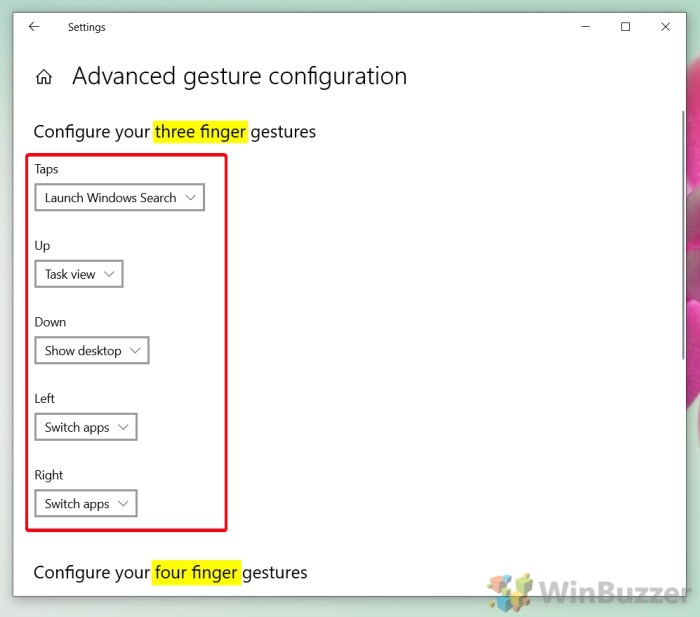
Depending on your operating system and touchpad driver, you might find options to create entirely new gestures or significantly alter existing ones. For example, you could program a three-finger swipe to launch a specific application, or change a two-finger tap to perform a different action. These customizations often involve accessing the advanced settings within your system’s mouse or touchpad preferences.
Some manufacturers provide proprietary software that offers even more extensive customization options beyond the built-in settings.
Common Touchpad Issues and Their Causes
Several issues can hinder the functionality of your touchpad. Understanding the potential causes helps in effective troubleshooting. These problems range from simple driver issues to more complex hardware malfunctions.
- Unresponsive Touchpad: This could be due to a disabled touchpad (check your keyboard shortcut or system settings), driver conflicts, or a physical problem with the touchpad itself.
- Erratic Cursor Movement: This often points to a driver issue, a problem with the touchpad surface (dirt, debris), or interference from other devices.
- Gestures Not Working: This might stem from incorrect gesture settings, driver problems, or even conflicts with other software.
- Spontaneous Cursor Jumps: This could be caused by accidental touches, a faulty touchpad, or interference from external devices.
Troubleshooting Common Touchpad Problems
Troubleshooting involves a systematic approach, starting with the simplest solutions and progressing to more complex ones. The built-in tools provided by your operating system are usually sufficient for resolving many common issues.
- Restart your computer: This often resolves temporary glitches and driver conflicts.
- Check touchpad settings: Ensure the touchpad is enabled and the settings are appropriate for your needs.
- Update your touchpad drivers: Outdated drivers are a frequent source of touchpad problems. Check your computer manufacturer’s website or the device manager for updates.
- Clean the touchpad surface: Gently clean the touchpad surface with a soft, dry cloth to remove any dirt or debris that may be interfering with its operation.
- Uninstall and reinstall touchpad drivers: If updating doesn’t work, try uninstalling and reinstalling the drivers. This forces a clean installation, often resolving driver conflicts.
- Check for hardware damage: If none of the above steps resolve the issue, there may be physical damage to the touchpad. Consider professional repair.
- Use third-party troubleshooting software: Some specialized software can diagnose and fix deeper driver or hardware problems. Proceed with caution and ensure the software is from a reputable source.
Closure
By understanding and customizing your touchpad settings, you unlock a level of efficiency and personalization previously untapped. Through this exploration of gesture customization, sensitivity adjustments, and troubleshooting techniques, you’ve gained the tools to optimize your interaction with your computer. Take control of your digital environment and enjoy a more intuitive and productive computing experience.