Revamping your website’s aesthetic appeal shouldn’t require complex coding skills. This guide explores user-friendly methods for transforming your website’s color scheme, empowering you to refresh your online presence without needing extensive technical expertise. We’ll delve into readily available tools and techniques that cater to various levels of digital proficiency.
From leveraging the intuitive interfaces of popular website builders to harnessing the power of browser developer tools for quick adjustments, we’ll cover a range of options. We’ll also touch upon beginner-friendly CSS customization, allowing you to make more precise and permanent changes to your website’s colors. By the end, you’ll have the knowledge and confidence to effortlessly update your website’s visual identity.
Utilizing Website Builders and CMS Platforms
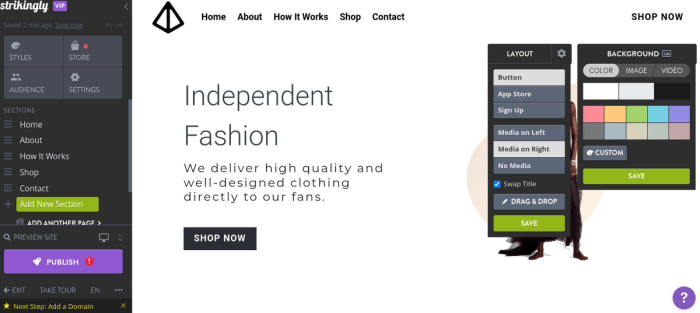
Changing your website’s color scheme needn’t involve complex coding. Many platforms offer intuitive interfaces for effortless customization. This section explores how website builders and content management systems (CMS) simplify the process, allowing you to refresh your site’s look and feel without writing a single line of code.Website builders like Wix, Squarespace, and Weebly provide drag-and-drop interfaces and pre-designed templates, making color scheme modifications incredibly straightforward.
These platforms typically offer a visual editor where you can select colors from a palette or input custom hex codes, instantly seeing the changes reflected on your site.
Color Scheme Modification in Website Builders
Wix, for example, features a comprehensive design panel where you can adjust the colors of various elements, including text, backgrounds, buttons, and more. Its visual editor provides real-time previews, allowing you to experiment with different color combinations before committing to changes. Squarespace offers a similar experience, with its style editor providing intuitive controls for modifying color palettes across different sections of your website.
Weebly’s interface, while slightly simpler, still provides a user-friendly way to choose and apply colors throughout your website’s design. These platforms generally offer a range of pre-set color palettes, making it easy to find a scheme that suits your brand. You can also customize these palettes or create your own using hex codes. The visual nature of these editors minimizes the need for technical knowledge, making it accessible to users of all skill levels.
Color Scheme Modification in WordPress
WordPress, a popular CMS, offers more extensive customization options but requires a slightly different approach. Modifying color schemes in WordPress usually involves utilizing themes or plugins. Themes often include built-in color customization options within their settings. For example, many themes offer a color picker tool where you can select colors for various elements, such as headings, links, and backgrounds.
Alternatively, many plugins are specifically designed for color customization. These plugins may provide more advanced features, such as custom color palettes, gradients, and the ability to target specific elements for color changes. Imagine a scenario where a user wants to change the background color of their WordPress blog. Using a theme with built-in customization, they could simply navigate to the theme settings, locate the background color option, select a new color from the color picker, and save the changes.
The site would immediately reflect the new color. If the theme lacks this feature, a color customization plugin could be installed, granting similar functionality. A screenshot of a typical WordPress theme customizer showing color options would illustrate a palette with various color swatches and input fields for hex codes. Another screenshot showcasing a plugin’s interface could display a more advanced color picker with options for gradients and color harmonies.
Comparison of Website Builders and CMS Platforms
The ease of use and customization options for color schemes vary across different platforms. Website builders generally offer a more streamlined and user-friendly experience, ideal for beginners. CMS platforms like WordPress provide more flexibility and control but may require a slightly steeper learning curve.
| Feature | Wix | Squarespace | WordPress |
|---|---|---|---|
| Ease of Color Customization | Very Easy | Easy | Moderate (depends on theme/plugin) |
| Customization Options | Good | Good | Excellent |
| Pricing Tiers | Free plan available, paid plans with increased features | Paid plans only, varying features and storage | Free (self-hosted requires hosting fees), paid plugins available |
| Technical Skills Required | Minimal | Minimal | Basic understanding of WordPress helpful |
Employing CSS Customization Techniques (Beginner-Friendly)

Modifying a website’s color scheme without directly altering its code can be achieved through CSS customization. This method offers a flexible and non-destructive approach, allowing you to experiment with different aesthetics without affecting the underlying website structure. This section will guide you through the process, focusing on simple, practical techniques.
Direct CSS File Modification
Directly editing a website’s CSS file offers the most immediate control over its visual appearance. This method is particularly useful for themes or templates that allow for some level of CSS customization. However, remember that directly editing theme files might be overwritten during updates, so consider creating a child theme or a custom CSS file to avoid losing your changes.
Let’s assume you locate the main stylesheet (often named `style.css` or similar) within your theme’s folder. Opening this file with a text editor (like Notepad++, Sublime Text, or VS Code) will reveal the CSS code. You can then locate the selectors (e.g., `.button`, `h1`, `body`) that govern the elements you wish to change and modify their color properties.
For example, to change the background color of the body to light blue, you would add or modify the following line: `body background-color: lightblue; `. To change the color of all h1 headings to dark green, you would add `h1 color: darkgreen; `. Saving the file and refreshing your website will reflect these changes. A visual representation would show a before-and-after comparison of the webpage, highlighting the changed background and heading colors.
The “before” image would display the original colors, while the “after” image would showcase the new light blue background and dark green headings.
Targeting Specific Elements with CSS Selectors
CSS selectors provide the mechanism to target and style specific HTML elements. Understanding these selectors is crucial for precise color customization.
Here are some common selectors and their usage:
- Element Selectors: These target elements based on their tag name (e.g., `p`, `h1`, `div`). Example: `p color: navy; ` changes the color of all paragraph text to navy blue.
- Class Selectors: These target elements with a specific class attribute. Example: `.highlight color: red; ` changes the color of any element with the class “highlight” to red. You would add this class to your HTML like this: `
This text is highlighted.
`
- ID Selectors: These target elements with a unique ID attribute. Example: `#special-heading color: gold; ` changes the color of the element with the ID “special-heading” to gold. You would add this ID to your HTML like this: `
`
Using CSS Preprocessors: Sass and Less
CSS preprocessors like Sass and Less enhance CSS development by adding features such as variables, nesting, and mixins, making it easier to manage and maintain large stylesheets. They streamline the process of changing a website’s color scheme. For instance, you can define a color variable, say `$primary-color: #336699;`, and use it throughout your stylesheet. Changing the variable’s value updates all instances of that color simultaneously.
| Feature | Sass | Less |
|---|---|---|
| Variables | Supported ($variable-name: value;) | Supported (@variable-name: value;) |
| Nesting | Supported | Supported |
| Mixins | Supported | Supported |
| Functions | Extensive built-in functions and custom function support | Built-in functions for color manipulation and more |
Leveraging Browser Developer Tools for Quick Adjustments

Browser developer tools offer a powerful, code-free way to experiment with your website’s color scheme. These built-in tools allow for real-time adjustments, providing immediate visual feedback without the need to save and reload your website repeatedly. This is incredibly useful for quickly prototyping different color palettes and visualizing the impact of color changes before making any permanent modifications to your website’s code.This method is particularly beneficial during the design phase, enabling rapid iteration and exploration of various aesthetic options.
It allows for quick A/B testing of different color combinations to determine which best suits your brand and website’s overall design.
Inspecting and Modifying CSS Rules
The process of adjusting colors using browser developer tools is straightforward. This section details how to inspect existing CSS rules and directly modify their color values within the developer tools interface, offering immediate visual results. This method is especially useful for understanding how specific CSS rules affect your website’s appearance and for quickly testing different color variations.
- Open Developer Tools: In most browsers (like Chrome, Firefox, and Edge), you can open the developer tools by right-clicking anywhere on your webpage and selecting “Inspect” or “Inspect Element.” Alternatively, you can usually use keyboard shortcuts like F12 or Ctrl+Shift+I (Windows) or Cmd+Option+I (Mac).
- Select the Element: In the developer tools, you’ll see the HTML structure of your webpage. Locate the specific HTML element whose color you want to change (e.g., a paragraph, heading, button, or div). Click on it in the HTML panel; this will highlight the corresponding element on your webpage.
- Navigate to the Styles Tab: The developer tools usually have a “Styles” or “Computed” tab (the exact name might vary slightly depending on your browser). This tab displays the CSS rules that are applied to the selected element. You’ll see a list of properties and their values, including colors (often represented as hex codes, like #FF0000 for red, or RGB values).
- Modify the Color Value: Locate the `color` property (or other relevant color properties like `background-color`). Directly edit the hex code or RGB value in the Styles panel. As you type, the changes will be reflected instantly on your webpage. You can also use the color picker tool provided by the browser to select a color visually.
- Experiment with Different Colors: Try different hex codes or RGB values to experiment with different color variations. Observe the immediate visual feedback on your webpage. This allows for rapid iteration and experimentation without affecting the original code.
For example, if you’re changing the color of a heading, you would locate the `
` or `
` element in the HTML panel, then find the `color` property in the Styles tab. You might see a value like `#000000` (black). Changing this to `#FF0000` (red) will instantly update the heading’s color on your webpage. A screenshot would show the developer tools open, with the Styles tab selected, the `color` property highlighted, and the new hex code entered. The webpage would also be visible showing the change in color.
Benefits and Limitations of Using Browser Developer Tools
Benefits and Limitations of Using Browser Developer Tools
Using browser developer tools for color scheme adjustments offers several advantages. It’s a quick and easy way to test color changes without needing coding knowledge. The immediate visual feedback allows for rapid iteration and experimentation, accelerating the design process. It’s also non-destructive, meaning no changes are permanently saved to your website’s code.However, there are limitations. Changes made using developer tools are temporary and will disappear when you close the browser or refresh the page.
These changes are not saved to your website’s CSS files; therefore, to make the changes permanent, you’ll need to edit your website’s CSS code directly. This method is best suited for testing and prototyping color schemes, not for making permanent changes to your website’s design.
Final Conclusion
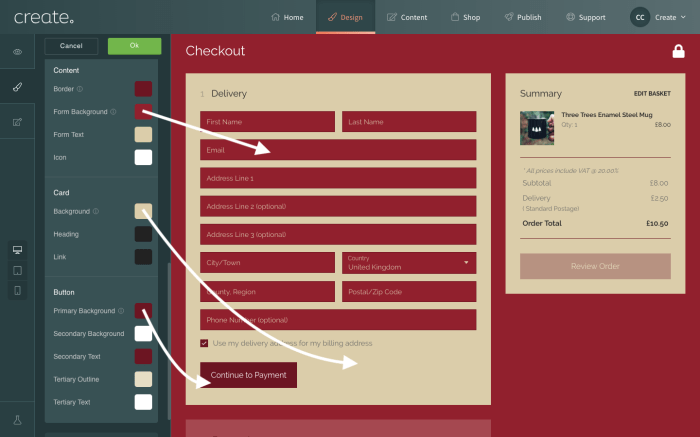
Updating your website’s color scheme is a powerful way to refresh its look and feel, and thankfully, it doesn’t have to be a daunting task. This guide has demonstrated several accessible methods, from utilizing the built-in features of website builders and CMS platforms to employing simple CSS techniques and leveraging browser developer tools. By mastering these techniques, you can confidently maintain a visually appealing and engaging website, ensuring your online presence remains vibrant and up-to-date without needing to become a coding expert.