Securing your Instagram account is paramount. A strong, regularly updated password is your first line of defense against unauthorized access and potential data breaches. This guide provides a clear, concise walkthrough of how to change your Instagram password quickly and efficiently, whether you’re using the mobile app or the website. We’ll cover the process step-by-step, highlighting security measures and troubleshooting common issues.
We’ll explore the methods for changing your password on both the Instagram mobile app (iOS and Android) and the desktop website, comparing the user interfaces and highlighting any differences in the process. Understanding these steps will empower you to safeguard your account and maintain control over your personal information.
Accessing the Instagram Password Change Menu
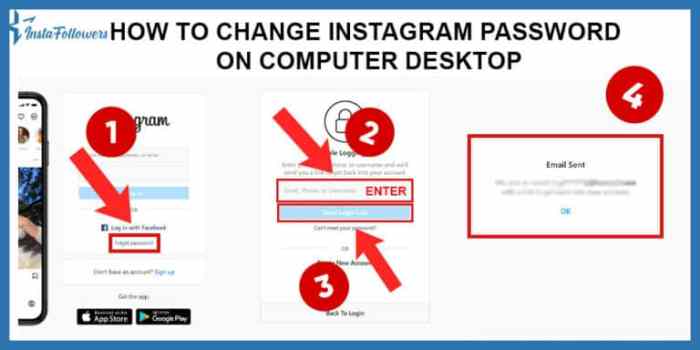
Changing your Instagram password is a crucial step in maintaining the security of your account. This process is straightforward, whether you’re using the mobile app or the website. The following sections detail the steps involved for both methods.
Accessing Password Change Settings on Mobile App
To change your Instagram password using the mobile app, follow these steps:
- Open the Instagram app on your iOS or Android device and log in to your account.
- Navigate to your profile by tapping on your profile picture in the bottom right corner.
- Tap the three horizontal lines (hamburger menu) located in the top right corner of the screen.
- Scroll down and tap “Settings.” This option is usually near the bottom of the menu.
- Select “Security” from the list of settings options.
- Tap on “Password”.
- You will be prompted to enter your current password. After entering it correctly, you’ll be able to enter a new password and confirm it.
Accessing Password Settings via Instagram Website
Changing your password on the Instagram website is slightly different. Here’s how:
- Open your web browser and go to instagram.com. Log into your account.
- Click on your profile picture in the top right corner of the screen.
- In the dropdown menu that appears, select “Profile”.
- On your profile page, look for the “Edit Profile” button. It’s usually located under your profile picture and bio.
- Click “Edit Profile”. You will be taken to a page where you can edit various aspects of your profile.
- Scroll down to the bottom of the page. You should find the “Change Password” option.
- Click “Change Password.” You’ll be prompted to enter your current password, then create and confirm your new password.
Comparison of Mobile App and Website Methods
The process of changing your Instagram password is similar across both platforms, but there are some minor differences in the user interface and navigation.
| Step | Mobile App (iOS/Android) | Website | Notes |
|---|---|---|---|
| 1 | Open the app and log in. | Go to instagram.com and log in. | Both require initial login. |
| 2 | Tap your profile picture. | Click your profile picture. | Different interaction methods (tap vs. click). |
| 3 | Tap the hamburger menu (three lines). | Profile dropdown menu appears. | Different navigational elements. |
| 4 | Tap “Settings,” then “Security,” then “Password.” | Click “Edit Profile,” then scroll to “Change Password.” | Different menu structures and button labels. |
| 5 | Enter current password, then new password. | Enter current password, then new password. | The core functionality remains the same. |
The Password Change Process
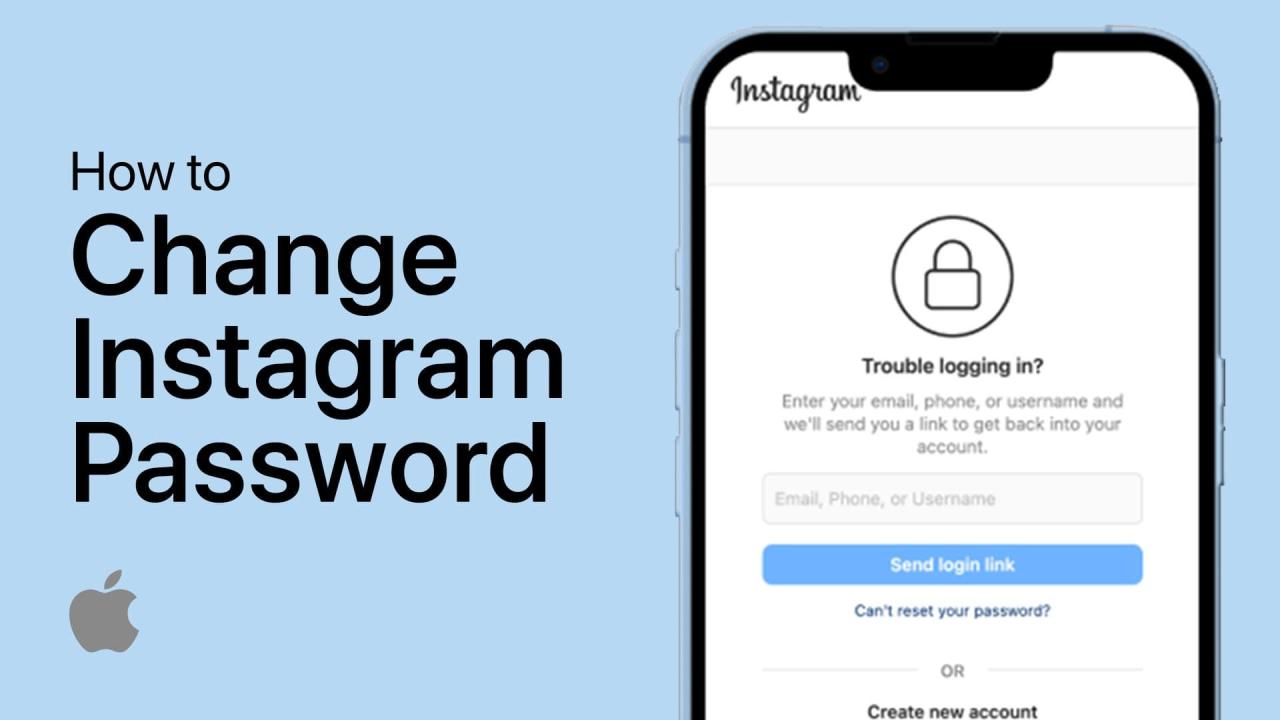
Changing your Instagram password is a straightforward process, but understanding the security measures in place ensures your account remains protected. This section details the steps involved and the security protocols Instagram utilizes to safeguard your account.Instagram prioritizes account security, employing several methods to verify your identity and ensure only you can change your password. This process helps prevent unauthorized access and protects your personal information.
The steps below will guide you through this process.
Security Measures During Password Change
Instagram employs several security measures to validate your identity before allowing a password change. These typically include the use of a verification code sent to your registered email address or phone number. In some cases, you may be prompted to answer security questions previously set up on your account. This multi-layered approach significantly reduces the risk of unauthorized password alterations.
The verification method used will depend on the security settings you have configured for your account.
Post-Password Change Actions
Once you submit your new password, Instagram will verify its strength. Passwords that are too short, easily guessable, or similar to your previous passwords will be rejected. Instagram will provide feedback on the password’s strength, suggesting improvements if necessary. The feedback will typically include indicators showing the password’s complexity – whether it meets the minimum length requirement, contains a mix of uppercase and lowercase letters, numbers, and symbols.
After successful verification, you’ll be logged out of all active sessions and will need to log in again using your new password. You may also receive a confirmation email notifying you of the password change.
Password Change Flowchart
Imagine a flowchart with the following steps:
1. Start
The user initiates the password change process, usually through the account settings menu.
2. Verification Method Selection
Instagram presents options for verification (e.g., email, phone number, security questions).
3. Verification Code/Answer Input
The user enters the verification code received or answers the security questions.
4. Verification Confirmation
Instagram verifies the provided information. If successful, it proceeds; otherwise, it prompts for re-entry or alternative verification methods.
5. New Password Entry
The user enters their new password twice for confirmation.
6. Password Strength Check
Instagram checks the new password against its strength criteria. If it meets the requirements, it proceeds; otherwise, an error message is displayed with suggestions for improvement.
7. Password Update
If the password meets the requirements, Instagram updates the password.
8. Confirmation
The user receives confirmation (e.g., on-screen message, email notification) that the password has been successfully changed.
9. Log Out/Log In
The user is logged out of all active sessions and needs to log in again using the new password.1
0. End
The password change process is complete.This flowchart visually represents the sequential steps involved in changing an Instagram password, highlighting the security checks at various points in the process.
Troubleshooting Common Password Change Issues
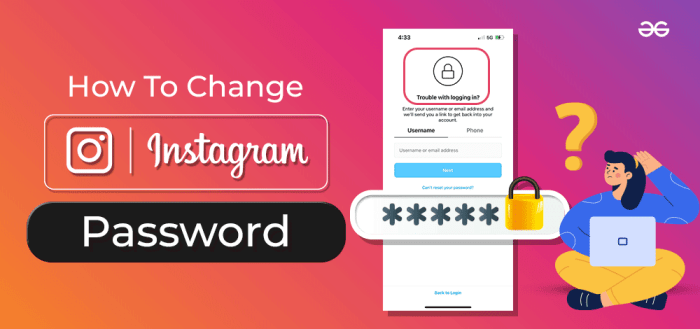
Changing your Instagram password should be a straightforward process, but occasionally, you might encounter some hurdles. Understanding these potential problems and their solutions can save you time and frustration. This section Artikels common issues and provides practical solutions to get you back on track quickly.
Password Change Problems and Solutions
Occasionally, difficulties arise during the password change process. These problems often stem from simple oversights or unexpected technical glitches. Addressing these issues efficiently is key to regaining access to your account swiftly.
| Problem | Solution |
|---|---|
| Forgotten Username |
|
| Incorrect Verification Code |
|
| Password Doesn’t Meet Requirements |
|
| Account Temporarily Locked |
|
| Unable to Access Email or Phone |
|
Summary
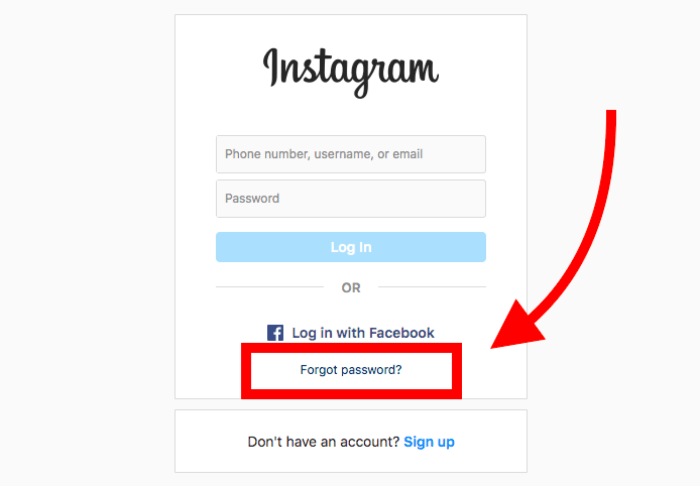
Changing your Instagram password is a simple yet crucial step in maintaining online security. By following the steps Artikeld in this guide, you can quickly and confidently update your password, ensuring the protection of your account and personal data. Remember to choose a strong, unique password and consider enabling two-factor authentication for an extra layer of security. Regular password changes are a proactive measure that contributes significantly to a safer online experience.