Unlocking the full potential of your devices often involves optimizing their accessibility settings. This guide explores how adjusting these settings across various operating systems—Windows, macOS, iOS, and Android—can significantly enhance usability and create a more inclusive digital experience for everyone, regardless of their abilities. We’ll delve into practical techniques for improving visual, auditory, and motor skill accessibility, empowering you to personalize your technology to meet your specific needs.
From customizing display settings to exploring alternative input methods, we will provide clear, step-by-step instructions and practical examples. We’ll also cover assistive technologies and keyboard navigation techniques, offering a comprehensive approach to maximizing your device’s accessibility features. The goal is to make technology more accessible and enjoyable for all users.
Understanding Accessibility Settings Across Devices
Accessibility settings are crucial for tailoring technology to individual needs, improving usability for everyone, regardless of ability. Understanding how these settings function across different operating systems is key to maximizing their benefits. This section will explore the core accessibility features on Windows, macOS, iOS, and Android, highlighting similarities and differences.
Accessibility Features Across Operating Systems
Each operating system offers a suite of accessibility tools, though the names and specific functionalities may vary. Windows and macOS, being desktop operating systems, provide a broader range of options compared to mobile operating systems like iOS and Android, which prioritize touch-based interaction. However, all four platforms offer essential features like screen readers, text-to-speech, and zoom functionality.
Comparative Table of Accessibility Features
The following table summarizes key accessibility features and their equivalents across Windows, macOS, iOS, and Android. Note that this is not an exhaustive list, and specific features may vary depending on the version of the operating system.
| Operating System | Feature Name | Description | Shortcut (if applicable) |
|---|---|---|---|
| Windows | Narrator | Screen reader that reads aloud text on the screen. | Windows key + Ctrl + Enter |
| macOS | VoiceOver | Screen reader that reads aloud text on the screen. | Command + F5 |
| iOS | VoiceOver | Screen reader that reads aloud text on the screen. | Triple-click the Home button (or side button on newer devices) |
| Android | TalkBack | Screen reader that reads aloud text on the screen. | Double-tap and hold on the screen |
| Windows | Magnifier | Enlarges parts of the screen. | Windows key + Plus (+) |
| macOS | Zoom | Enlarges parts of the screen. | Command + Option + 8 |
| iOS | Zoom | Enlarges parts of the screen. | Triple-click the Home button (or side button on newer devices) then double-tap with two fingers. |
| Android | Magnification gesture | Enlarges parts of the screen using a three-finger gesture. | Three-finger tap and drag |
Enabling Text-to-Speech
Text-to-speech functionality allows the operating system to read aloud text displayed on the screen. This is invaluable for users with visual impairments or reading difficulties. The steps to enable this feature vary slightly across platforms.
Below is a step-by-step guide for enabling text-to-speech on each platform.
- Windows: Open the Settings app (Windows key + I), go to “Ease of Access,” then select “Narrator.” Toggle the Narrator switch to “On.”
- macOS: Go to System Preferences, then select “Accessibility.” Click on “VoiceOver” in the sidebar and check the box to turn it on.
- iOS: Go to Settings > Accessibility > VoiceOver and toggle the switch to “On.”
- Android: Go to Settings > Accessibility > TalkBack and toggle the switch to “On.”
Optimizing Visual and Auditory Experiences
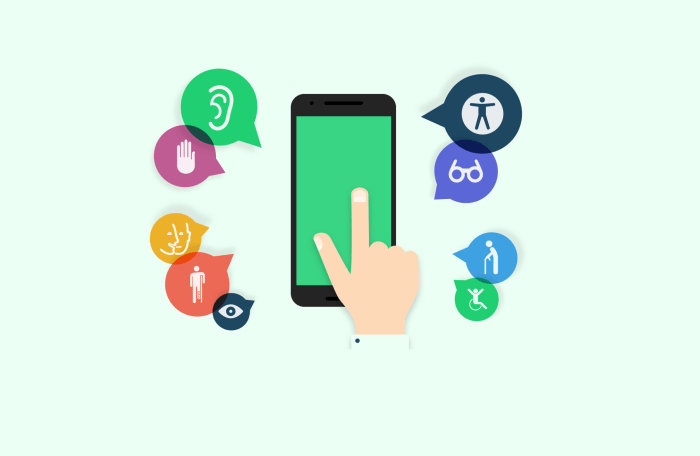
Optimizing your device’s visual and auditory settings can significantly enhance usability and reduce strain, particularly for users with visual or auditory impairments. By adjusting display settings and customizing audio notifications, you can create a more comfortable and accessible digital experience. This section details techniques to achieve this.
Adjusting Display Settings for Improved Readability
Improving readability and reducing eye strain involves careful adjustment of display settings. Larger font sizes make text easier to read, especially for individuals with low vision. Increasing text contrast between the foreground (text) and background colors significantly improves readability. Choosing appropriate color schemes minimizes eye fatigue. Experimentation is key to finding the optimal settings for individual needs.
High-Contrast Color Palettes
High-contrast color palettes are crucial for users with low vision. These palettes use colors with significant differences in brightness and hue, making text clearly distinguishable from the background. Here are a few examples:
Black text on a bright yellow background
White text on a dark blue background
Dark green text on a light beige background
These combinations provide strong visual separation, enhancing readability. Experiment with different combinations to find what works best for you. Remember to consider the overall aesthetic appeal alongside the accessibility benefit.
Benefits of Screen Readers and Magnifiers
Screen readers and magnifiers are assistive technologies that significantly improve accessibility for users with visual impairments. Screen readers convert on-screen text into speech, allowing users to “hear” the content. Magnifiers enlarge portions of the screen, making it easier to see small text or images. These tools can dramatically increase independence and access to digital information for visually impaired individuals.
Customizing Audio Notifications and System Sounds
Optimizing audio settings ensures clear and understandable notifications and system sounds. Many operating systems allow customization of volume levels for different audio sources, such as notifications, system sounds, and media playback. Choosing distinct and easily discernible notification sounds helps users quickly identify the source of an alert. Adjusting the volume and tone of system sounds can prevent them from being overwhelming or inaudible.
For example, increasing the volume of notification sounds and choosing clear, non-complex tones can enhance audibility. Reducing the volume of less crucial system sounds minimizes distractions.
Improving Keyboard and Motor Skill Accessibility

Many individuals find standard computer interaction challenging due to limitations in keyboard skills or motor abilities. Fortunately, a range of accessibility features and assistive technologies can significantly improve usability for these users. This section explores techniques and tools designed to enhance accessibility for users with varying keyboard and motor skill levels.
Keyboard Navigation Techniques
Efficient keyboard navigation is crucial for users with limited motor skills or those who prefer keyboard-only interaction. The Tab key is fundamental, moving the cursor through interactive elements on a webpage or application in a predetermined sequence. Shortcut keys, combinations of keys that trigger specific actions (e.g., Ctrl+C for copy, Ctrl+V for paste), dramatically speed up workflow and reduce reliance on the mouse.
Learning and utilizing common shortcut keys can significantly enhance productivity and accessibility. Furthermore, many applications offer their own customized keyboard shortcuts, detailed within their help documentation.
On-Screen Keyboards and Alternative Input Methods
On-screen keyboards provide a visual representation of the keyboard on the screen, allowing users to select keys using a mouse, trackpad, or other pointing device. This is particularly beneficial for users with limited dexterity or those who find physical keyboards difficult to use. Many operating systems offer built-in on-screen keyboards with customizable settings, including key repeat rates and sound feedback.
Beyond on-screen keyboards, alternative input methods such as voice recognition software allow users to control their computer and dictate text using their voice. These tools offer a hands-free alternative, improving accessibility for individuals with motor impairments. Voice recognition accuracy can vary depending on factors such as background noise and the user’s speech patterns.
Assistive Technologies for Motor Skill Accessibility
Several assistive technologies can dramatically improve computer access for users with motor skill challenges. These tools offer alternative ways to interact with computers, bypassing the need for precise mouse control or rapid keystrokes.
- Mouse Alternatives: Trackballs, joysticks, and touchpads provide alternative pointing devices, offering varying levels of control and precision. Trackballs, for example, are often preferred by users who find moving a traditional mouse difficult.
- Switch Controls: These systems allow users to control the computer using simple switches, activated by various body movements. This technology is especially helpful for individuals with severe motor impairments, enabling them to interact with software and applications through a series of switch activations. Configurations can be highly customized to individual needs.
- Eye-Tracking Systems: These advanced technologies allow users to control the cursor and select items on the screen using only their eye movements. This is a valuable option for individuals with very limited motor control.
Trackpad Usage with Alternative Input Methods
This diagram illustrates how a trackpad can be used with an on-screen keyboard. Imagine a standard trackpad. The top left corner of the trackpad is assigned to the ‘Home’ key, the top right to the ‘End’ key, the bottom left to the ‘Page Up’ key, and the bottom right to the ‘Page Down’ key. Swiping upward moves the cursor up, downward moves it down, left moves it left, and right moves it right.
The user selects letters on the on-screen keyboard using the trackpad to position the cursor over the desired key and then clicking (tapping) the trackpad to register the selection. This setup provides a user-friendly and adaptable method for navigating and interacting with the on-screen keyboard, effectively bypassing the need for a physical keyboard.
Closing Notes

By mastering the art of accessibility settings, you can transform your digital interactions. This guide has equipped you with the knowledge and tools to personalize your devices for optimal usability, catering to individual needs and preferences. Remember, enhancing accessibility isn’t just about accommodating disabilities; it’s about creating a more efficient and enjoyable experience for everyone. Explore the options available on your devices, experiment with different settings, and discover the personalized digital environment that best suits your workflow and comfort.