Revamping your Discord server? Changing your server’s name is a simple process, allowing you to refresh its image or better reflect its purpose. This guide provides a clear, step-by-step walkthrough for both desktop and mobile users, covering everything from accessing the necessary settings to troubleshooting potential issues. Whether you’re a seasoned server administrator or a newcomer, we’ll ensure you can update your server’s name with ease.
We’ll cover the essential steps involved, highlighting the permissions needed and offering solutions for common problems encountered during the name change process. We’ll also share tips for choosing a memorable and effective server name, ensuring your server stands out in the Discord community.
Accessing Server Settings and Permissions
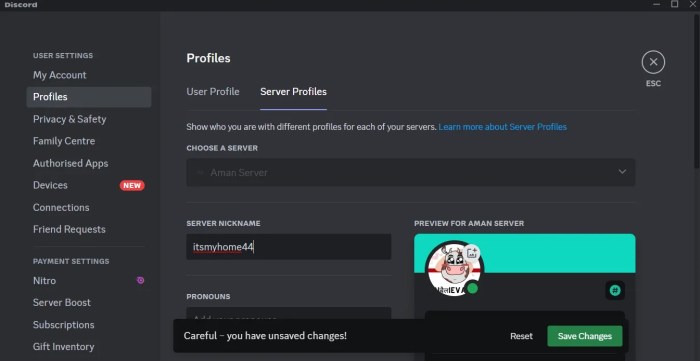
Before you can change your Discord server’s name, you need to access the server settings. This requires either server ownership or specific administrative permissions. Without the necessary authorization, you won’t be able to modify the server’s fundamental details, including its name.Accessing server settings is straightforward, but the exact steps vary slightly depending on whether you’re using the desktop app or the mobile app.
Understanding the location of these settings and the permissions required is crucial for efficiently managing your server.
Server Settings Navigation
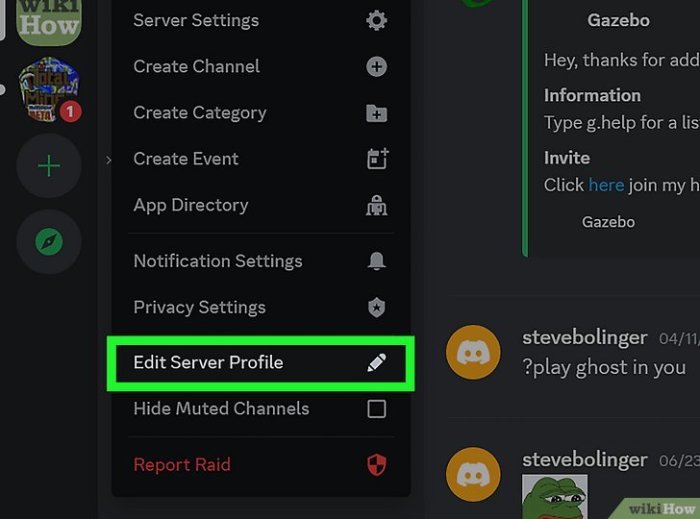
To change your server’s name, you first need to locate the server settings menu. This menu houses various options for configuring your server’s appearance and functionality.On the desktop app, locate your server on the left-hand sidebar. Click on the small arrow next to the server name to expand the server’s channels. Then, right-click on the server name itself (not a channel).
A context menu will appear; select “Server Settings” from the options. Alternatively, you can click on the server icon (usually a picture or default icon) at the top of the server’s channel list. This will open a small panel; from there, you can click on the “Server Settings” option that will appear at the bottom of this panel.On mobile apps (both iOS and Android), the process is similar.
Open the Discord app and navigate to your server. Tap on the server icon (usually a picture or default icon) at the top of the server’s channel list. A menu will appear. Within this menu, look for an option labeled “Server Settings,” “Settings,” or a similar phrase. Tapping this option will open the server settings page.
Permissions Required to Change Server Name
Only users with the “Administrator” permission or the server owner can change the server name. Users with other roles, even those with extensive permissions, will not see the option to edit the server name within the server settings. Attempting to change the server name without these permissions will result in an error message or the changes simply not being saved.
The specific error message may vary slightly depending on the version of Discord being used.
Desktop vs. Mobile: Server Name Change Comparison
The process of changing a server name is broadly similar across desktop and mobile platforms, but the specific navigation steps differ. The table below Artikels the key steps for each.
| Step | Desktop App | Mobile App (iOS/Android) | Notes |
|---|---|---|---|
| 1. Access Server | Locate server in left sidebar. | Locate server in server list. | Ensure you are connected to the server. |
| 2. Open Server Menu | Right-click server name or click server icon. | Tap the server icon. | This reveals further options. |
| 3. Access Settings | Select “Server Settings” from context menu or panel. | Select “Server Settings” or similar option from the menu. | The menu label may slightly vary depending on the app version. |
| 4. Change Name | Locate the “Server Name” field and edit it. | Locate the “Server Name” field and edit it. | Save changes after editing. |
Modifying the Server Name
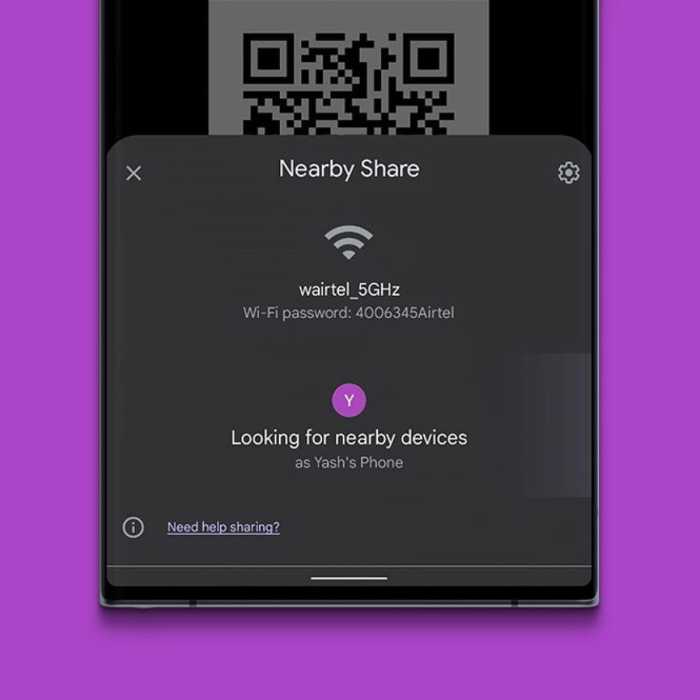
Once you’ve accessed your server settings, as previously described, locating the option to change your server’s name is straightforward. This crucial step allows you to customize your server’s identity and make it more recognizable to members. The process is intuitive and designed for quick modification.To modify your server name, you’ll typically find a field clearly labeled “Server Name” or a similar designation within the server settings.
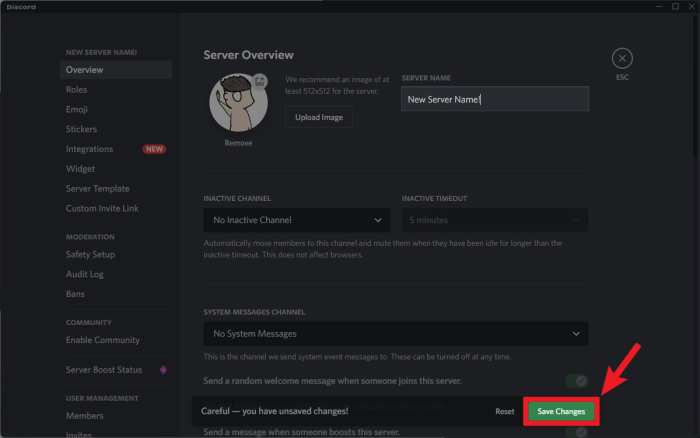
This field will likely display the current server name, allowing you to directly edit it. Simply click on the current name to activate the editing mode, delete the existing text, and type in your desired new name. Remember to save your changes once you’re satisfied with the new name. Discord usually provides a clearly marked “Save” button or a similar confirmation mechanism.
Server Name Character Limits and Restrictions
Discord imposes certain limitations on server names to ensure consistency and prevent issues. These limitations primarily revolve around character limits and permissible characters. Generally, there’s a maximum length restriction, often around two hundred characters, though this can be subject to change. Beyond the length, Discord prohibits the use of certain characters, usually those that are considered inappropriate, potentially offensive, or could cause technical difficulties.
These typically include special characters outside the standard alphanumeric set. Attempting to use prohibited characters will often result in an error message preventing the name change. It’s advisable to use a mix of standard letters and numbers, while keeping it concise and memorable.
Previewing the New Server Name
Before committing to the new server name, Discord usually offers a preview function. While not explicitly labeled as a “preview,” the immediate change of the name in the settings window itself serves as a visual preview. As you type the new name into the designated field, the changes are reflected in real-time, providing an immediate visual representation of how the server name will appear.
This eliminates the need for a separate preview button or screen. You can thus verify the spelling, formatting, and overall appearance before saving the changes.
Potential Issues During Renaming
While generally straightforward, the renaming process can occasionally encounter issues. One common problem is if the chosen name is already in use by another server. Discord will typically display an error message indicating that the name is unavailable and prompt you to choose a different one. Less frequently, server-side errors might prevent the name change. In such cases, refreshing the page or trying again later might resolve the issue.
If problems persist, contacting Discord support is advisable.
Best Practices for Choosing a Server Name
Choosing a server name is an important decision that significantly impacts your server’s identity and visibility. Careful consideration should be given to several factors to ensure your server’s name is both effective and appropriate.
- Clarity: The name should clearly communicate the server’s purpose or theme. Avoid ambiguity or overly cryptic names.
- Relevance: The name should be relevant to the server’s content and target audience.
- Memorability: A memorable name is easier for users to recall and share. Consider using catchy phrases or unique combinations of words.
- Availability: Ensure the name is not already taken by another server.
- Length: Keep the name concise and avoid excessively long names that are difficult to remember or display.
Troubleshooting and Common Issues
Changing your Discord server name is usually a straightforward process, but occasionally you might encounter unexpected problems. This section Artikels common errors, their causes, and solutions to help you smoothly rename your server. Understanding these potential issues will prevent frustration and ensure a quick resolution.
Several factors can contribute to difficulties in renaming your Discord server. These range from simple permission errors to more complex issues with the Discord API. By understanding the different error messages and their root causes, you can quickly identify and rectify the problem. This section will equip you with the knowledge and troubleshooting steps to successfully change your server name.
Error Messages and Their Causes
Understanding the specific error messages Discord displays is crucial for effective troubleshooting. Different messages indicate different underlying problems. Analyzing these messages allows for a targeted approach to resolving the issue. The following table provides examples of common error messages and their solutions.
| Error Message | Cause | Solution | Example |
|---|---|---|---|
| “You do not have permission to perform this action.” | Insufficient server permissions. You may not have the “Manage Server” permission. | Ensure you have the “Manage Server” permission in your server roles. Contact a server administrator if needed to request the necessary permissions. | A user with only the “Member” role attempts to rename the server. |
| “An unexpected error occurred. Please try again later.” | A temporary issue with Discord’s servers. | Wait a short period (e.g., 15-30 minutes) and try again. If the problem persists, contact Discord support. | A server overload may cause this message to appear. |
| “The server name is already in use.” | The chosen server name is already taken on Discord. | Choose a different server name. Consider adding a number or variation to make it unique. | Attempting to use the name “Awesome Gaming Server” when it already exists. |
| “The server name is invalid.” | The chosen name violates Discord’s naming conventions (e.g., too long, contains inappropriate characters). | Review Discord’s server naming guidelines and choose a name that complies with the rules. | Using a name with prohibited symbols or exceeding the character limit. |
Troubleshooting Flowchart
The following flowchart visually Artikels the steps to take if you encounter problems changing your server name. Following these steps systematically will help you diagnose and resolve the issue efficiently.
Imagine a flowchart with the following steps: Start -> Check Permissions -> Is there a permission issue? (Yes: Request permissions from admin; No: Proceed) -> Attempt Rename -> Was the rename successful? (Yes: End; No: Check for error message) -> Analyze Error Message (refer to the table above for solutions) -> Retry -> Is the problem resolved? (Yes: End; No: Contact Discord Support).
Tips for Preventing Problems
Proactive measures can significantly reduce the chances of encountering issues when renaming your Discord server. By following these tips, you can streamline the process and avoid potential complications.
Before renaming your server, double-check that you have the necessary permissions. Also, preview your chosen name to ensure it meets Discord’s naming conventions. This includes length restrictions and prohibited characters. Finally, always have a backup plan – an alternative name ready in case your initial choice is unavailable.
Outcome Summary
Updating your Discord server name is a straightforward task once you understand the process. By following the steps Artikeld in this guide, you can quickly and efficiently change your server’s name, improving its appeal and functionality. Remember to choose a name that is clear, relevant, and memorable, reflecting the unique character of your server community. With a little planning and these simple instructions, you’ll have a new server name in no time!