Ever wished you could open a specific file type with your preferred application instead of the default one? This guide provides a comprehensive overview of how to change file associations across various operating systems, empowering you to customize your digital experience. We’ll explore the underlying mechanisms of file associations, delve into practical methods for modification, and address potential pitfalls along the way.
Get ready to take control of how your computer handles your files!
Understanding file associations is crucial for efficient computer usage. These associations dictate which program opens a file based on its extension (e.g., .docx for Word documents, .jpg for images). Incorrect associations can lead to frustration, so mastering their modification is a valuable skill for any computer user, regardless of operating system expertise. This guide will equip you with the knowledge to seamlessly manage these settings.
Understanding File Associations
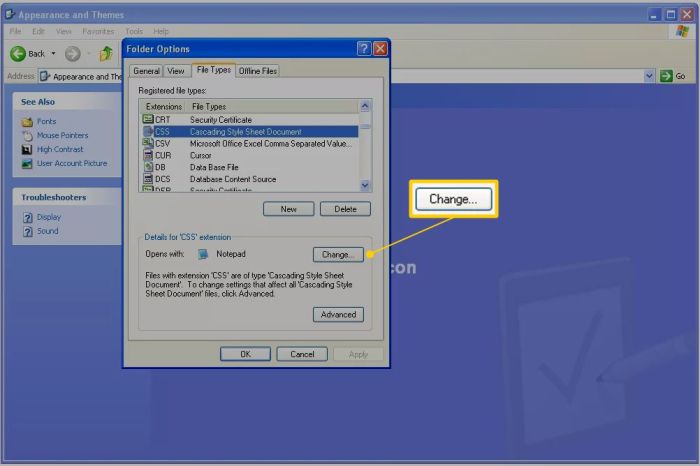
File associations are the invisible links between file types and the applications used to open them. They dictate which program your operating system launches when you double-click a specific file. This seemingly simple process underpins a significant portion of your daily computer interaction, ensuring seamless file management. Understanding how file associations work, and how to manage them, is crucial for efficient computing.File associations operate differently across various operating systems, yet the core principle remains the same: linking a file extension (e.g., .docx, .pdf, .jpg) to a specific application.
Windows, macOS, and Linux all maintain databases or registries that store these associations, allowing the system to quickly identify the correct program to open a given file.
How Operating Systems Determine Application Usage
When you double-click a file, the operating system first examines the file extension. It then consults its internal database (the Windows Registry, macOS’s Launch Services, or a similar mechanism in Linux) to find the associated application for that extension. If a match is found, the operating system launches that application, passing the file path as an argument. If no association is found, the operating system may prompt you to select an application from a list of installed programs or display an error message.
The specific mechanism varies across operating systems, but the overall process remains consistent.
Identifying Currently Associated Applications
Identifying the application currently associated with a specific file type is straightforward, though the methods vary across operating systems.In Windows, you can often right-click the file, select “Properties,” and navigate to the “Opens with” section. This will show the currently associated application. Alternatively, you can use the command prompt or PowerShell to query the registry directly, but this method is more technical.On macOS, you can right-click the file and select “Get Info.” The “Open with” section within the resulting window displays the default application.Linux distributions often provide graphical tools within the file manager (like Nautilus in GNOME or Dolphin in KDE) to view and modify file associations.
Alternatively, the command line can be used to query configuration files related to file associations.
Comparing File Association Modification Methods
The methods for changing file associations differ slightly between operating systems. The following table summarizes these differences:
| Operating System | File Type | Method | Example |
|---|---|---|---|
| Windows | .txt | Right-click the file, select “Properties,” then change the “Opens with” application. | Changing the default program for a .txt file from Notepad to Notepad++ |
| macOS | Right-click the file, select “Get Info,” and change the “Open with” application in the “Open with” section. | Changing the default program for a .pdf file from Preview to Adobe Acrobat Reader | |
| Linux (e.g., GNOME) | .jpg | Use the file manager’s context menu (right-click) to select a different application for opening .jpg files. Specific methods may vary depending on the desktop environment. | Changing the default program for a .jpg file from Eye of GNOME to GIMP |
Modifying File Associations

Changing which program opens a specific file type is a straightforward process, but understanding the methods and potential pitfalls is crucial for maintaining a stable system. Incorrectly modifying file associations can lead to unexpected behavior or even system instability. This section details safe and effective methods for managing your file associations.
Several methods exist for altering file associations, each offering varying levels of control and complexity. Choosing the right method depends on your comfort level with computer settings and the specific operating system you are using. It’s always advisable to back up your system before making significant changes to its settings.
Methods for Modifying File Associations
Different operating systems provide various ways to manage file associations. Here are some common methods, categorized by approach.
- Using the Operating System’s Settings: This is generally the easiest and safest method. Most modern operating systems provide a graphical user interface (GUI) for managing file associations. This usually involves right-clicking a file, selecting “Open with,” and choosing the desired application. Some systems allow you to set a default application for a specific file type directly within the settings menu.
- Using Registry Editors (Windows): Windows uses a registry to store system-wide settings, including file associations. The registry editor provides granular control but requires caution. Incorrectly modifying registry entries can severely damage your system. Modifying file associations through the registry typically involves navigating to specific keys related to file extensions and modifying their values to point to the desired application’s executable file.
- Using Command-Line Tools: Power users can leverage command-line tools to automate file association changes. This is useful for scripting or batch processing. These tools often provide more advanced options than GUI methods, but require a deeper understanding of command syntax and potential risks.
Potential Risks and Precautions
Modifying file associations, particularly through registry editing or command-line tools, carries inherent risks. Improper changes can lead to system instability, application errors, or even data loss. Always exercise caution and consider these precautions:
- Back up your system: Before making any changes, create a system restore point or back up your registry. This allows you to revert to a previous state if something goes wrong.
- Understand the consequences: Be aware that changing file associations can affect how all files of a particular type are opened. Test your changes thoroughly before making them permanent.
- Use caution with registry editors: Incorrectly editing the registry can cause irreparable damage to your system. Only make changes if you are confident in your abilities and have a backup.
Flowchart: Changing File Associations in Windows 10
The following describes a flowchart for changing file associations in Windows 10. Imagine a flowchart with boxes and arrows. The first box would be “Locate a file with the extension you want to change”. An arrow would lead to “Right-click the file”. Another arrow from that would lead to “Select ‘Open with'”.
The next box would be “Choose the desired application from the list OR select ‘Choose another app'”. If “Choose another app” is selected, an arrow would lead to “Browse to and select the application executable”. Another arrow from either the application selection or the browsing step would lead to “Select ‘Always use this app to open .[extension]’ (optional)”.
Finally, an arrow leads to “Click ‘OK'”.
Troubleshooting Common Issues
Sometimes, applications may not appear in the list of available programs when changing file associations. This can be due to several reasons:
- Application not installed correctly: Ensure the application is properly installed and its executable file is accessible.
- File association already set: Check if the file association is already set to a different program. You may need to reset the association before changing it.
- System corruption: In rare cases, system corruption can prevent applications from appearing in the list. Running a system file checker might help.
- Permissions issues: Verify that your user account has the necessary permissions to modify file associations.
Advanced File Association Techniques
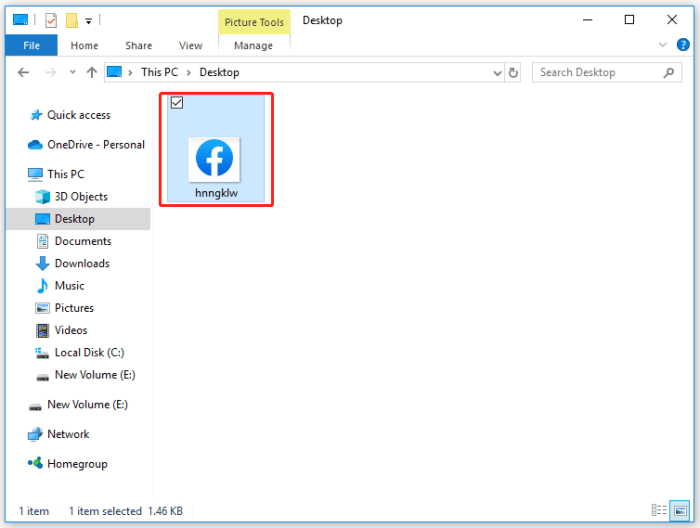
Understanding the nuances of file associations allows for greater control over how your operating system interacts with various file types. This section delves into more complex scenarios and techniques to effectively manage your file associations.
Choosing between using default applications and specifying individual applications for each file type involves a trade-off between convenience and precision. Default applications streamline the user experience by automatically selecting a program based on the file extension. However, this approach can be inflexible, especially if you prefer different applications for similar file types or have specialized needs. Specifying individual applications for each file offers greater control, allowing you to leverage the unique capabilities of different programs, but requires more manual configuration.
Default Applications Versus Specific Applications
Employing default applications simplifies file opening; the system automatically selects the appropriate program based on the file extension. This is generally convenient for common file types. Conversely, specifying particular applications offers greater customization, enabling the user to choose the best program for specific tasks. For example, one might use a lightweight image viewer for quick previews and a more powerful editor for detailed image manipulation.
The choice depends on individual workflow and preference.
Implications of Changing File Associations
Modifying file associations can significantly impact how you interact with various file types. Changes to document associations directly affect which word processor opens .docx or .pdf files. Altering image associations impacts the default viewer for .jpg, .png, and other image formats. Similarly, changing video associations dictates which media player opens .mp4 or .avi files. Executable file (.exe) associations should be handled with caution, as incorrect associations can lead to security risks.
It is crucial to only associate executables with trusted applications.
Common File Extensions and Associated Applications
The following list illustrates common file extensions and their typical associated applications. Understanding these associations is crucial for effective file management and troubleshooting.
- .docx, .doc: Microsoft Word, LibreOffice Writer, Google Docs
- .xlsx, .xls: Microsoft Excel, LibreOffice Calc, Google Sheets
- .pptx, .ppt: Microsoft PowerPoint, LibreOffice Impress, Google Slides
- .pdf: Adobe Acrobat Reader, Foxit Reader
- .jpg, .jpeg, .png, .gif: Various image viewers (e.g., Windows Photos, XnView), image editors (e.g., Adobe Photoshop, GIMP)
- .mp4, .avi, .mov: Various media players (e.g., VLC media player, Windows Media Player)
- .exe: Various executable applications (caution advised)
Resolving Conflicts Between Applications
Conflicts arise when multiple applications claim the ability to open the same file type. This often leads to a prompt asking which program to use each time a file is opened. To resolve this, you can typically prioritize one application in the file association settings. Windows, for instance, allows you to select a default application from a list of programs that can handle a particular file type.
Removing unwanted programs from the list or repairing corrupted application installations can also alleviate conflicts. In some cases, reinstalling the conflicting applications might be necessary to ensure proper registration.
Epilogue
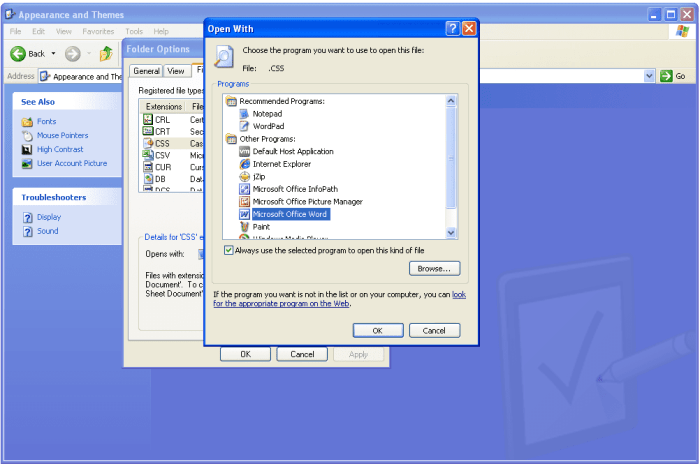
Successfully altering file associations enhances your workflow and personalizes your computing experience. By understanding the methods and potential issues involved, you can confidently manage your file types and select the optimal application for each task. Remember to exercise caution when modifying system settings, but with this guide, you’re well-prepared to customize your file interactions for maximum efficiency and satisfaction.
Now you have the power to dictate how your files open!