Navigating the digital world with children requires a proactive approach to online safety. Parental controls are no longer a luxury but a necessity in today’s interconnected landscape. This guide provides a comprehensive overview of how to effectively utilize parental control settings across various devices, empowering parents to create a safer online environment for their children. We’ll explore strategies for managing screen time, restricting access to inappropriate content, and implementing advanced safety measures, all while emphasizing the importance of open communication with your children.
From setting up age-appropriate restrictions on smartphones and tablets to monitoring online activity on gaming consoles and computers, we’ll cover a range of platforms and devices. We’ll also delve into advanced techniques, such as location tracking and in-app purchase controls, to ensure a well-rounded approach to online child safety. This guide aims to equip parents with the knowledge and tools to create a secure and positive digital experience for their children.
Understanding Parental Control Settings on Different Devices
Parental controls are crucial for safeguarding children online. Understanding the features available across different devices is essential for creating a safe digital environment. This section will Artikel the parental control options on various platforms, highlighting their strengths and weaknesses.
iOS Parental Controls
Apple’s iOS offers robust parental control features accessible through Screen Time. Parents can set limits on app usage, block inappropriate content, and monitor their child’s activity. Specific features include setting time limits for individual apps or categories of apps, scheduling downtime, and restricting access to explicit content within the App Store and Safari. Parents can also choose to allow or restrict specific websites and manage content ratings for apps and movies.
Communication controls allow parents to manage which contacts a child can communicate with. This granular control offers a high degree of customization for managing a child’s digital experience.
Android Parental Controls
Android devices offer a range of parental control options, often varying slightly depending on the device manufacturer and Android version. Google Family Link is a popular choice, providing features similar to iOS’s Screen Time. This includes app blocking, time limits, location tracking, and content filtering. Many Android devices also integrate parental controls directly into their settings menus, allowing for the management of app permissions, restricting access to certain apps or features, and setting screen time limits.
Third-party apps also provide additional parental control functionalities. The level of control available can depend heavily on the specific device and chosen app.
Windows versus Mac Parental Controls
Windows and Mac computers offer built-in parental control features, though their implementation differs. Windows’ Family Safety features allow parents to manage account access, filter websites, limit screen time, and monitor activity. Mac computers utilize parental controls within System Preferences, allowing for similar functionalities such as app restrictions, website filtering, and time limits. Both systems provide a degree of control over content access, but the user interface and specific features vary, requiring some familiarity with each operating system to effectively utilize them.
Setting Up Parental Controls on a Gaming Console
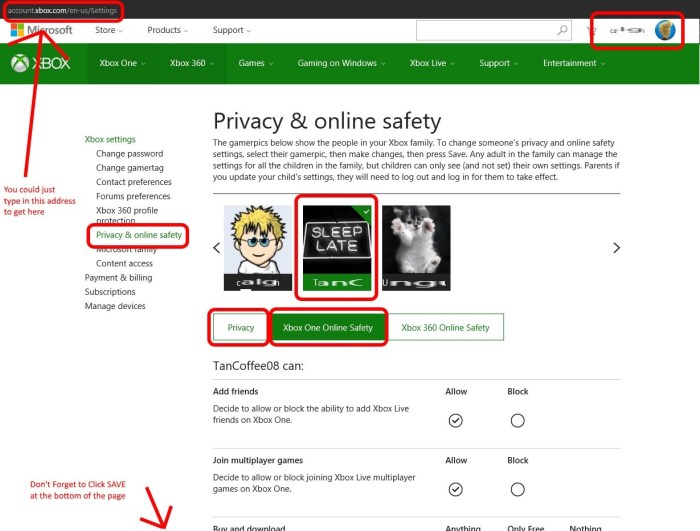
Setting up parental controls on gaming consoles like PlayStation or Xbox involves navigating the console’s settings menu. Both platforms offer age-based restrictions, allowing parents to select appropriate content ratings for games, movies, and other media. They also allow for the management of online interactions, including friend requests and communication restrictions. Parents can typically set spending limits for in-app purchases and monitor their child’s gaming activity.
Specific steps vary slightly depending on the console and its software version; refer to the console’s official documentation for precise instructions.
| Device | Feature | Ease of Use | Effectiveness |
|---|---|---|---|
| iOS | App limits, content filtering, communication controls | High | High |
| Android | App limits, content filtering, location tracking (with Family Link) | Medium | Medium-High |
| Windows | Account management, website filtering, screen time limits | Medium | Medium |
| Mac | App restrictions, website filtering, time limits | Medium | Medium |
| PlayStation/Xbox | Content rating restrictions, online interaction controls, spending limits | Medium | Medium-High |
Managing Screen Time and Content Restrictions

Setting appropriate screen time limits and restricting access to unsuitable online content are crucial aspects of protecting children in the digital world. Effective parental controls allow for a balance between providing children with access to technology and safeguarding them from potential harms. This section will explore practical strategies and tools for managing these critical areas.
Daily Screen Time Limits for Different Age Groups
Establishing daily screen time limits is vital for children’s physical and mental well-being. The American Academy of Pediatrics (AAP) provides guidelines, but the ideal amount depends on individual needs and family dynamics. Younger children (ages 2-5) should have very limited screen time, ideally no more than one hour of high-quality programming per day. For children aged 6-12, screen time should be balanced with other activities, and for teenagers (13-18), open communication about responsible usage is paramount.
These recommendations are not absolute and can be adjusted based on individual circumstances. However, consistency and clear expectations are key to effective screen time management.
Restricting Access to Inappropriate Websites and Online Content
Parental control software offers robust tools for filtering inappropriate content. Most operating systems and internet providers offer built-in parental controls that allow you to block websites based on s, categories (e.g., adult content, violence), or even specific URLs. These controls often include safe search features for search engines like Google and Bing. Third-party apps provide more granular control, often allowing for customized filtering and scheduling.
Regularly reviewing and updating these filters is essential, as new content and websites constantly emerge. It’s also beneficial to teach children about online safety and responsible digital citizenship.
Blocking Specific Apps or Games
Many parental control apps and device settings allow you to block specific apps or games. On smartphones and tablets, this is often managed through the device’s settings or through app-specific controls. For example, on iOS devices, you can restrict app usage through Screen Time settings. On Android, similar controls are available through Google Family Link. For computers, software solutions can provide granular control over which applications can be accessed and when.
Remember to regularly review the blocked apps and games list, particularly as your child’s interests and needs evolve.
Recommended Apps for Managing Screen Time and Online Activity
Several applications are designed to help parents manage their children’s screen time and online activity. These apps typically offer features such as time limits, app blocking, website filtering, and activity monitoring. Examples include Google Family Link (Android and iOS), Qustodio (multi-platform), and Bark (multi-platform). Each app has its own strengths and weaknesses, so it’s important to research and choose one that best suits your family’s needs and devices.
Note that features and availability may vary depending on the platform and subscription level.
Monitoring Children’s Online Activity While Respecting Privacy
Monitoring a child’s online activity is a sensitive issue that requires careful consideration of privacy. While parental controls offer valuable tools for safeguarding children, open communication and transparency are essential. Explain to your child why you are using these controls and involve them in setting reasonable limits. Avoid excessive monitoring that could feel intrusive or violate their privacy.
Focus on protecting them from harmful content and promoting responsible online behavior rather than constantly tracking their every action. The goal is to foster trust and responsible digital citizenship, not to create a sense of surveillance.
Advanced Parental Control Techniques and Safety Measures
Parental controls offer a crucial first line of defense in the digital world, but maximizing their effectiveness requires a proactive and multi-layered approach. Beyond basic content and time restrictions, advanced techniques can significantly enhance your child’s online safety and responsible technology use. This section explores these advanced strategies and provides practical guidance on implementing them.
Children face a range of online risks, from cyberbullying and inappropriate content to online predators and scams. Parental controls play a vital role in mitigating these threats. Effective parental controls can filter harmful content, monitor online activity, and limit exposure to risky situations. However, it’s crucial to remember that parental controls are not foolproof; open communication and education are equally important components of a comprehensive online safety strategy.
Location Tracking Features for Enhanced Safety
Setting up location tracking can provide peace of mind, particularly for younger children or teenagers who travel independently. Most smartphones offer built-in location services, which can be accessed through the device’s settings. Parents can typically set up notifications for when a child arrives at or leaves a specific location, or track their movement in real-time through a dedicated app.
For example, many family-oriented apps allow parents to create “safe zones” and receive alerts if a child leaves those designated areas. Remember to discuss the use of location tracking with your child openly and transparently, emphasizing its purpose and respecting their privacy. It is important to balance safety concerns with the child’s right to privacy.
Managing In-App Purchases and Preventing Unwanted Spending
Unintentional in-app purchases can quickly lead to unexpected expenses. Most app stores offer parental controls that allow you to set up password protection for purchases, restrict in-app purchases entirely, or approve individual purchases before they are processed. For example, on Apple devices, you can enable “Ask to Buy” in the Screen Time settings, requiring your approval for every purchase made by a child.
Google Play offers similar features under its Family Link app. Regularly reviewing your child’s app usage and purchase history is also recommended.
Email and Social Media Monitoring Features
While direct monitoring of email and social media activity can be a sensitive issue, some platforms offer parental control features or allow for monitoring of certain aspects of a child’s activity. For instance, some email providers allow parents to set up email forwarding or access a child’s email inbox with their permission. Similarly, some social media platforms provide privacy settings that allow parents to control who can contact their child or view their posts.
However, it is vital to approach this with transparency and respect for your child’s privacy, ensuring they understand why you’re implementing these measures and that it’s not an attempt to invade their privacy without cause. Open and honest communication is key.
Open Communication About Online Safety
Regular conversations with children about online safety are crucial. This shouldn’t be a one-time lecture, but an ongoing dialogue about responsible technology use, identifying and reporting inappropriate content, and the potential risks associated with online interactions. Explain the importance of strong passwords, the dangers of sharing personal information, and the consequences of cyberbullying. Encourage your children to come to you if they encounter any uncomfortable or unsafe situations online.
This open communication fosters trust and ensures your child feels comfortable seeking help when needed.
Outcome Summary

Protecting children in the digital age requires ongoing vigilance and adaptation. By understanding and effectively utilizing the parental control features available across different devices and platforms, parents can significantly reduce online risks and foster responsible technology use. Remember that parental controls are just one piece of the puzzle; open communication and ongoing dialogue with your children about online safety are equally crucial.
This guide serves as a starting point, encouraging parents to actively engage in managing their children’s online experience and fostering a safe and positive digital environment.