Data loss is a nightmare scenario for anyone, from individuals managing personal photos to businesses relying on critical operational data. Proper backup strategies are your first line of defense against this potential catastrophe. This guide provides a comprehensive walkthrough of how to effectively change your backup settings, ensuring your valuable files are safeguarded against hardware failure, accidental deletion, or even malicious attacks.
We’ll explore various backup methods, delve into the specifics of configuring them on different operating systems, and discuss advanced strategies for maximum protection.
Understanding the nuances of local, cloud, and external hard drive backups is crucial. We’ll compare their strengths and weaknesses, guiding you towards the optimal solution for your specific needs, considering factors like file type, size, and frequency of updates. Furthermore, we’ll provide step-by-step instructions for configuring backups on Windows, macOS, and popular cloud services, empowering you to take control of your data security.
Understanding Backup Types and Their Suitability
Choosing the right backup method is crucial for protecting your valuable data. Different backup types offer varying levels of convenience, security, and cost-effectiveness. Understanding their strengths and weaknesses will help you select the best approach for your specific needs. This section will explore the three most common backup types: local backups, cloud backups, and external hard drive backups.
Local Backups
Local backups store copies of your data on a separate drive within your computer system. This could be a second internal hard drive or a connected external drive. This method offers speed and direct access to your data.
Cloud Backups
Cloud backups store your data on remote servers maintained by a third-party provider. Services like Google Drive, Dropbox, and iCloud offer varying amounts of storage space. This method provides offsite protection, meaning your data is safe even if your computer is lost or damaged.
External Hard Drive Backups
External hard drives offer a portable and relatively inexpensive way to back up your data. You can connect the drive to your computer and manually copy files or use backup software to automate the process. This provides a physical copy of your data, separate from your primary computer.
Comparison of Backup Types
The following table summarizes the pros and cons of each backup type:
| Device | Cost | Security | Accessibility |
|---|---|---|---|
| Local Hard Drive | Low (if you already own the drive) | Moderate (vulnerable to physical damage, theft, and malware) | High (fast access) |
| Cloud Storage | Variable (subscription based, can range from free to expensive) | High (providers generally offer strong security measures, but data breaches are possible) | High (accessible from any device with internet access) |
| External Hard Drive | Moderate (cost of the drive itself) | Moderate (vulnerable to physical damage, theft, but less vulnerable to malware if used properly) | Moderate (requires physical connection to the computer) |
Choosing the Right Backup Method
The best backup method depends on several factors, including the type of files you’re backing up, their size, and how often they change. For example, large video files might be better suited to external hard drives or cloud storage with sufficient space, while smaller, frequently changing documents might benefit from automated cloud backups. Consider the value of your data; irreplaceable family photos might warrant a multi-faceted approach using both cloud and external hard drive backups.
Setting Up Each Backup Type
Setting Up Local Backups
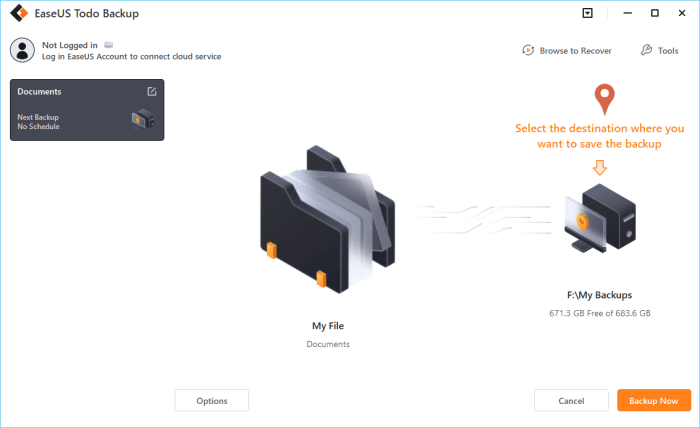
Setting up a local backup involves selecting a secondary storage location (internal or external drive), identifying the files or folders to back up, and either manually copying them or using backup software to automate the process. Many operating systems offer built-in backup utilities.
Setting Up Cloud Backups
Cloud backup setup typically involves creating an account with a cloud storage provider (such as Google Drive, Dropbox, or OneDrive), downloading their application, and selecting the files or folders you want to sync. Most services offer automated syncing, ensuring your data is always up-to-date.
Setting Up External Hard Drive Backups
To set up an external hard drive backup, connect the drive to your computer. You can manually copy files, use the operating system’s built-in file copy functionality, or utilize third-party backup software for more advanced features like scheduling and incremental backups. Remember to format the external drive appropriately before use.
Configuring Backup Settings for Different Operating Systems
Properly configuring backup settings is crucial for data protection. Different operating systems offer varying approaches to backups, each with its own strengths and weaknesses. Understanding these differences and configuring them correctly is essential for ensuring your data remains safe and accessible. This section will guide you through setting up backups on Windows, macOS, and popular cloud services.
Windows 10/11 Automatic Backups
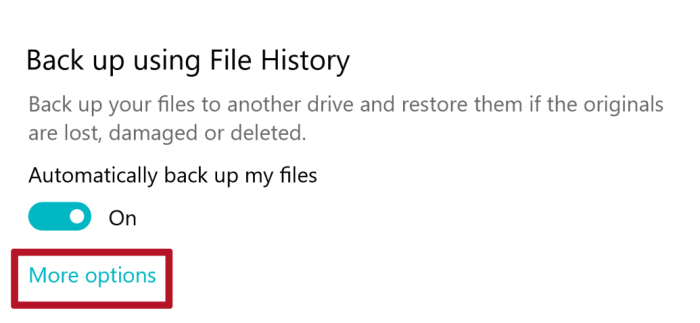
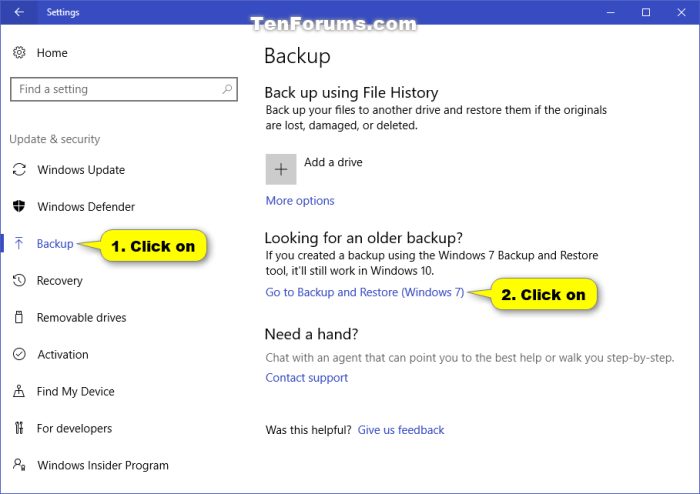
Windows offers built-in tools for creating backups, primarily through the File History feature. This allows for automated backups of specific folders to an external drive or network location. To configure automatic backups, navigate to Settings > Update & Security > Backup. Here, you can select the drive to use for backups, specify which folders to include (Documents, Pictures, Videos are usually the default), and define the backup frequency.
Options range from daily to hourly, allowing you to choose a schedule that suits your needs and the rate of data changes. It’s important to regularly check the backup status and ensure the selected drive has sufficient space. You can also manage existing backups, restoring individual files or the entire backup if needed.
Time Machine Backups on macOS
macOS users benefit from Time Machine, a comprehensive backup solution. To set it up, connect an external drive (ideally formatted as APFS or HFS+). System Preferences > Time Machine will guide you through selecting the drive and initiating the backup process. Time Machine automatically backs up your entire system, including applications, user data, and system files. It creates incremental backups, meaning only changes since the last backup are saved, optimizing storage space.
By default, Time Machine backs up hourly for the past 24 hours, daily for the past month, and weekly for all previous backups. You can adjust these settings, though the default is generally sufficient. Troubleshooting common issues, such as a full backup drive, often involves simply replacing the drive with a larger one or deleting older backups to free up space.
Configuring Cloud Backup Services
Cloud backup services like Google Drive, Dropbox, and OneDrive offer convenient and accessible solutions for safeguarding your data. After installing the respective application, you’ll need to create an account and authorize access to your files. A key feature is selective sync, allowing you to choose specific folders or files to be backed up to the cloud, reducing storage consumption and syncing time.
Many services also offer version history, keeping multiple versions of your files for a specified period, enabling you to revert to earlier versions if necessary. It is crucial to understand the storage limits and pricing plans offered by these services, as they can vary significantly. Regularly checking your cloud storage usage and adjusting selective sync settings as needed is a good practice.
Comparison of Backup Settings Interfaces and Functionalities
| Feature | Windows 10/11 (File History) | macOS (Time Machine) | Google Drive (Example Cloud Service) |
|---|---|---|---|
| Backup Type | File-based, incremental | System-wide, incremental | File-based, incremental |
| Backup Frequency | Configurable (hourly, daily, etc.) | Configurable (hourly, daily, weekly) | Continuous, based on file changes |
| Destination | External drive, network share | External drive, network share | Google’s cloud servers |
| File Selection | Selective folder selection | System-wide, with options for exclusions | Selective folder/file selection |
| Version History | Limited versioning (previous backups available for restore) | Extensive version history (using snapshots) | Configurable version history (depending on plan) |
Advanced Backup Strategies and Best Practices
Implementing robust backup strategies is crucial for data protection, ensuring business continuity, and minimizing the impact of data loss. This section explores advanced strategies and best practices to enhance your backup approach, moving beyond basic configurations to a more comprehensive and resilient system.
The 3-2-1 Backup Rule
The 3-2-1 backup rule is a widely accepted standard for data protection. It dictates that you should maintain three copies of your data, stored on two different media types, with at least one copy stored offsite. This strategy significantly reduces the risk of complete data loss due to hardware failure, theft, or disaster. For example, you might keep one copy on your local hard drive, a second copy on an external hard drive, and a third copy on cloud storage.
This diversification ensures that even if one storage location is compromised, you still have access to your data.
Risks of Insufficient or Improperly Configured Backups
Insufficient or improperly configured backups expose you to significant risks, including complete data loss, costly downtime, legal repercussions (especially for businesses), and reputational damage. Failure to regularly test backups can lead to discovering inconsistencies or failures only after a critical event, when it is too late. Incorrectly configured backups might exclude crucial files or directories, leading to incomplete recovery.
Ransomware attacks, for instance, can render local and network backups useless if they are not properly isolated or protected.
Backup Schedules for Personal and Business Use
Designing an appropriate backup schedule depends heavily on data sensitivity and recovery time objectives (RTOs). For personal use, a daily or weekly backup of important documents, photos, and videos might suffice, with a less frequent full backup of the entire system. Businesses, however, typically require more frequent backups, potentially hourly or daily for critical data, with less frequent backups for less critical information.
RTOs – the time it takes to recover from a data loss event – should dictate backup frequency. A business with a low RTO will need far more frequent backups than one with a higher tolerance for downtime. For example, a hospital’s patient records system would require far more frequent backups than a personal blog.
Examples of Backup Software and Their Suitability
Several backup software options cater to different needs and budgets. Acronis Cyber Protect offers comprehensive backup and cybersecurity features, suitable for both personal and business users. It provides disk imaging, cloud storage options, and ransomware protection. Carbonite is a cloud-based backup solution popular for its simplicity and ease of use, well-suited for personal users. Veeam Backup & Replication is a powerful enterprise-grade solution designed for large-scale business environments, offering advanced features like granular recovery and orchestration.
The choice of software depends on factors like the scale of your data, budget, technical expertise, and specific security requirements. For instance, a small business might find Carbonite sufficient, while a large corporation would likely benefit from Veeam’s advanced features.
Outcome Summary
Implementing a robust backup strategy is an investment in peace of mind and data security. By understanding the different backup types, mastering the configuration process on your chosen operating system, and adopting advanced strategies like the 3-2-1 rule, you significantly reduce the risk of irreversible data loss. Remember, regular review and updates to your backup settings are essential to ensure ongoing protection.
Take proactive steps today to safeguard your valuable files and minimize potential disruptions in the future. The time invested in establishing a secure backup system is far outweighed by the potential consequences of not having one.