In today’s digital landscape, safeguarding your online accounts is paramount. Two-Factor Authentication (2FA) provides an essential extra layer of security, significantly reducing the risk of unauthorized access. This guide will walk you through the process of managing your 2FA settings, adding new methods, and ensuring your accounts remain protected. We’ll explore various 2FA methods, their strengths and weaknesses, and provide step-by-step instructions to enhance your online security posture.
Understanding and effectively utilizing 2FA is crucial for preventing account breaches and protecting sensitive personal information. Whether you’re a seasoned internet user or just starting to prioritize online security, this comprehensive guide will empower you to take control of your digital safety.
Understanding Two-Factor Authentication (2FA)
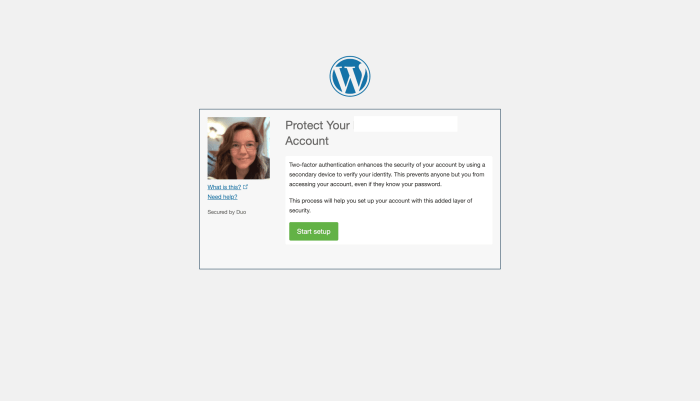
Two-factor authentication (2FA) significantly enhances online security by adding an extra layer of protection beyond your standard password. By requiring a second form of verification, 2FA makes it exponentially harder for unauthorized individuals to access your accounts, even if they manage to obtain your password. This added security is crucial in today’s digital landscape, where data breaches and cyberattacks are increasingly common.
Two-Factor Authentication Methods
Several methods exist for implementing 2FA, each with its own strengths and weaknesses. Choosing the right method depends on your individual security needs and technological comfort level.
- Authenticator Apps: These apps (like Google Authenticator or Authy) generate time-sensitive codes that you must enter along with your password. They offer strong security because the codes are generated locally on your device and are not transmitted over the network, making them resistant to interception.
- SMS (Text Message): A one-time code is sent to your registered phone number. While convenient, SMS-based 2FA is vulnerable to SIM swapping attacks, where a malicious actor gains control of your phone number, allowing them to receive the verification codes.
- Security Keys: These physical devices (USB or NFC) generate cryptographic keys that authenticate your identity. They provide the highest level of security, as they are resistant to phishing and other online attacks. However, they require a physical device, and losing the key can make accessing your accounts difficult.
Comparison of 2FA Methods
The table below summarizes the security strengths and weaknesses of each 2FA method:
| Method | Strengths | Weaknesses | Security Rating (1-5, 5 being highest) |
|---|---|---|---|
| Authenticator Apps | High security, resistant to many attacks, no reliance on network connectivity for code generation | Requires a smartphone or other device with the app installed; can be inconvenient if you lose your device | 4 |
| SMS | Convenient, widely available | Vulnerable to SIM swapping attacks; relies on network connectivity; can be susceptible to phishing | 2 |
| Security Keys | Very high security, resistant to phishing and most online attacks | Requires a physical device; can be inconvenient to carry; losing the key can lock you out of accounts | 5 |
Enabling Two-Factor Authentication on a Generic Online Account
The specific steps for enabling 2FA vary slightly depending on the service provider, but the general process remains similar. The following table Artikels a generic example:
| Step Number | Action | Screenshot Description | Potential Issues and Solutions |
|---|---|---|---|
| 1 | Log in to your online account. | A login screen displaying username and password fields. After successful login, a user dashboard is shown with options for account settings. | Incorrect password. Double-check your password for typos. If you’ve forgotten your password, use the password recovery option provided by the service. |
| 2 | Navigate to the security settings. | A settings menu, possibly labeled “Security,” “Account Settings,” or similar. Within the menu, there should be a sub-section related to security or two-factor authentication. | Difficulty finding the security settings. Consult the service’s help documentation or support resources for assistance. |
| 3 | Select your preferred 2FA method. | A list of available 2FA methods (e.g., authenticator app, SMS, security key) with buttons or checkboxes to select. | The desired method is unavailable. Consider using an alternative method from the list. |
| 4 | Follow the on-screen instructions to set up your chosen method. | This will vary depending on the chosen method. For an authenticator app, it might involve scanning a QR code. For SMS, it might involve entering your phone number. For security keys, it will involve registering the key to your account. | Issues during setup (e.g., QR code not scanning, incorrect phone number). Consult the service’s help documentation or support for troubleshooting. |
| 5 | Test your 2FA setup. | Attempt to log out and log back in. You should be prompted to enter your password and the verification code from your chosen 2FA method. | 2FA is not working. Check your setup, ensure your device is connected to the internet (if applicable), and contact support if the problem persists. |
Adding a New 2FA Method to Your Existing Account
Adding a second or even third method of two-factor authentication significantly strengthens your account security. Having multiple layers of verification makes it exponentially harder for unauthorized individuals to access your accounts, even if one method is compromised. This section will guide you through adding new 2FA methods to your existing account, covering authenticator apps and security keys.
Adding a New Authenticator App
Many services allow you to add multiple authenticator apps. This provides redundancy; if one phone is lost or broken, you still have access to your accounts. The process generally involves opening your account settings, navigating to the security section, and selecting the option to add a new authenticator app. You will then be prompted to scan a QR code displayed on the screen using your chosen authenticator app (like Google Authenticator or Authy).
Once the code is scanned, your new app will be linked to your account. You’ll need to enter a verification code from the newly added app to confirm the setup. Remember to keep your authenticator apps backed up or synced across multiple devices.
Adding a Security Key
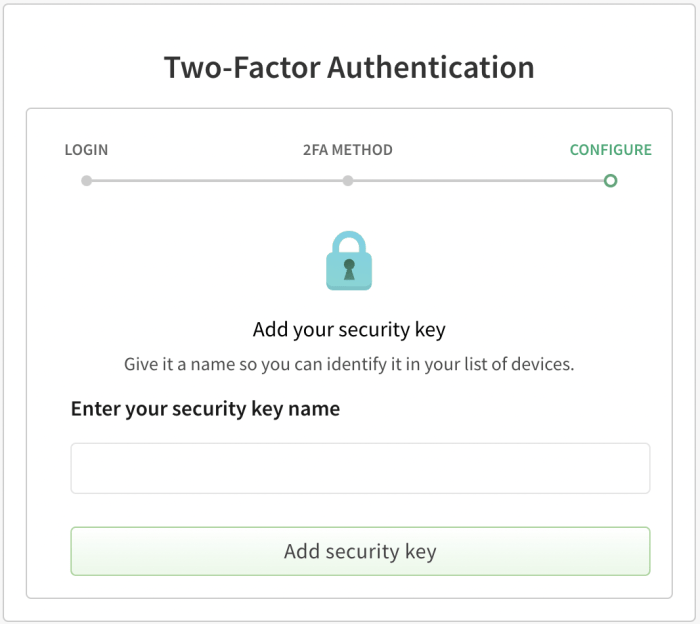
Security keys offer a high level of security. They are physical devices that you plug into your computer or tap against your phone. They are resistant to phishing attacks, as they are designed to only work with your specific account. The process of adding a security key varies depending on the service, but generally involves going to your account security settings, selecting “Add Security Key,” and following the on-screen instructions.
This often involves registering the key by following a prompt on the key itself and then confirming the registration on your account.
Changing Your Primary 2FA Method
Losing access to your primary 2FA method can be a significant problem. However, most services allow you to change your primary method. It’s crucial to have a backup method already in place before you need to change your primary one.
- Access Account Settings: Log in to your account and navigate to the security settings page.
- Locate 2FA Management: Find the section dedicated to managing your two-factor authentication methods.
- Select Backup Method: Choose the secondary 2FA method you wish to make your primary method (e.g., an authenticator app if your primary was a security key, or vice versa).
- Verify Identity: You’ll likely need to verify your identity using your current primary 2FA method before proceeding.
- Confirm Change: Confirm the change to your primary 2FA method. The service might require you to enter a code from your new primary method.
- Remove Old Method (Optional): Once the change is complete, you may choose to remove your old primary 2FA method from your account for enhanced security.
Adding a New 2FA Method: A Flowchart
Imagine a flowchart with three main branches: Adding an Authenticator App, Adding a Security Key, and Changing the Primary Method. Each branch would have a starting point (“Begin”) and an end point (“Success”).The “Adding an Authenticator App” branch would have steps like: Access Account Settings, Find 2FA Settings, Select “Add Authenticator App”, Scan QR Code, Verify Code. An error point could be “QR Code Scan Failed,” with a solution of “Check internet connection, ensure app is correctly installed and functioning.”The “Adding a Security Key” branch would similarly have steps like: Access Account Settings, Find 2FA Settings, Select “Add Security Key,” Register Key, Verify Key.
An error point might be “Key Not Recognized,” with a solution of “Check key compatibility, try a different USB port (if applicable).”The “Changing Primary Method” branch would follow the steps Artikeld in the previous section, with an error point such as “Incorrect Verification Code,” solved by “Double-check code from backup method, ensure correct time/date settings on devices.” All branches converge at the “Success” endpoint, indicating successful addition or change of 2FA method.
If any error occurs at any point, the flowchart would direct back to the appropriate troubleshooting step.
Managing and Removing 2FA Methods

Maintaining and updating your two-factor authentication (2FA) methods is crucial for ongoing account security. Regularly reviewing and adjusting your 2FA settings ensures you have the most effective protection against unauthorized access, even if one method becomes compromised. This section details how to manage and remove existing 2FA methods, recover access if needed, and implement best practices for maintaining strong 2FA across your online accounts.
Disabling or Removing an Existing 2FA Method
The process for disabling or removing a 2FA method varies depending on the specific service or platform. Generally, you’ll find the relevant settings within your account’s security or profile section. Look for options like “Two-Factor Authentication,” “Security Settings,” or similar labels. Once located, you’ll typically see a list of your currently enabled 2FA methods (e.g., authenticator app, SMS, security key).
Select the method you wish to remove and follow the platform’s instructions to disable it. This usually involves confirming the action through another verification method. Remember, removing a 2FA method reduces your account’s security; only do so if absolutely necessary and immediately replace it with another reliable method.
Recovering Access When All 2FA Methods Are Lost
Losing access to all your 2FA methods can be a serious issue. Most services offer recovery options, but the process can be lengthy and require verification of your identity through various channels. This often involves contacting the service’s support team, providing proof of ownership (like a government-issued ID or purchase receipts), and potentially answering security questions. The specific recovery procedure is unique to each platform; consult their help documentation or contact their support for assistance.
To prevent this situation, it’s strongly recommended to have at least two distinct and reliable 2FA methods enabled simultaneously.
Best Practices for Managing Multiple 2FA Methods
Maintaining multiple 2FA methods across different accounts significantly enhances security. Consider using a combination of methods, such as an authenticator app for some accounts and security keys for others, to diversify your protection. Regularly back up your authenticator app’s data or recovery codes. Store these backups securely, ideally offline and in a location separate from your devices.
Avoid reusing the same 2FA method across multiple accounts, as compromising one method could potentially affect many accounts. For high-value accounts, prioritize methods offering stronger security, such as security keys. Finally, keep your contact information up-to-date with each service provider to facilitate account recovery.
2FA Security Checklist
It’s essential to regularly review and update your 2FA settings to maintain a high level of security. Use this checklist to ensure your accounts are adequately protected:
- Enable 2FA on all critical accounts (banking, email, social media).
- Use a combination of at least two different 2FA methods per account.
- Regularly back up your authenticator app data or recovery codes.
- Store backups securely, offline and separate from your devices.
- Review your 2FA methods at least annually and update as needed.
- Immediately report any suspicious activity or unauthorized access attempts.
- Keep your contact information up-to-date with each service provider.
- Familiarize yourself with the account recovery process for each service.
Epilogue
By implementing and diligently managing two-factor authentication, you significantly bolster your online security. Regularly reviewing and updating your 2FA settings, understanding the various methods available, and proactively addressing potential access issues are key to maintaining a robust defense against unauthorized access. Remember, a proactive approach to online security is the best way to protect your valuable data and maintain peace of mind.