Choosing your preferred web browser is a simple yet impactful decision that enhances your online experience. This guide provides a straightforward, step-by-step process for seamlessly switching your default browser on Windows, macOS, and Linux operating systems. We’ll cover identifying your current default, making the change, troubleshooting potential issues, and verifying the successful transition. Whether you’re a seasoned computer user or a newcomer to the digital world, this guide ensures a smooth and efficient process.
Navigating the intricacies of operating system settings can sometimes feel overwhelming. However, the process of changing your default browser is surprisingly straightforward once you understand the basic steps. This guide will walk you through the process for various operating systems, offering clear instructions and addressing potential pitfalls along the way. We’ll also explore methods for identifying your current default browser even without directly accessing system settings, making the entire process more accessible.
Identifying Your Current Default Browser
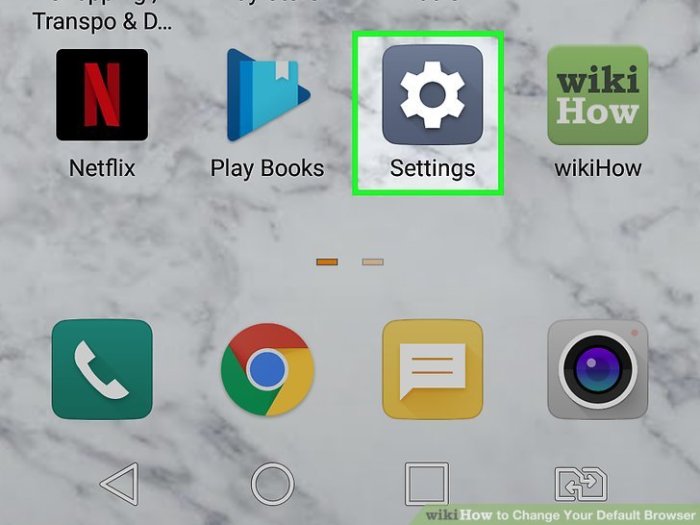
Knowing your default browser is the first step in managing your online experience. This is the browser that automatically opens when you click links in emails, or when you initiate a new browsing session. Identifying it might seem straightforward, but depending on your operating system and how many browsers you have installed, it can sometimes be tricky. This section will guide you through finding your default browser on various systems and address potential complications.
Locating Default Browser Settings Across Operating Systems
Finding your default browser setting varies slightly depending on your operating system. The following table summarizes the process for Windows, macOS, and Linux. Note that the exact steps might differ slightly depending on your operating system version.
| Operating System | Location of Setting | Screenshot Description | Steps to Identify |
|---|---|---|---|
| Windows 10/11 | Settings > Apps > Default apps > Web browser | A screenshot would show a settings window with a list of apps. The “Web browser” section would highlight the currently selected default browser with its icon displayed. Below, there would be a list of installed browsers allowing you to select a new default. | 1. Open the Settings app (search for “Settings” in the Start Menu). 2. Click on “Apps”. 3. Select “Default apps”. 4. Under “Web browser”, the currently selected browser will be displayed. |
| macOS | System Settings > General > Default web browser | A screenshot would show the System Settings window, with a section labeled “General”. Within this section, there would be a setting for “Default web browser” with a dropdown menu displaying installed browsers and the currently selected one highlighted. | 1. Open System Settings (usually found in the Apple menu). 2. Click on “General”. 3. Locate the “Default web browser” setting; the currently selected browser will be indicated. |
| Linux (varies by distribution) | This varies significantly depending on the Linux distribution and desktop environment (e.g., GNOME, KDE, XFCE). Generally, it’s found within the system settings, often under “Default Applications” or a similar section. | A screenshot would show a system settings window, with the specific location of the default browser setting varying. It would likely show a list of applications with an option to set defaults. | Consult your distribution’s documentation for specific instructions. The setting is typically found within the system settings menu. |
Alternative Methods for Identifying the Default Browser
Besides checking system settings, you can indirectly identify your default browser. For example, try clicking a link in an email. The browser that opens is your default. Similarly, creating a new shortcut to a website (e.g., typing the website address in the Run dialog box on Windows) will also launch the default browser.
Potential Issues Identifying the Default Browser
Multiple browsers installed can lead to confusion. If you have several browsers installed, it’s possible that conflicting settings or previous changes might not have properly updated your default browser. In such cases, carefully checking the system settings as described above is the most reliable method. Additionally, some applications might have their own independent browser settings, overriding the system-wide default.
Changing the Default Browser Setting
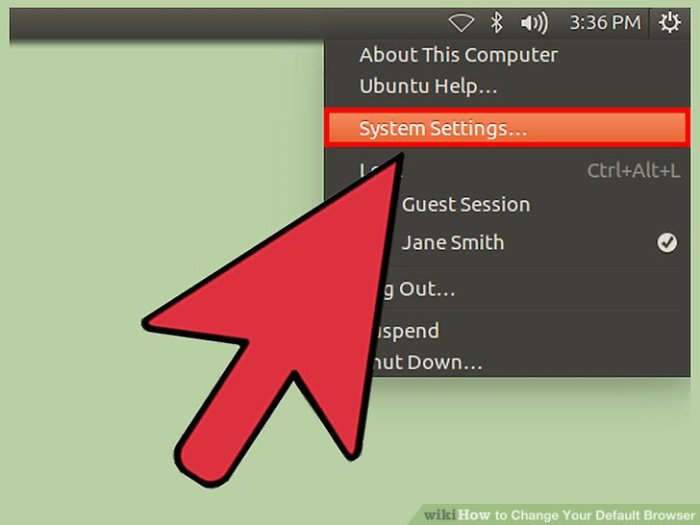
Setting your preferred browser as the default ensures it opens whenever you click a web link or file associated with web browsing. This process varies slightly depending on your operating system. The following instructions provide a clear guide for Windows, macOS, and Linux.
The steps involved in changing your default browser generally involve accessing system settings, identifying the current default browser (which we covered previously), and selecting your desired browser from a list of installed applications. This usually only takes a few minutes.
Windows Default Browser Change
Changing your default browser in Windows involves navigating to the system’s default apps settings. The specific steps might vary slightly depending on your Windows version, but the general process remains consistent.
- Open the Settings app (usually accessible through the Start Menu).
- Click on Apps, then select Default apps.
- Under “Web browser,” click the currently selected browser. A list of installed browsers will appear.
- Select your preferred browser from the list. The change will be applied immediately.
Imagine the Settings app as a control panel; you’re essentially telling Windows which program to use for web links.
macOS Default Browser Change
On macOS, the process of setting a default browser is slightly different and involves working within the system preferences.
- Click the Apple menu in the top-left corner of your screen.
- Select System Preferences.
- Click on General.
- Under “Default web browser,” you’ll see a dropdown menu. Select your desired browser from the options presented.
The System Preferences act as a central hub for managing various macOS settings, including your default applications.
Linux Default Browser Change
The method for changing the default browser in Linux depends heavily on the specific desktop environment (GNOME, KDE, XFCE, etc.) you are using. There’s no single universal approach.
- Most Linux distributions allow you to change your default browser through the desktop environment’s settings. Look for a section related to “Default Applications,” “Preferred Applications,” or similar.
- Locate the “Web Browser” setting and select your preferred browser from the available options.
- Some distributions might require you to use the command line to set default applications; consult your distribution’s documentation for specifics.
For example, in GNOME, you might find this setting within the “Settings” application under a category like “Default Applications”.
Operating System Default Browser Comparison
This table summarizes the key differences in changing your default browser across various operating systems.
| Operating System | Steps | Potential Errors | Solutions |
|---|---|---|---|
| Windows | Settings > Apps > Default apps > Web browser | Browser not listed in default apps. | Ensure the browser is properly installed. Reinstall if necessary. |
| macOS | System Preferences > General > Default web browser | Browser not appearing in the dropdown. | Ensure the browser is installed and that the system has been updated. Restart your computer. |
| Linux | Varies by desktop environment (e.g., GNOME Settings, KDE System Settings). Usually involves a “Default Applications” section. | Incorrect settings path or insufficient permissions. | Consult your distribution’s documentation. Use the command line if necessary (requires some technical knowledge). |
Setting Default Browser for Specific File Types
You can also configure your system to open specific file types (like .html or .pdf) with your chosen browser. This usually involves right-clicking a file, selecting “Open With,” and then choosing your preferred browser.
- Windows: Right-click a file (e.g., an .html file). Select “Open with” and choose your browser. You may have an option to set this as the default for all files of that type.
- macOS: Right-click a file. Select “Get Info.” Under “Open with,” select your browser and click “Change All…”.
- Linux: The method varies significantly based on the desktop environment. Generally, right-clicking a file and selecting “Open With” or a similar option should work.
Note that some file types might be intrinsically associated with other applications (like Adobe Acrobat for PDFs), and overriding this association might require more advanced settings.
Troubleshooting and Verification
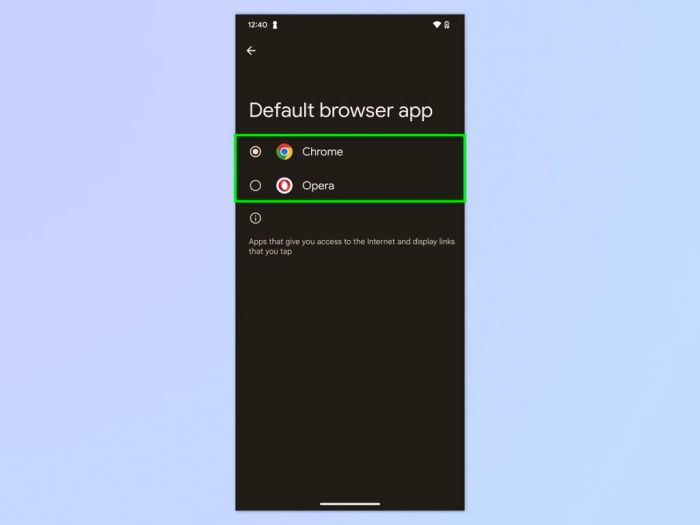
After changing your default browser, it’s crucial to verify the change was successful and address any potential issues. This section will guide you through troubleshooting steps and answer frequently asked questions.
Verifying your new default browser is a simple process. The most straightforward method involves attempting to open a link – a simple Google search, for example – by clicking it from an email or a document. The browser that opens should be your newly selected default. If it’s not, you may need to review the steps you took to change the default browser or investigate potential conflicts.
Default Browser Verification Methods
Several methods can confirm your default browser setting. Trying to open a link from a different application (like email) is the quickest check. Alternatively, you can search for a file type associated with your new browser (like a .html file) and see which program opens it. If neither method shows your desired browser, further troubleshooting is necessary.
Common Problems and Solutions
While changing your default browser is generally straightforward, some users encounter problems. This section addresses common issues and provides solutions.
- Problem: The default browser doesn’t change despite following the instructions.
Solution: Restart your computer. Sometimes, system caches or temporary files can interfere with the change. If the problem persists, check for any updates to your operating system or browser. - Problem: Error messages appear during the change process.
Solution: The specific error message will guide you. If it indicates permission issues, you might need administrator privileges. If it’s a browser-specific error, consult the browser’s help documentation or support website. - Problem: Certain applications still open links in the old default browser.
Solution: Some applications might have their own internal settings for default browsers. Check the application’s preferences or settings to see if there’s a specific browser selection option. You may need to change the default browser setting within the application itself.
Frequently Asked Questions
Users often have questions after changing their default browser. This section addresses common queries.
- What happens to my existing bookmarks? Your bookmarks remain in your old browser. You can manually import them into your new browser using the import/export feature usually found in the browser’s settings.
- How do I revert the changes and go back to my old default browser? The process is generally the same as changing the default browser, but you’ll select your previous browser in the operating system settings.
- Will this affect my saved passwords? Your saved passwords are stored separately within each browser. Changing your default browser won’t automatically transfer or delete passwords. You’ll need to manually import or manage passwords in your new browser.
- My browser extensions stopped working. Browser extensions are typically browser-specific. You will need to reinstall any extensions you wish to use in your new default browser.
Ultimate Conclusion
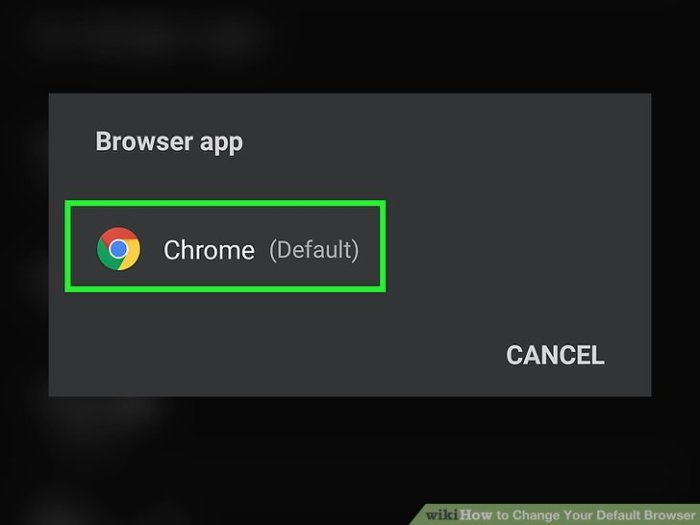
Successfully changing your default browser enhances your online workflow and personalizes your digital experience. By following the simple steps Artikeld in this guide, you can effortlessly switch to your preferred browser and enjoy a smoother, more efficient browsing experience. Remember to verify the change to ensure everything functions correctly. Should you encounter any unexpected issues, the troubleshooting section provides solutions to common problems.
With a little guidance, managing your default browser becomes a straightforward task.