In today’s digitally driven world, keeping your software current is paramount. Outdated software leaves you vulnerable to security threats, limits access to new features, and can even lead to system instability. This guide navigates the often-confusing world of software updates, providing a clear path to ensuring your applications remain up-to-date and secure, regardless of your operating system.
We’ll explore the different update methods – automatic, manual, and scheduled – weighing their pros and cons. You’ll learn how to configure update settings for various applications and operating systems (Windows, macOS, Linux, Android, iOS), discover best practices for managing updates efficiently, and understand how to troubleshoot common update problems. By the end, you’ll be confident in maintaining your software’s health and security.
Understanding Software Update Mechanisms
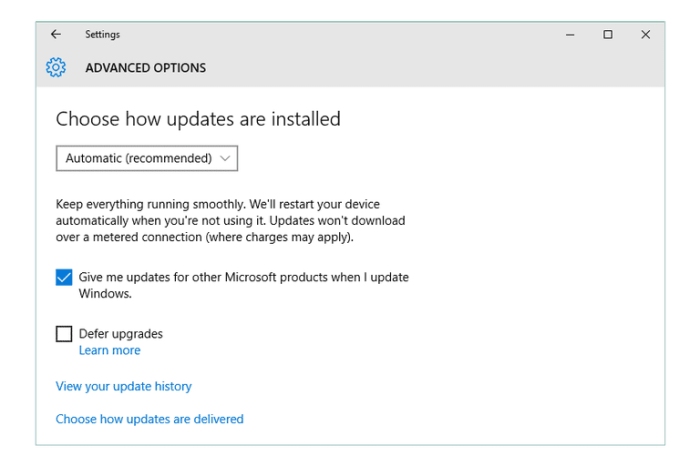
Keeping your software current is crucial for security and performance. Different software and operating systems employ various update mechanisms, each with its own advantages and disadvantages. Understanding these mechanisms allows you to choose the approach best suited to your needs and technical comfort level.
Software Update Mechanism Types
Software updates are typically delivered through three main mechanisms: automatic, manual, and scheduled. Automatic updates download and install updates without user intervention, manual updates require explicit user action to initiate the download and installation process, and scheduled updates allow users to specify a time or frequency for updates to occur.
Advantages and Disadvantages of Update Mechanisms
The optimal update mechanism depends on individual priorities and technical expertise. Consider the following:
| Mechanism | Advantages | Disadvantages |
|---|---|---|
| Automatic | Ensures always-up-to-date software, minimizing security vulnerabilities; convenient for users who prefer hands-off management. | May consume bandwidth unexpectedly; potential for disruptive updates during critical tasks; requires a stable internet connection. |
| Manual | Provides complete control over the update process; allows users to review updates before installation; suitable for users with limited bandwidth or who want to test updates before deployment to production systems. | Requires active user participation; increases the risk of outdated software and security vulnerabilities if updates are neglected. |
| Scheduled | Offers a compromise between automatic and manual updates; allows users to control the update timing, minimizing disruption; provides a balance between convenience and control. | Requires initial configuration; may still cause minor interruptions if updates are large or complex; needs reliable scheduling capabilities. |
Operating System Update Process Comparison
Different operating systems handle updates differently, impacting user experience and control.
| Operating System | Update Mechanism Types | User Interface Description | Typical Update Frequency |
|---|---|---|---|
| Windows | Automatic, Manual, Scheduled | A central Windows Update settings panel provides options for configuring update delivery, including automatic, manual, and scheduled updates. Notifications appear when updates are available. | Varies depending on Windows version and configuration; typically monthly or more frequently for security updates. |
| macOS | Automatic, Manual | Software Update preferences within System Preferences allow users to configure automatic updates or check for updates manually. Notifications are provided when updates are available. | Generally less frequent than Windows, often major releases annually with smaller security updates in between. |
| Linux (Distributions vary) | Automatic, Manual, Scheduled (distribution-specific) | Update mechanisms vary widely between distributions; some use a graphical user interface (GUI) for managing updates, while others rely on command-line tools. | Highly variable; some distributions release updates frequently, others less so. |
| Android | Automatic (mostly), Manual | Updates are typically handled automatically through the Google Play Store, but users can also manually check for updates. Notifications inform users of available updates. | Frequency varies by device manufacturer and Android version; generally less frequent than iOS. |
| iOS | Automatic (primarily) | Updates are typically handled automatically via the device’s settings; manual intervention is limited. Users receive notifications about available updates. | Generally less frequent than Android, often major releases annually with smaller updates throughout the year. |
Configuring Update Settings for Various Software

Keeping your software up-to-date is crucial for security and performance. Regular updates often include bug fixes, performance improvements, and vital security patches that protect your system from vulnerabilities. This section details how to configure update settings for various software, manage updates efficiently, and understand the risks of neglecting updates.
Enabling Automatic Updates for a Web Browser
Automatic updates are generally the best approach for maintaining software currency. Let’s take the example of Google Chrome. To enable automatic updates:
- Open Google Chrome.
- Click the three vertical dots in the top right corner (More Options).
- Select “Settings”.
- Scroll down and click “About Chrome”.
- Chrome will automatically check for updates and download them. You may need to restart the browser to complete the update process.
Similar settings are typically found in other browsers like Firefox, Edge, and Safari. Look for an “About” or “Updates” section within the browser’s settings menu. The specific steps might vary slightly depending on the browser and its version.
Managing Updates for Multiple Applications Simultaneously
Managing updates across numerous applications can be challenging. A robust approach involves utilizing the built-in update mechanisms of each application. While there isn’t a single, universal update manager for all software, some operating systems offer centralized update features (e.g., Windows Update, macOS Software Update). These features often handle updates for pre-installed system components and sometimes even some third-party applications.
However, you should still individually check for updates in applications that don’t automatically update through the operating system’s mechanism. Consider using a task management or reminder system to schedule regular checks for updates across your software.
Risks of Disabling Automatic Updates and Benefits of Keeping Software Current
Disabling automatic updates significantly increases your vulnerability to security threats. Outdated software often contains known vulnerabilities that hackers can exploit. This can lead to malware infections, data breaches, and system instability. Keeping software current, on the other hand, provides numerous benefits: enhanced security, improved performance, access to new features, and a more stable and reliable system. For example, a critical security flaw in a web browser could allow malicious websites to access your personal information.
Regular updates patch these flaws, mitigating such risks. Similarly, outdated antivirus software may not be able to detect the latest malware threats, leaving your system vulnerable.
Software Update Process Flowchart
The following describes a flowchart illustrating the process of checking for and installing software updates.Imagine a flowchart with the following steps:
1. Start
A rounded rectangle labeled “Start”.
2. Check for Updates
A rectangle labeled “Check for Updates (Manually or Automatically)”. An arrow points from “Start” to this rectangle.
3. Updates Available?
A diamond shape representing a decision point. One arrow points to “Install Updates” (yes), and the other points to “No Updates Available” (no).
4. Install Updates
A rectangle labeled “Install Updates”. An arrow points from “Updates Available?” (yes) to this rectangle.
5. Restart (if necessary)
A rectangle labeled “Restart System (if required)”. An arrow points from “Install Updates” to this rectangle.
6. No Updates Available
A rectangle labeled “No Updates Available”. An arrow points from “Updates Available?” (no) to this rectangle.
7. End
A rounded rectangle labeled “End”. Arrows point from “Restart (if necessary)” and “No Updates Available” to “End”.This visual representation clearly Artikels the steps involved in managing software updates, highlighting the decision point of whether updates are available.
Troubleshooting Update Issues
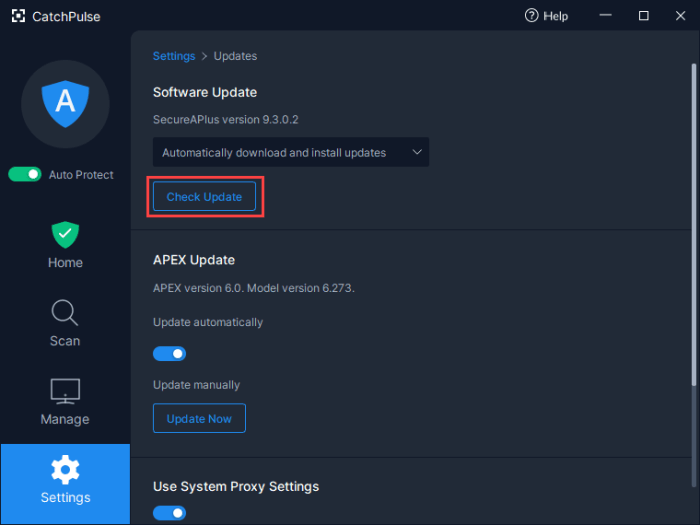
Software updates, while crucial for maintaining security and performance, can sometimes present challenges. Understanding common problems and their solutions empowers users to keep their software current without unnecessary frustration. This section details common update issues, their causes, and effective troubleshooting strategies.
Update failures can stem from various sources, including insufficient storage space, network connectivity problems, corrupted system files, or even conflicts with other software. Successfully navigating these issues often involves a combination of diagnostic steps and targeted solutions tailored to the specific problem and operating system.
Insufficient Disk Space
Insufficient disk space is a frequent culprit behind failed software updates. Large updates require significant free space to download and install correctly. Before initiating an update, always check your available storage. If space is limited, delete unnecessary files, uninstall unused programs, or consider external storage solutions.
Resolving this issue involves freeing up sufficient disk space. This can be achieved by deleting temporary files, uninstalling unnecessary programs, moving large files to external storage, or even upgrading to a larger storage drive. The amount of free space needed varies depending on the size of the update.
Network Connectivity Problems
Intermittent or unstable internet connections can interrupt downloads, leading to incomplete or corrupted updates. A weak Wi-Fi signal, network outages, or firewall restrictions can all contribute to this problem. Ensure a stable and reliable internet connection before starting any update process. Consider using a wired Ethernet connection for better stability, especially for large updates.
Solutions for network connectivity issues involve troubleshooting your internet connection, checking for network outages, temporarily disabling firewalls or antivirus software (re-enabling afterward), and ensuring your router is functioning correctly. If using Wi-Fi, moving closer to the router or improving the signal strength can also help.
Corrupted System Files
Corrupted system files can prevent updates from installing correctly. These files may be damaged due to previous incomplete updates, malware infections, or hard drive errors. Running system file checkers and performing disk scans can help identify and repair these issues.
Addressing corrupted system files typically involves running built-in system file checkers (like Windows’ System File Checker or macOS’s Disk Utility). Performing a full scan of your hard drive for errors is also advisable. In severe cases, reinstalling the operating system may be necessary as a last resort.
Manual Update Installation
When automatic updates fail, manually downloading and installing updates can be a viable solution. Most software providers offer direct download links for their updates on their websites. Download the update, run the installer, and follow the on-screen instructions. Remember to always download updates from the official software developer’s website to avoid malware.
The process involves navigating to the software developer’s website, locating the download section for the specific software, downloading the update file, and then running the installer. Always verify the authenticity of the download source to prevent installing malicious software.
Potential Solutions Categorized by Operating System
The following list Artikels potential solutions for common update problems, categorized by operating system. Note that these are general guidelines, and specific steps may vary depending on the software and operating system version.
- Windows:
- Insufficient Disk Space: Use Disk Cleanup, uninstall unnecessary programs, move files to external storage.
- Network Connectivity Issues: Check internet connection, restart router, run network troubleshooter.
- Corrupted System Files: Run System File Checker (sfc /scannow).
- macOS:
- Insufficient Disk Space: Use storage management tools, delete unnecessary files, uninstall unused apps.
- Network Connectivity Issues: Check internet connection, restart router, troubleshoot network settings.
- Corrupted System Files: Run Disk Utility (First Aid).
- Linux (general):
- Insufficient Disk Space: Use disk space analysis tools (e.g., `du`), delete unnecessary files.
- Network Connectivity Issues: Check internet connection, restart network services, troubleshoot network configuration.
- Corrupted System Files: Run system package manager’s update/repair functions (varies by distribution).
Last Point
Mastering software updates is key to a smooth and secure digital experience. By understanding the various update mechanisms, configuring your settings effectively, and knowing how to troubleshoot common issues, you can safeguard your systems and enjoy the benefits of the latest features and security patches. Regularly reviewing and updating your software is an investment in the long-term stability and performance of your devices.