Mastering your computer mouse goes beyond simple clicks. The subtle dance between speed and sensitivity significantly impacts your productivity and enjoyment, whether you’re navigating spreadsheets, creating digital art, or dominating online games. Understanding how to fine-tune these settings can transform your user experience, leading to smoother workflows and enhanced precision. This guide provides a comprehensive approach to optimizing your mouse settings across various operating systems.
We’ll explore the intricate relationship between DPI settings, cursor movement, and overall performance. We will cover adjusting speed through control panels and third-party software, weighing the pros and cons of acceleration features. Finally, we’ll tackle troubleshooting common issues, equipping you with the knowledge to diagnose and resolve problems swiftly. By the end, you’ll possess the expertise to customize your mouse for peak performance tailored to your specific needs.
Understanding Mouse Settings and Their Impact
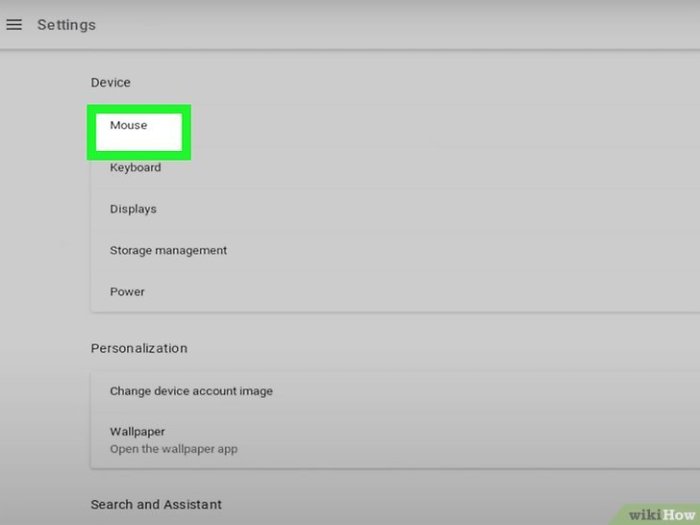
Properly configuring your mouse settings significantly impacts both your productivity and your gaming experience. Understanding the interplay between speed and sensitivity is crucial for optimizing your workflow and achieving peak performance. This section will detail how these settings function and how to adjust them on various operating systems.
Mouse speed and sensitivity are related but distinct concepts. Mouse speed refers to how quickly the cursor moves across the screen in response to physical mouse movement. Sensitivity, often measured in Dots Per Inch (DPI), determines how much cursor movement is generated for a given amount of physical mouse movement. A higher DPI means the cursor will move further for the same distance of mouse movement, resulting in greater sensitivity.
DPI Settings and Cursor Movement
Different DPI settings directly affect the responsiveness of your cursor. Low DPI settings require more physical mouse movement to achieve the same cursor displacement, leading to slower, more precise control. High DPI settings, conversely, result in rapid cursor movement with less physical input, making it ideal for quick navigation but potentially less precise. The optimal DPI setting depends heavily on individual preferences, the type of work being performed, and the size of your screen.
For example, a graphic designer might prefer a lower DPI for precise image editing, while a gamer might prefer a higher DPI for fast-paced action games.
Locating Mouse Settings in Different Operating Systems
Finding your mouse settings varies slightly across different operating systems. Below is a step-by-step guide for Windows, macOS, and Linux.
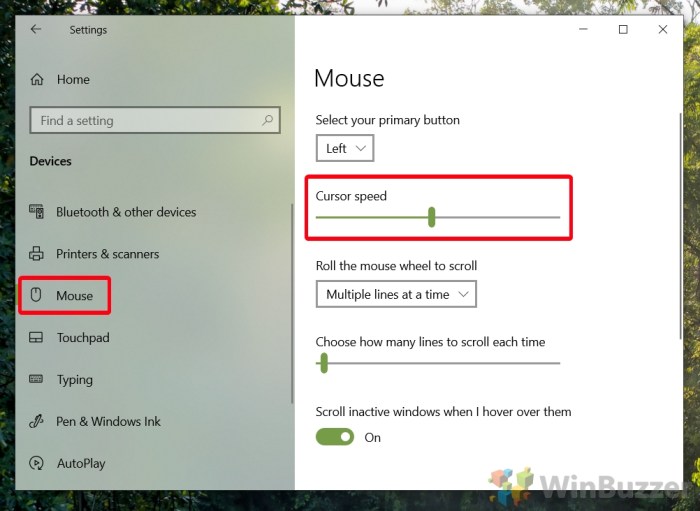
Windows: Typically, you can access mouse settings by right-clicking the Start button, selecting “Settings,” then “Devices,” and finally “Mouse.” From here, you can adjust pointer speed, scroll wheel settings, and other related options. The exact location may vary slightly depending on your Windows version.
macOS: On macOS, navigate to “System Preferences,” then click on “Mouse.” This will open a panel where you can adjust pointer speed, scrolling options, and other preferences. Again, minor variations might exist depending on the macOS version.
Linux: The location of mouse settings in Linux distributions varies greatly depending on the desktop environment (GNOME, KDE, XFCE, etc.). Generally, you’ll find mouse settings within the system settings or control panel, often under a category like “Input Devices” or “Peripherals.” Consult your specific distribution’s documentation for precise instructions.
Sensitivity Settings: Impact on Gameplay and Productivity
The table below compares the effects of low, medium, and high sensitivity settings on gameplay and productivity.
| Setting | Description | Gameplay Impact | Productivity Impact |
|---|---|---|---|
| Low Sensitivity | Requires more mouse movement for cursor displacement. | More precise aiming, but slower target acquisition. Suitable for slower-paced games requiring accuracy (e.g., sniper games). | Increased precision for tasks like photo editing or CAD design, but slower navigation. |
| Medium Sensitivity | Balances speed and precision. | Good compromise between speed and accuracy, suitable for many game genres. | Efficient for general tasks, offering a balance between speed and accuracy. |
| High Sensitivity | Minimal mouse movement results in significant cursor displacement. | Faster target acquisition, but less precise aiming. Ideal for fast-paced action games requiring quick reflexes. | Faster navigation for tasks like web browsing or document scrolling, but potentially less precise for detail-oriented work. |
Adjusting Mouse Speed and Sensitivity for Optimal Performance
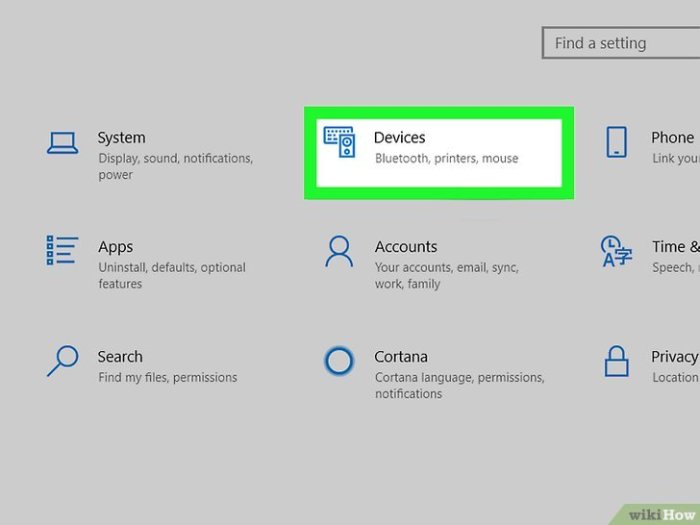
Optimizing your mouse settings is crucial for comfort and efficiency, regardless of whether you’re a casual user or a professional. The right settings can significantly impact your productivity and enjoyment, especially in tasks requiring precision or fast reflexes. This section details how to adjust mouse speed and sensitivity for optimal performance across various applications.
Methods for Adjusting Mouse Speed
There are several ways to modify your mouse speed, catering to different user preferences and technical skills. The most common method involves using your operating system’s control panel. This typically provides a simple slider to adjust the pointer speed, offering a straightforward way to change how quickly the cursor moves across the screen. Alternatively, many gaming mice and third-party software packages offer more granular control, allowing for customized profiles tailored to specific applications or games.
These often include options for acceleration and other advanced settings not available in the basic control panel.
Mouse Acceleration: Advantages and Disadvantages
Mouse acceleration dynamically adjusts the cursor speed based on how quickly you move the mouse. While some find it intuitive, particularly in fast-paced games, it can also lead to inconsistencies and decreased precision. The advantage lies in its ability to allow for both rapid movements and fine adjustments, making it suitable for tasks requiring a mix of speed and accuracy.
However, the disadvantage is that it can make precise movements difficult to control consistently. The unpredictability introduced by acceleration can hinder performance in tasks requiring pinpoint accuracy, such as graphic design or precision aiming in games. Many professional gamers and graphic designers prefer to disable mouse acceleration for its increased consistency and control.
Fine-tuning Mouse Sensitivity for Specific Tasks
Mouse sensitivity directly impacts how far the cursor moves on screen for a given physical mouse movement. High sensitivity translates to large cursor movements for small mouse movements, ideal for quick navigation but potentially less precise. Low sensitivity requires larger mouse movements for the same cursor travel, promoting precision but potentially slower navigation. For gaming, the optimal sensitivity often depends on the game’s mechanics and the player’s preferred play style.
Fast-paced games might benefit from higher sensitivity, while slower, more strategic games might favor lower sensitivity. Graphic design often benefits from lower sensitivity for meticulous work, while general computing can utilize a moderate sensitivity for balanced speed and precision.
Workflow for Optimizing Mouse Settings
Optimizing your mouse settings involves a process of experimentation and adjustment. Begin by adjusting the speed setting in your operating system’s control panel to a comfortable starting point. Then, test the settings in applications you frequently use. If you find the cursor movement too slow or too fast, adjust the speed accordingly. Next, consider whether to enable or disable mouse acceleration.
Try both options to determine which better suits your workflow and preferred level of control. Finally, fine-tune the sensitivity for specific applications. For example, you might use a higher sensitivity for web browsing and a lower sensitivity for photo editing. Remember to save your settings once you find a configuration that feels comfortable and efficient. This iterative process allows you to personalize your mouse settings to meet your individual needs and preferences.
Troubleshooting Common Mouse Issues Related to Speed and Sensitivity
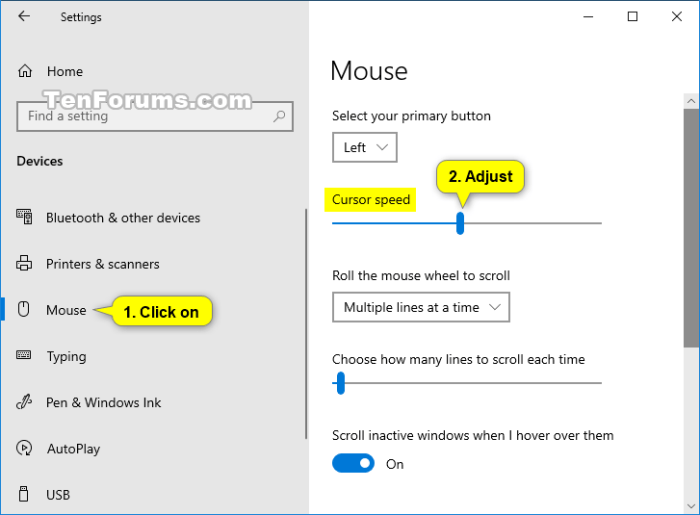
Adjusting mouse settings can significantly improve your computing experience, but sometimes, things don’t go as planned. Unexpected cursor behavior, like erratic movement or sluggish response, can be frustrating. This section will address common problems and provide solutions to restore smooth and precise mouse control. We’ll explore troubleshooting steps for both software and hardware-related issues.
Many users encounter problems with mouse speed and sensitivity after adjusting settings. These issues often manifest as jerky cursor movement, noticeable lag between mouse movement and on-screen action, or the cursor moving too quickly or too slowly, rendering precise control difficult. These problems can stem from incorrect settings, driver conflicts, or even hardware malfunctions.
Diagnosing Erratic Cursor Movement
Erratic cursor movement, where the cursor jumps or moves unexpectedly, can be caused by several factors. A dirty or damaged mouse sensor can lead to inaccurate tracking. Interference from other devices, such as wireless peripherals operating on the same frequency, can also disrupt the mouse signal. Software conflicts, particularly outdated or corrupted mouse drivers, frequently contribute to erratic behavior.
Finally, a damaged mouse cable (for wired mice) can introduce inconsistencies in the signal. System resource limitations, particularly on older or less powerful machines, can also impact responsiveness.
Troubleshooting a Mouse That Moves Too Fast or Too Slow
If your cursor moves too quickly or too slowly, the first step is to check your operating system’s mouse settings. Windows users can access these settings through the Control Panel or Settings app, while macOS users can adjust sensitivity in System Preferences. Ensure the pointer speed is set to a comfortable level. If the problem persists after adjusting settings, consider the possibility of a malfunctioning mouse sensor or a driver conflict.
Reinstalling the mouse drivers or trying a different mouse can help isolate the problem.
Resolving Issues Caused by Driver Conflicts or Hardware Malfunctions
Driver conflicts are a common source of mouse problems. Outdated or corrupted drivers can lead to erratic cursor behavior, slow response times, or even complete mouse failure. The solution is to update or reinstall the mouse drivers. For Windows, this can usually be done through the Device Manager. For macOS, updates are typically handled automatically through System Updates.
If the problem continues after updating drivers, hardware issues such as a failing mouse sensor or a damaged cable (for wired mice) should be considered. Testing the mouse on a different computer can help determine if the problem is with the mouse itself or the computer’s configuration.
Checklist for Diagnosing and Fixing Mouse Speed and Sensitivity Problems
Before attempting more advanced troubleshooting, systematically checking these points can often quickly identify the problem:
A methodical approach is crucial when troubleshooting mouse issues. This checklist provides a structured way to pinpoint the source of the problem, from simple software adjustments to more complex hardware diagnostics.
- Check the mouse settings within your operating system. Adjust the pointer speed and sensitivity to your preference.
- Inspect the mouse for physical damage, such as a dirty sensor or frayed cable.
- Try the mouse on a different computer to rule out a hardware fault with the mouse itself.
- Update or reinstall the mouse drivers. This often resolves conflicts and improves performance.
- Restart your computer. A simple reboot can sometimes clear temporary software glitches.
- Check for software conflicts by temporarily disabling other recently installed programs.
- If using a wireless mouse, check the battery level and the connection strength.
- Consider the possibility of interference from other wireless devices.
Last Point
Optimizing your mouse settings is a journey of personalization, balancing speed and precision for seamless interaction with your computer. By understanding the impact of DPI, utilizing various adjustment methods, and troubleshooting common problems, you can achieve a tailored setup that enhances productivity and enjoyment. Remember, the perfect settings are subjective and depend on individual preferences and tasks. Experiment, adjust, and refine your mouse configuration until you find the sweet spot that empowers your digital workflow.