In today’s hyper-connected world, notifications are a constant companion. Mastering your notification settings isn’t just about silencing the incessant pings; it’s about reclaiming your focus and productivity. This guide explores how to strategically manage notifications across your devices, transforming them from distractions into valuable tools for staying informed and in control.
We’ll delve into the intricacies of notification management across different operating systems, offering practical tips and techniques to optimize your settings for peak efficiency. From understanding the various notification categories and customization options available to leveraging advanced features like scheduling and prioritization, we’ll equip you with the knowledge to curate a notification experience that supports, rather than hinders, your goals.
Understanding Notification Preferences Across Devices
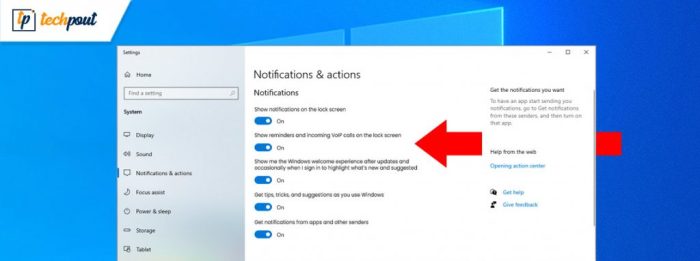
Managing notifications effectively is crucial for maintaining productivity and minimizing distractions. Different operating systems offer varying levels of control and customization for notifications, requiring a nuanced understanding to optimize your experience across all your devices. This section explores notification categories, customization options, and best practices for consistent management across iOS, Android, and Windows.
Notification Categories Across Operating Systems
Operating systems categorize notifications to allow for granular control. iOS utilizes groupings like “Alerts,” “Banners,” and “None,” offering distinct visual and auditory feedback options. Android employs similar categories, often including “Priority,” “Silent,” and “Alarms,” with further sub-categorization possible through app-specific settings. Windows 10 offers categories like “Notifications,” “Action Center,” and “Focus Assist,” each allowing different levels of control over notification display and behavior.
macOS mirrors many of the iOS notification settings, focusing on alerts, banners, and sound options, with further customization within individual app preferences.
Customizing Notification Settings on iOS and Android
Let’s delve into step-by-step instructions for customizing notification settings on two popular operating systems.
iOS Notification Customization
1. Navigate to Settings
Open the “Settings” app on your iOS device.
2. Select Notifications
Tap on “Notifications.”
3. Choose an App
Select the app whose notifications you want to manage.
4. Adjust Notification Settings
You’ll see options for “Allow Notifications,” “Alert Style” (Banners, Alerts, None), “Sounds,” and “Badge App Icon.” Customize these settings to your preference. For example, you might choose “Banners” for less urgent notifications and “Alerts” for important ones.
5. Repeat for Other Apps
Repeat steps 3 and 4 for all apps you wish to customize.
Android Notification Customization
1. Access Settings
Open the “Settings” app on your Android device. The exact location may vary slightly depending on your device manufacturer and Android version.
2. Locate Notifications
Find the “Notifications” or “Apps & notifications” setting.
3. Select an App
Choose the app you want to manage.
4. Configure Notification Settings
You’ll find options to enable or disable notifications, choose a notification channel (e.g., Priority, Silent), set notification sounds, and adjust the importance level. This allows for finer-grained control than iOS’s simpler options.
5. Manage All Apps
You can also manage notification settings for all apps in one place, usually found under a section like “App notifications” or a similar label.
Best Practices for Cross-Device Notification Management
Maintaining consistent notification settings across multiple devices enhances productivity and reduces confusion. Prioritize important notifications across all your devices, using similar alert styles and sounds. Consider using a unified notification management system or app if you frequently switch between devices. Regularly review and adjust your settings as your needs change. For example, you might want more aggressive notifications during work hours and less during evenings.
Comparison of Notification Management Features
| Feature | iOS | Android | Windows 10 |
|---|---|---|---|
| Notification Categories | Alerts, Banners, None | Priority, Silent, Alarms (and app-specific channels) | Notifications, Action Center, Focus Assist |
| Customization Options | Sounds, Badge App Icon, Alert Style | Sounds, Importance Level, Notification Channels, LED light | Sounds, Banners, Focus Assist modes, Action Center prioritization |
| Prioritization Methods | Alert Style (Alerts vs. Banners) | Importance Levels, Notification Channels | Focus Assist, Action Center grouping and prioritization |
Optimizing Notifications for Productivity and Focus
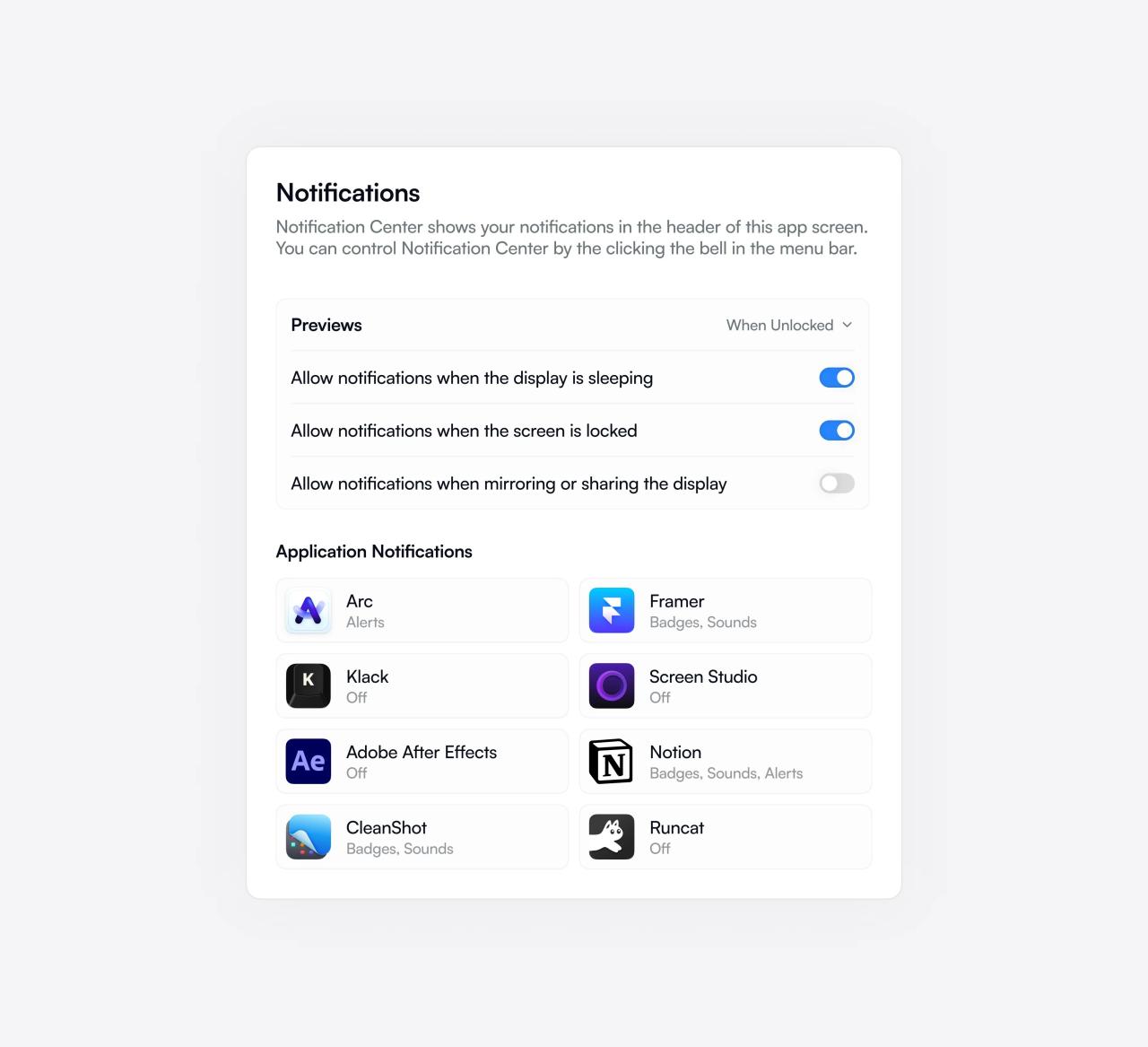
Excessive notifications significantly disrupt our workflow and cognitive processes. The constant stream of alerts fragments our attention, leading to reduced concentration and impaired task completion. This ultimately impacts productivity and can contribute to feelings of stress and overwhelm. Effectively managing notifications is crucial for maintaining focus and achieving optimal performance.
Filtering and prioritizing notifications based on their importance and urgency is a key strategy for reclaiming control over your digital environment. Instead of reacting passively to every alert, a proactive approach allows you to selectively engage with information that truly demands your immediate attention. This involves consciously deciding which notifications are essential and which can be delayed or ignored altogether.
Filtering and Prioritizing Notifications
Prioritizing notifications requires a thoughtful approach to categorizing incoming alerts. Consider assigning different levels of importance—high, medium, and low—to various notification types. High-priority notifications might include urgent messages from colleagues or family members, while low-priority notifications could include social media updates or less time-sensitive app alerts. By implementing this system, you can filter out less crucial alerts, allowing you to focus on what matters most.
For example, you could silence notifications from social media apps during work hours and only allow alerts from essential communication tools.
Effective Use of Do Not Disturb Modes
Do Not Disturb (DND) modes are powerful tools for creating focused work periods. These features, available on most smartphones and computers, allow you to temporarily silence all or selected notifications. Effective use of DND involves scheduling specific times for activation, such as during meetings, deep work sessions, or periods dedicated to focused tasks. Many devices offer customized DND settings, allowing you to create exceptions for certain contacts or apps.
For instance, you might allow calls from your immediate family while silencing other notifications. Strategic implementation of DND can significantly enhance concentration and reduce interruptions.
Managing Apps with Excessive Notifications
Many applications are designed to generate a high volume of notifications, often exceeding the user’s need for information. This can be detrimental to focus and productivity. Understanding which apps contribute most to this notification overload is the first step to regaining control.
Here is a list of app categories frequently associated with excessive notifications and strategies for managing them:
- Social Media Apps (Facebook, Instagram, Twitter, etc.): Turn off all notifications except for direct messages or mentions from close contacts. Consider using the app less frequently or scheduling specific times for checking updates.
- Gaming Apps: Disable most notifications, except perhaps for daily rewards or crucial game updates. Limit gaming sessions to designated times to prevent constant interruptions.
- News and Information Apps: Curate your news sources and select only the most important topics for notifications. Consider switching to a less frequent update schedule to avoid information overload.
- Shopping Apps: Turn off most notifications, except for order confirmations or shipment updates. Avoid browsing these apps frequently to minimize impulse purchases and distractions.
Advanced Notification Management Techniques
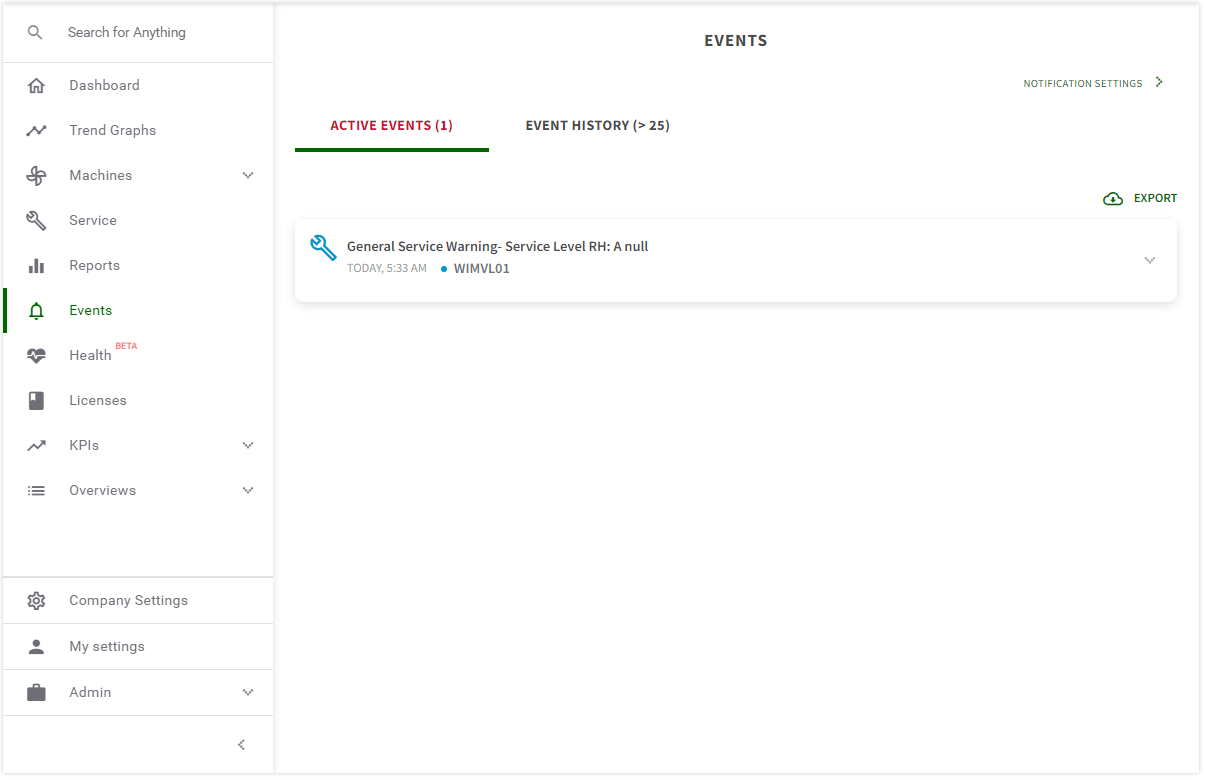
Mastering notification settings goes beyond simply turning them on or off. Advanced techniques allow for a more nuanced and personalized approach, optimizing your digital well-being and productivity. This section delves into strategies for taking control of your notifications, moving beyond basic adjustments to create a truly tailored experience.
Notification Scheduling and Time-Based Rules
Scheduling notifications allows you to control when you receive alerts, minimizing interruptions during focused work periods or sleep. Many devices and apps offer built-in features to create custom schedules. For example, you might silence all notifications between 10 PM and 7 AM to ensure undisturbed sleep, or mute social media notifications during work hours to maintain concentration. Effective scheduling dramatically improves focus and reduces stress associated with constant alerts.
Consider setting specific time windows for checking emails or social media rather than receiving constant updates. This approach promotes healthier digital habits and prevents information overload.
Methods for Silencing Specific Apps or Contacts
Various methods exist to silence specific apps or contacts, providing granular control over your notification stream. Most operating systems allow you to individually adjust notification settings for each app, choosing to disable notifications entirely, or only allow alerts for specific types of events (e.g., only allowing calls from your contact list). Similarly, many messaging apps allow you to mute individual conversations or groups for a specified duration or indefinitely.
This targeted approach helps prioritize important notifications while filtering out less critical ones. For instance, you might mute a noisy group chat during a work meeting but keep notifications enabled for urgent messages from your manager.
Security Risks of Poorly Managed Notification Settings
Poorly managed notification settings can pose significant security risks. Overly permissive settings can expose you to phishing attempts or malware. For example, notifications displaying sensitive information on a public screen could be visible to others, compromising your privacy. Furthermore, failing to update app permissions can allow malicious apps access to your personal data. Regularly reviewing and adjusting your notification settings, along with keeping your software updated, is crucial for maintaining strong online security.
Be wary of apps requesting excessive permissions, and prioritize strong passwords and two-factor authentication for enhanced protection.
Customizing Notification Sounds and Vibration Patterns
Customizing notification sounds and vibration patterns allows you to quickly distinguish between different types of alerts without needing to look at your device. Many operating systems and apps allow you to assign unique sounds or vibration patterns to specific contacts or apps. For instance, you might assign a distinct ringtone to urgent calls from your family, or a specific vibration pattern for emails from your boss.
This customization can significantly improve efficiency and reduce the likelihood of missing important notifications. This feature is particularly helpful for individuals who rely heavily on notifications for time-sensitive tasks or those with hearing impairments who rely on vibrations.
Ending Remarks
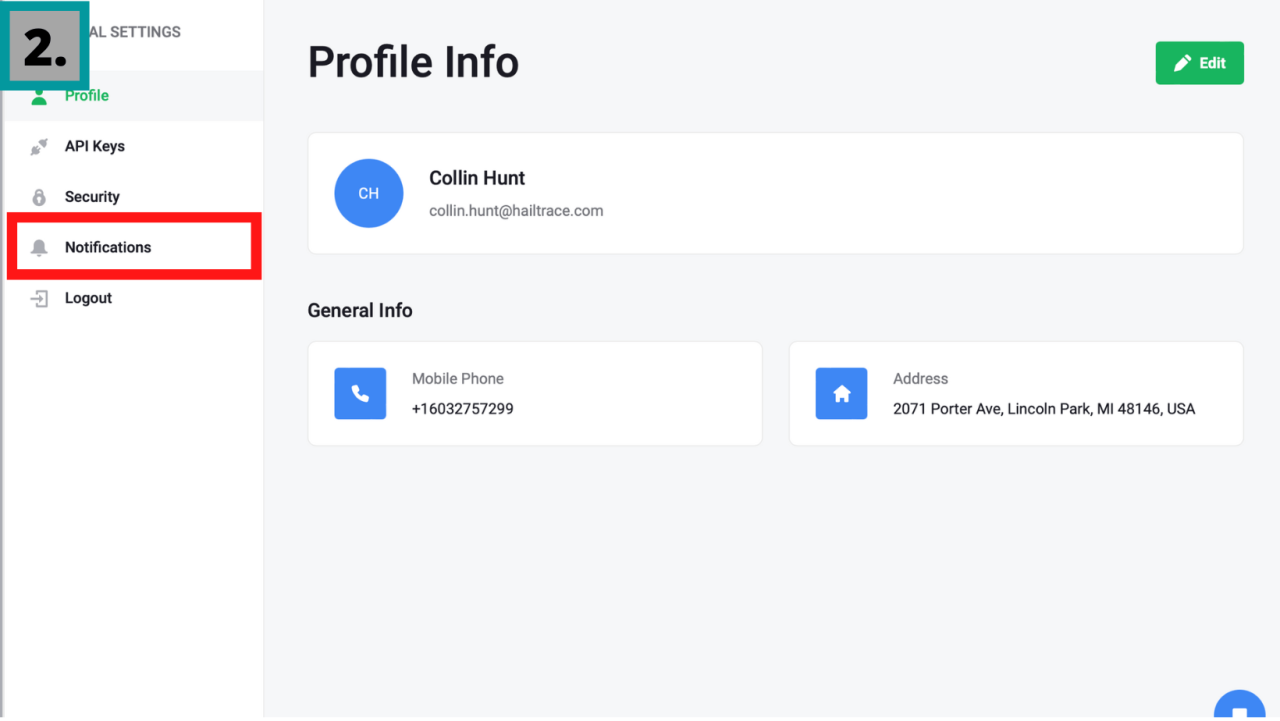
By understanding and effectively managing your notification settings, you can transform potential distractions into powerful tools for staying informed. This involves not only customizing your alerts across devices but also developing mindful strategies for filtering, prioritizing, and scheduling notifications to enhance productivity and focus. Take control of your digital environment; reclaim your attention and enjoy a more efficient and fulfilling experience.